Ever recorded a great moment on your phone only to find the video looks blurry, noisy, or pixelated after uploading?
This happens a lot with TikTok clips, YouTube videos, and other social media footage. Compression, low light, and older phone cameras can all reduce video clarity. Even a great piece of content can look unprofessional if the quality isn’t good enough.
That’s why many creators now use a Video Quality Enhancer. AI tools can upscale resolution, remove noise, and restore lost details so videos look sharper and cleaner on modern screens.
In this guide, we’ll explain how AI video enhancement works and how it can help improve everyday videos before sharing them online.
What Is a Video Quality Enhancer
A Video Quality Enhancer is an AI tool designed to improve the clarity and resolution of existing video footage.
Traditional video upscaling simply stretches pixels, which often makes the video look blurry. Modern AI tools work differently. They analyze frames, recognize patterns, and reconstruct missing visual details.
This allows them to improve several aspects of video quality, such as:
- Upscaling resolution (for example 720p to HD or 4K)
- Reducing digital noise and grain
- Removing compression artifacts
- Improving clarity in dark scenes
- Smoothing motion in low-frame-rate videos
Because of these capabilities, AI enhancement has become a useful step for creators who work with older clips, downloaded videos, or smartphone recordings.
Common Video Quality Problems on Social Media
Many creators notice their videos lose quality after recording or uploading. Some of the most common problems include:
Low Resolution
Older smartphones or downloaded clips may only be recorded at 480p or 720p, which can look soft on modern displays.
Compression Artifacts
Platforms like TikTok and YouTube compress videos to reduce file size. This often creates blocky edges or strange pixel patterns.
Motion Blur
Fast movement or handheld recording can cause frames to appear blurry.
Low-Light Noise
Videos recorded indoors or at night often contain visible grain from camera sensors.
A video quality enhancer helps address these problems by reconstructing details and improving clarity across frames.
Key AI Features That Improve Video Quality
Modern video enhancement tools rely on several AI technologies to improve footage.
4K AI Upscaling
AI upscaling increases video resolution while attempting to recreate realistic textures and edges. Instead of simply enlarging pixels, the model predicts what higher-resolution details should look like.
This makes lower-resolution clips appear significantly sharper.
Noise Reduction
Noise reduction algorithms detect digital grain and remove it without destroying important visual details.
This is particularly helpful for:
- Night recordings
- Indoor videos
- Older phone footage
The result is a cleaner and more balanced image.
Compression Artifact Removal
Downloaded or heavily compressed videos often contain blocky artifacts and distortion.
AI enhancement tools can smooth these artifacts and restore more natural textures.
Motion Deblurring
Some tools analyze movement between frames and sharpen motion-blurred objects. This can make fast-moving clips or handheld footage easier to watch.
Frame Interpolation
AI can also generate intermediate frames to create smoother playback. This technique can convert low-frame-rate footage into smoother video, such as 60fps playback.
Real-World Test: Fixing a Noisy Concert Clip
Last week I was going through old phone storage and found a short video I recorded at a small livehouse concert. The band sounded amazing, but the footage itself was pretty rough.
I filmed it from the back of the room, the lighting kept changing, and the whole clip was filled with purple digital noise. In some frames, the singer’s face even looked like a blurry mosaic.
At first I thought the clip was basically unusable. But out of curiosity, I decided to run it through an AI enhancer to see if anything could be improved.
I uploaded the video to the Video Quality Enhancer on AIAI.com, and a few things immediately stood out.
The first improvement was in the dark areas of the video. The messy digital noise in the shadows was reduced, so the blacks looked deeper and cleaner instead of grainy.
The second thing I noticed was the natural sharpening of edges. The outlines of the guitarist and singer became clearer, but the video didn’t develop that overly processed “plastic” look that some AI tools produce.
Finally, the enhanced version held up much better when viewed full screen. The original 720p clip looked terrible on my monitor, but the improved version was noticeably sharper and much easier to watch.
It’s obviously not going to turn a smartphone recording into cinema-level footage. But it did turn what felt like a throwaway clip into something I’d actually share with friends.
Using AI Tools to Improve Social Media Videos
For creators who regularly post online, improving video quality can be a quick step before uploading content.
Many AI tools allow you to upload a clip, apply automatic enhancements, and download the improved version within minutes.
For example, the Video Quality Enhancer on AIAI.com allows users to enhance videos directly in the browser. The tool analyzes the footage and applies improvements like resolution upscaling, artifact removal, and noise reduction automatically.
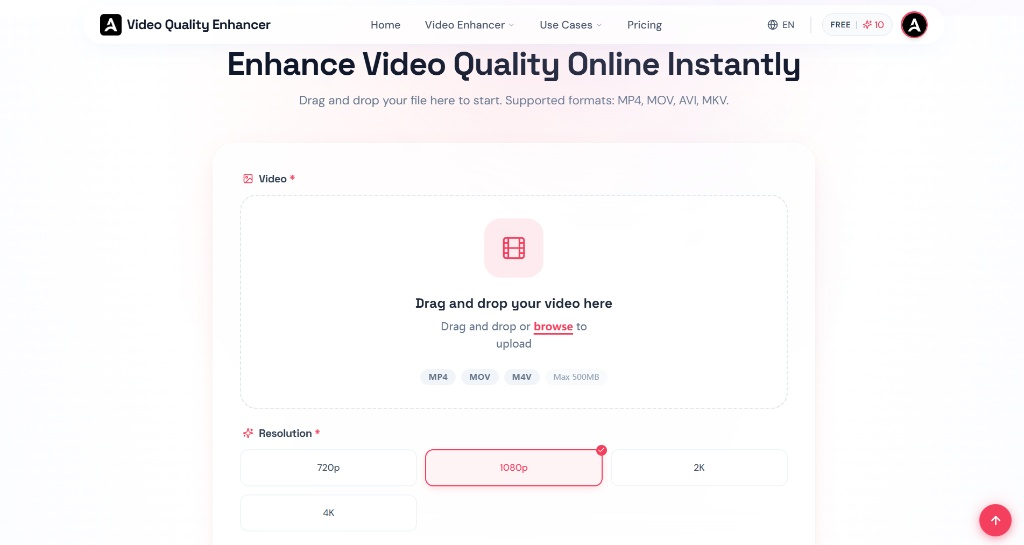
Because the processing happens online, it works across different devices without requiring video editing software.
When You Should Use a Video Quality Enhancer
AI enhancement tools are particularly useful in situations like:
- Restoring old smartphone videos
- Improving downloaded YouTube clips
- Fixing pixelated social media footage
- Enhancing low-light recordings
- Preparing videos before reposting online
Even small improvements in clarity can make content look significantly more professional.
Final Thoughts
Video quality plays a big role in whether viewers keep watching or scroll away.
Blurry footage, compression artifacts, and digital noise can make even interesting content look unpolished. A Video Quality Enhancer uses AI to reconstruct missing details, reduce noise, and upscale resolution so that videos appear clearer on modern screens.
For creators working with TikTok clips, YouTube videos, or older recordings, AI enhancement offers a simple way to improve visual quality without needing advanced editing skills.

Stop blurring your videos. I tested popular watermark removers on complex AI-generated clips (Sora 2). See the before/after results and Read more

AI watermark remover from video instantly with AI. AIAI.com’s video-to-video watermark remover cleans footage while preserving motion and visual quality.
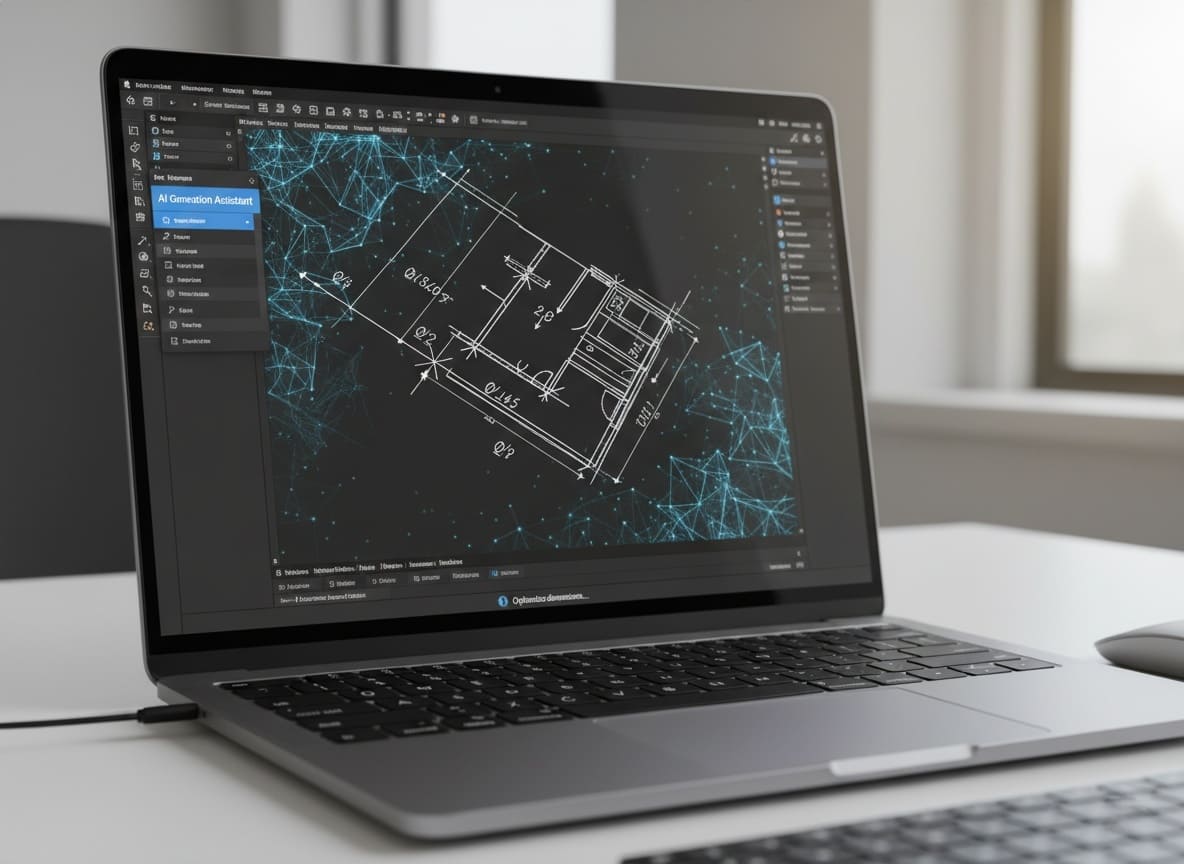
Struggling with complex CAD software? An AI CAD generator lets you turn simple ideas into real designs without advanced skills. Read more
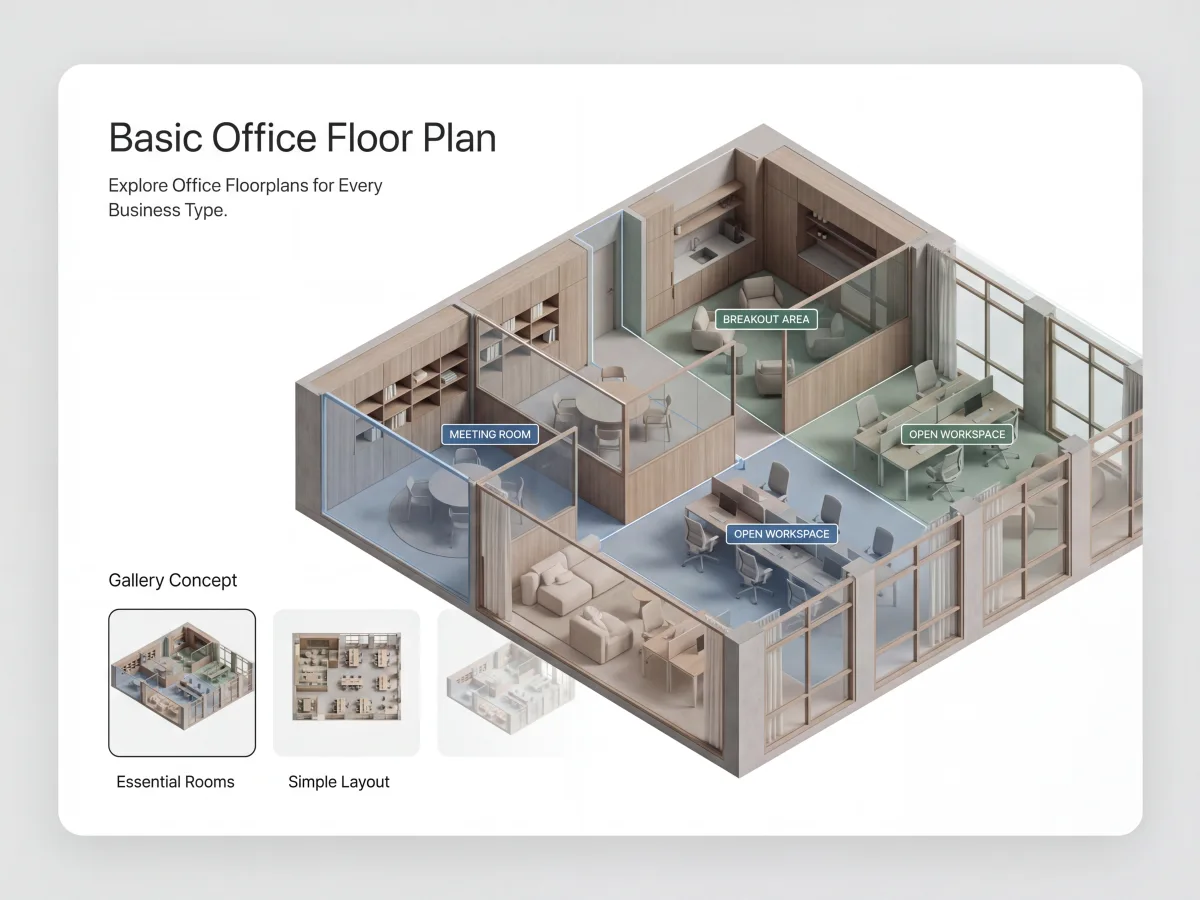
Faced with a sudden landlord deadline or moving into a new space? Here is how to create a professional, dimension-accurate Read more