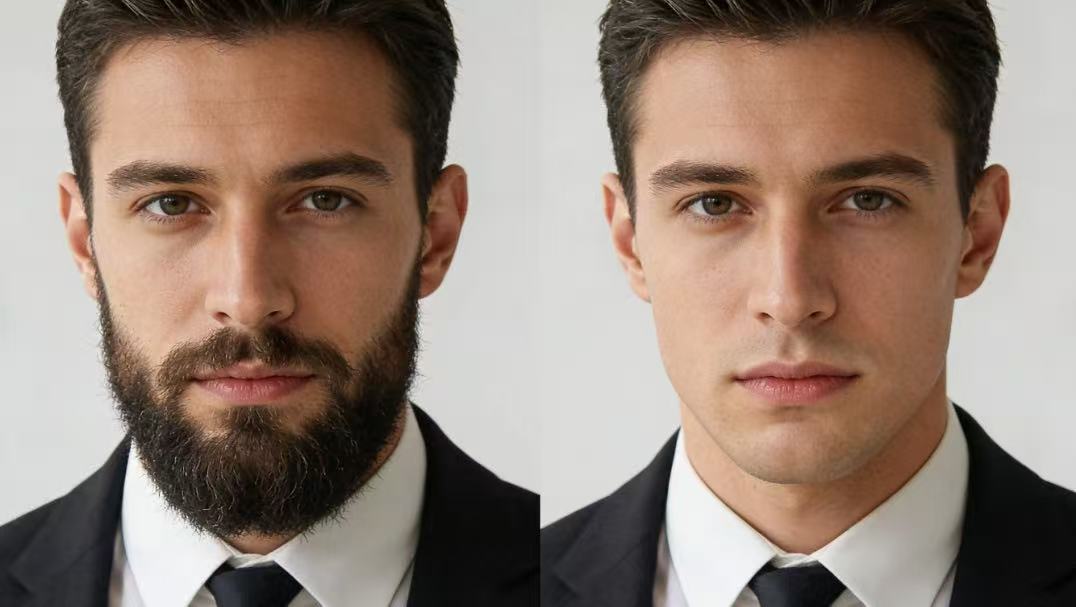
Are you curious about what you’d look like clean-shaven?
Have you ever wanted to test a fresh new look or just play a fun prank on your friends? Ditching the beard in a photo has never been simpler. Nano Banana Pro, a game-changing tool that makes photo edits a total breeze.
This guide will teach you exactly how to use Nano Banana Pro’s beard removal feature. You’ll be able to wipe out facial hair in seconds, and still keep your skin looking totally natural.
Why Choose Nano Banana Pro for Beard Removal?
- Real skin feel: It doesn’t just blur your beard area. It actually adds natural pores and light effects that look like the real deal.
- Perfect jawline fix: The tool nails your natural jawline shape every time.
- Great output quality: Ideal for posting on Instagram, TikTok, or even sprucing up your professional profile.
- One-click magic: No manual editing or fancy Photoshop skills required.
How to Remove Beard from Photos with Nano Banana Pro
Are you ready to switch up your look? Follow these easy steps to use the beard removal feature.
Step 1: Upload Your Photo
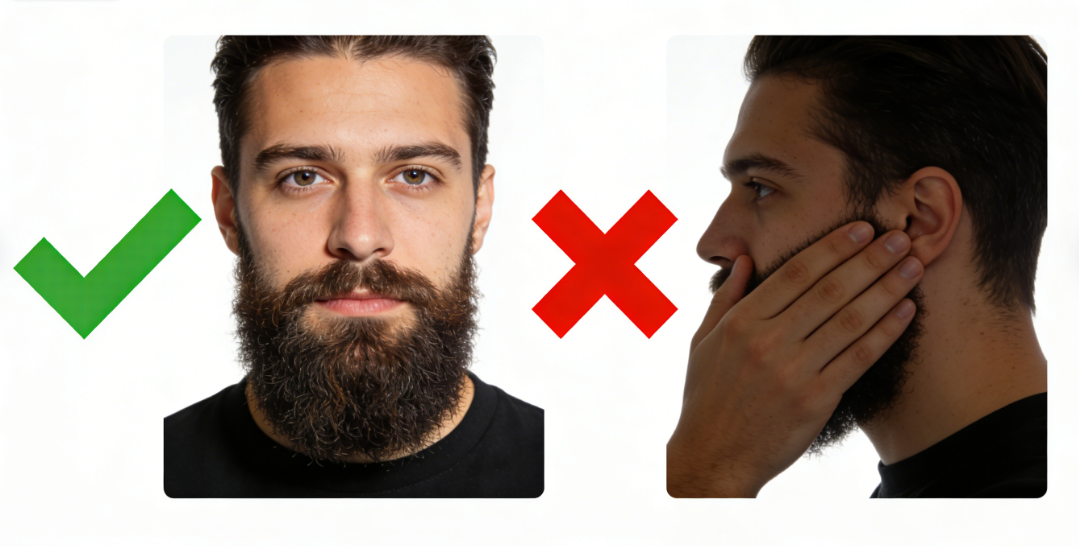
Open Nano Banana Pro and pick a clear picture of yourself. Attention: for the best results, use a well-lit photo where your face is facing straight on. Avoid pictures where your hand or something else covers part of your beard.
Step 2: Select the “Remove Beard” Feature
Type a simple prompt like: “Remove beard, clean-shaven look, smooth skin.” If you’re using the generative fill feature, first highlight your beard area, then type “Clean-shaven skin” in the prompt box.
Step 3: Let the Tool Do Its Job
Hit “Run Ctrl.” Nano Banana Pro will analyze your photo and erase facial hair in seconds. It blends the new skin with your original tone perfectly, matching all the light and shadows spot on.
Step 4: Tweak and Download
Check out the result.Fix Common Issues with These Simple Prompts.
If the skin looks too fake or over-smooth. Sometimes the tool gets rid of the beard but leaves your skin looking plastic or blurry. Try prompts like:
- “Make skin texture more real. Add natural pores and details.”
- “Less smoothing – the skin looks too plastic.”
- “Add small natural skin marks and texture on the chin.”
If the jawline is distorted or unclear . If you have a thick beard, the tool might struggle to figure out where your chin ends. Try prompts like:
- “Make the jawline clearer.” Give it a strong, masculine look.
- ” Fix the chin shape to look natural—no receding lines.”.
- “Sharpen jawline edge to separate the face from the neck.”
If the skin tone doesn’t match , Try prompts like:
- “Blend the skin tone to match the rest of the face perfectly.”
- “Fix the chin lighting to match the photo’s original shadows.”
- “Get rid of uneven color around the mouth.”
Leftover the “ghost” hair. Sometimes the tool leaves blurry spots that look like stubble or smudges. Try prompts like:
- “Completely remove all facial hair and stubble traces.”
- “Clean up the area around the lips—no dark smudges left.”
- “Make sure the face is fully clean-shaven—no 5 o’clock shadow.”
If you want to keep specific hair (e.g. mustache ) . If the tool removed everything but you only wanted the beard gone. Try prompts like:
- “Only remove hair on the jawline—keep the goatee.”
- “Remove chin and cheek beard but leave the mustache.”
Once you’re happy with your clean-shaven look, hit the Download button to save the high-res image.
Tips for Perfect Beard Removal Results
To ensure your edit looks realistic (not like a cheap filter), keep these tips in mind:
- Lighting is key: The tool works best on photos with soft, even light. Harsh shadows on your beard can throw it off.
- Stick to front-facing angles: A straight-on “passport-style” selfie gives way to more accurate jawline results than a side profile.
- Use clear photos: The sharper your original picture, the more realistic your skin texture will be after editing.
Frequently Asked Questions (FAQ)
Q: Is Nano Banana Pro free to use? A: Head over to our website at AIAI.com to try Nano Banana Pro. You get several free trial chances, so you can test the beard removal feature before upgrading for premium perks like 4K downloads.
Q: Can I remove just the mustache? A:Yes! Just type a prompt like “Remove mustache but keep beard” to get your custom look.
Q: Does it work on long beards? A: Absolutely. The tool is trained to handle everything from light stubble to thick, full beards—by rebuilding the lower part of your face completely.
Conclusion
Nano Banana Pro’s beard removal feature is the easiest way to try a new look without touching a razor. Its smart technology makes sure the results are not just fun—they look shockingly real.
Ready to see the face under your beard? Try Nano Banana Pro today and get your clean-shaven look in a flash!

With the rise of generative AI, creating stunning videos has never been easier. I recently used Meta AI to generate Read more
Explore how an AI video generator can speed up content creation for social media, business videos, product promos, and blog-to-video Read more

If you’ve ever opened a video editor and felt stuck, AI video generators might feel like a shortcut worth trying. Read more
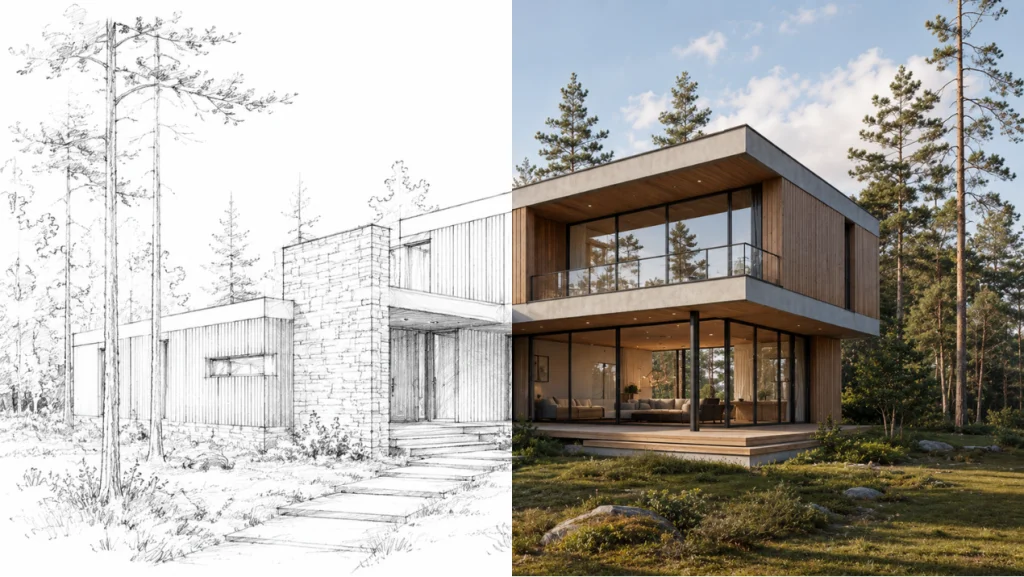
Can an AI Architecture Generator actually deliver buildable structural details, or is it just pretty, impossible-to-construct pictures? Here is my Read more