If you’ve ever built a client pitch deck, a UI mockup, or a rough video edit, you know the drill. You find the absolute perfect asset on iStock. But when you place it into your layout, those dense, repeating gray grid lines and prominent logos slap you right in the face.
And honestly, Sending a draft with huge stock grids to a client makes the whole project feel cheap before they even read your ideas.
Look, I’m all about paying creators. When a project gets approved and goes live, you absolutely buy the license. No question. But when you’re just throwing 20 different visual concepts at a client to see what sticks, buying those licenses upfront is a fast track to going broke.
That’s why I started looking for a solid iStock Watermark Remover just to clean up my temporary mockups . After testing dozens of options, dealing with sketchy software, and losing hours to manual Photoshop brushing, I wanted to share what actually works so you can save your sanity.
The Old-School Playbook: Why Traditional Watermark Removal Fails Now
Before we talk about modern software, let’s look at the old workarounds most of us have tried. Usually, it boils down to two simple tricks:
- The Crop Method: If a logo is sitting neatly in the bottom-right corner, you just crop the edges of the image or video. Easy, right?
- The Smudge Brush: Using basic editing apps to apply a heavy blur filter over the watermark, hoping no one notices the fuzzy patch.
Here’s the deal: stock agencies got smart. Modern iStock assets don’t just put a tiny logo in the corner; they apply a massive, repeating grid pattern that stretches across the entire canvas. If you try to crop it, you lose 80% of your subject. If you try to smudge it, you end up with a muddy, blurry mess that looks like a camera lens smeared with grease.
Which brings us to the actual tools.
Testing Popular Free and Paid Tools: An Honest Review
I spent a few days testing the most recommended free and paid options on the web. Here’s what actually happened when I ran them against iStock’s full-frame mesh.
1. Photoshop (Content-Aware Fill) — The Manual Master
Photoshop is the gold standard for manual editing. If you have the patience, you can select every grid line and patch it.
- The Verdict: The results can look great. But I tried patching a simple iStock grid manually, and it took me almost 25 minutes of mind-numbing clicking. And if you’re working with video? Forget about it.
2. DeWatermark — The Static AI Champion
DeWatermark is actually surprisingly good for photos. It uses generative AI to reconstruct pixels under the watermarked areas.
- The Verdict: For static photos, it works like a charm. However, it is strictly for images. If you have video b-roll, DeWatermark won’t be able to help you.
3. HitPaw Watermark Remover — The Paid Desktop App
A widely advertised software that promises high-quality AI removal for both images and videos.
- The Verdict: While the AI does a decent job, the paywall is steep. I had to download their desktop installer, which felt bloated, and the free trial output was basically useless unless you paid. For a quick mockup, it’s just not worth the hassle.
4. CapCut & Wink — The Quick Video Editors
CapCut is my daily driver for quick video cuts, and Wink is an incredible mobile-first video retouching app.
- The Verdict: They are perfect for masking a tiny corner logo. However, neither of them has an auto-grid detection tool. Manually painting over a complex iStock mesh frame-by-frame is a fast way to lose your mind.
The Reddit Reality Check: Why Even Power Users Struggle
You might think, “Okay, those are just consumer-grade tools. What if I run heavy-duty, state-of-the-art generative AI systems locally?”
I wondered the same thing. So I did what any desperate creator does: I searched “iStock watermark remover” to see what the advanced tech community was actually doing. And I stumbled upon a thread that perfectly sums up why even high-end, self-hosted AI setups struggle with this.
Here is what one frustrated Reddit user posted while trying to clean up a high-quality portrait:
“I’d like to remove a watermark that’s a bit deep embedded on a picture… It’s a big photograph of a person (1537 x 1024), and I tried some local methods because I have an RTX 3090 GPU. I tested ComfyUI with the Klein 9B edit template, and even Qwen2.5-Edit with Flux 1. But always, the hair and fine details get blurry, and the background light squares [the iStock grid pattern] are never fully removed. I’m a noob in this field. I just want to remove the watermark, not edit the whole pic.”
Think about that. This user is running a beastly RTX 3090 setup with complex local AI workflows like ComfyUI and Flux 1.
And they are still failing.
If a tech-savvy user with a powerful PC is getting blurry hair details and having trouble erasing background grid squares, what can an average designer do with just a basic “smudge” tool? Generic AI models often struggle to tell complex background textures from grid lines.
Introducing AIAI.com: The Zero-Effort Watermark Remover
General editing software, mobile apps, and local AI models often lack convenience and quality. So, I began looking for a specialized solution. That is how I eventually found AIAI.com’s iStock Watermark Remover.
What makes this tool stand out to me is how it bridges the gap between desktop convenience and powerful AI video tracking.
- 100% Web-Based (No Sketchy Downloads): For starters, you don’t need to hunt down an iStock Watermark Remover download link . The tool runs 100% in your browser on Windows, Mac, iOS, or Android. That means no sketchy installer packages, no security alerts, and no malware risks. Just upload and go.
- Smart Auto-Detection (No Manual Brushing): This is where the magic happens. AIAI.com stands out from standard watermark tools. Instead of manually brushing over each grid line, it automatically detects the iStock mesh pattern as soon as you upload your file. It saves me at least 15 minutes of tedious work per file.
- Advanced AI Inpainting (No Ugly Blurs): As we saw in the Reddit thread, basic tools just blur the background. AIAI.com uses advanced generative AI to analyze the surrounding pixels and literally repaint the covered areas. It keeps fine details, such as hair, brick textures, and background lighting. This makes it the most reliable free iStock Watermark Remover I’ve tested online.
- Ultimate Video Support (Not Just for Photos): iStock videos are notoriously hard to clean up because the watermarks move. AIAI.com supports MP4 and WebM formats. It uses strong frame-tracking to keep your background textures steady and cohesive in every frame.
How to Erase iStock Watermarks in 3 Simple Steps
The process is incredibly clean, whether you’re trying to iStock remove watermark lines from a JPEG or figuring out how to remove iStock watermark from video footage.
Here is how I do it:
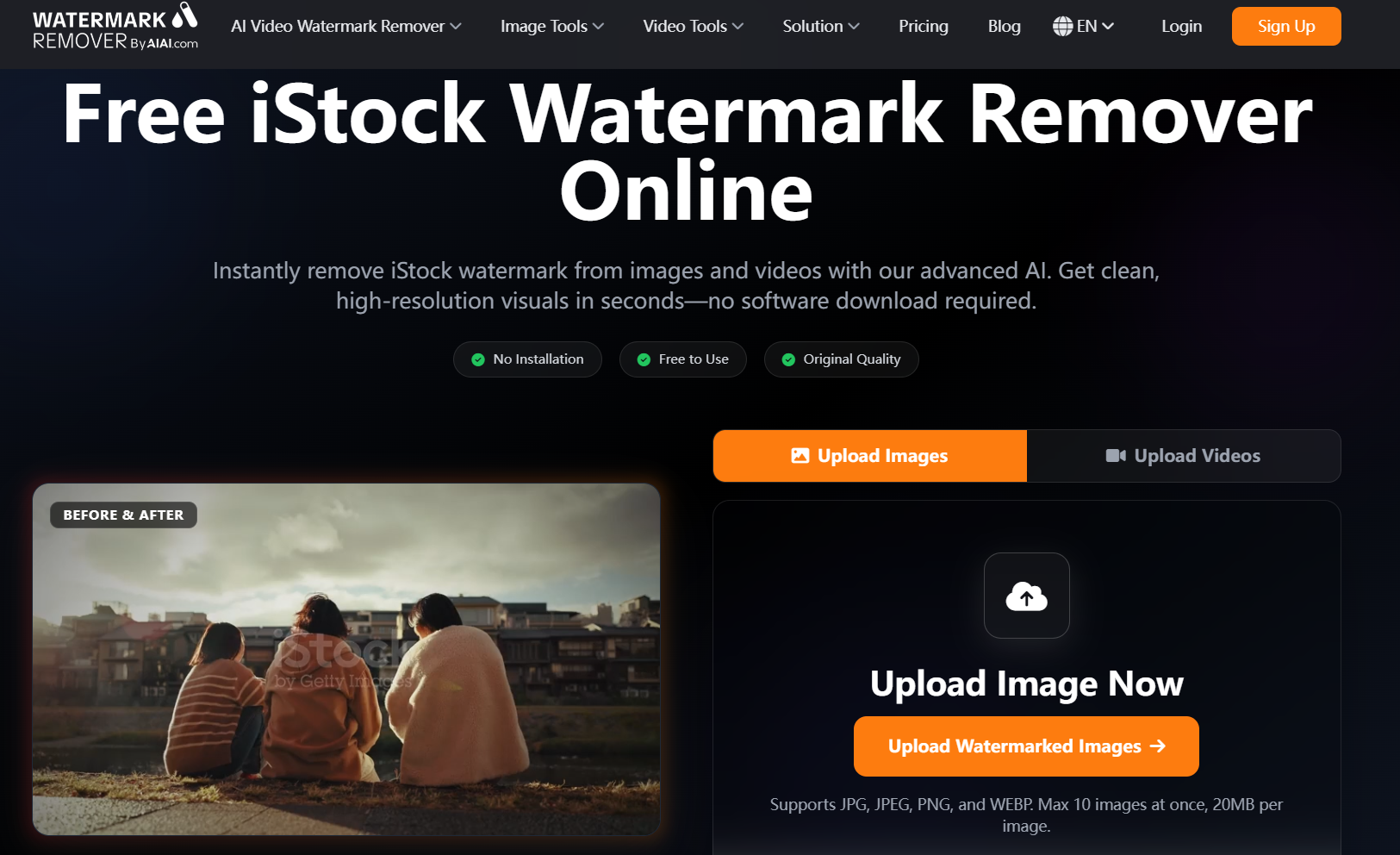
- Step 1: Upload Your Asset. Go to the web page and drop your file in. The platform supports JPG, PNG, WEBP for images, and MP4/WebM for videos.
- Step 2: Let AI Do the Heavy Lifting. AIAI.com’s algorithm automatically detects the watermark pattern. For videos, its robust frame tracking ensures the background remains cohesive even as the camera moves.
- Step 3: Preview and Download. You get a side-by-side preview. If it looks clean, just hit download to save your lossless, watermark-free file.
Who Benefits Most From AIAI.com?
I’ve started using this in my own workflow, and I see three main groups who will love this:
- For Designers: Generating clean, distraction-free UI/UX mockups for client reviews.
- For Video Editors: Cleaning up draft B-roll footage so the rough cut looks professional during internal reviews.
- For Marketers: Creating high-end pitch decks where watermarked images would otherwise make the presentation look cheap and unfinished.
Is AIAI.com Free to Use? Pricing Plans Explained
Now, let’s talk pricing, because nobody likes hidden fees. You can absolutely use the iStock Watermark Remover free tier without ever pulling out your credit card.
Here is how the credit system breaks down:
- Free Plan ($0/mo): You get 20 credits per month. This is perfect if you only need to clean up a couple of images or get a quick 3-second preview of a video.
- Pro Plan ($7.99/mo): If you are a busy freelancer, this gives you 300 credits (good for up to 150 images or 30 videos), plus full lossless downloads.
- Ultimate Plan ($39.99/mo): Built for boutique agencies, offering 800 credits.
- Note: They also offer flexible one-time purchase packages if you don’t want a recurring monthly subscription.

Is It Worth Upgrading?
Let’s look at the numbers. A single official iStock video license runs anywhere from $60 to over $150. If you are building a pitch deck with 10 potential video clips, buying those licenses upfront is a $1,000+ gamble on a project that might not even get signed.
The Pro plan is just $7.99. For less than the price of a single specialty latte, you get 300 credits. That covers up to 30 video clips or 150 images—meaning you can polish your 10 draft clips with plenty of room to spare. It’s a tiny, logical investment to secure a clean pitch deck and win over your client.
Once they give you the green light, you can then purchase the official iStock licenses for the final, approved files.
FAQs About iStock Watermark Removal
- Is AIAI.com safe to use online?
Yes. Since it is entirely web-based, you don’t have to download software, which keeps your device safe from malware. - Can it remove watermarks from moving stock video footage?
Yes, the tool has advanced frame tracking that seamlessly reconstructs the moving background behind the watermark. - Does the image quality degrade after removal?
No, the AI algorithm is designed to output lossless, high-definition files matching the original resolution.
Final Thoughts: Ready to Elevate Your Client Pitches?
At the end of the day, presenting clean, watermark-free visuals is one of the easiest ways to show professionalism and win client trust. You don’t need to spend hours wrestling with complex software or risking malware downloads just to show a quick concept.
If you want to streamline your mockup workflow and stop wasting time on manual editing, head over to the iStock Watermark Remover on AIAI.com and give it a try. Your next pitch deck—and your sanity—will thank you.

Wasting time staring at your closet? Discover how to use AI to create instant outfit flat lays and visualize your Read more

Create a realistic AI Christmas family photo using Nano Banana Pro image-to-image AI. Transform real photos into festive holiday portraits Read more

AIAI: Your All-in-One Creative Hub for Turning Ideas Into Reality AIAI (official site: https://www.aiai.com/) is a comprehensive creative platform focused Read more

Looking for the best Harry Potter Fan Art generator? Learn how to visualize book-accurate characters, create Hogwarts portraits, and reimagine Read more