An AI Cad Drawing Generator is exactly what I needed to stop wasting time on manual drafting. If you are a designer, architect, or engineer in 2026, you already know that drawing lines and setting up layouts is often the most exhausting part of any project.
I have spent thousands of hours staring at a blank screen in traditional CAD software, manually adding dimension annotations and setting up framing details. It is a labor-intensive task that drains your creative energy. I always wished there was a way to just sketch an idea on a napkin and have the computer draft the technical representation for me.
Recently, I found a platform that actually does this: the tool on AIAI.com.
By leveraging artificial intelligence in CAD, this platform translates simple text prompts or rough images into professional, ready-to-use technical drawings. Here is why this tool has drastically sped up my drafting process, and how you can use it to reduce manual effort on your next engineering project.
Why I Switched to an Automated CAD Workflow (The 90% Rule)
Let’s be honest. Traditional CAD software has a steep learning curve and requires hours of repetitive clicking.
When I switched to the AI Cad Drawing Generator on AIAI.com, I fundamentally changed how I approach my projects. Instead of acting as a “draftsman,” I now act as a “director.” Here is why leveraging AI in CAD is a massive upgrade:
- Superior Efficiency: I have reduced my initial drafting time by up to 90% compared to manual methods. The AI handles the repetitive line work instantly.
- High Precision & Error Reduction: The AI minimizes the human error inherent in complex manual drafting. It generates technical drawings that adhere to strict engineering visual standards.
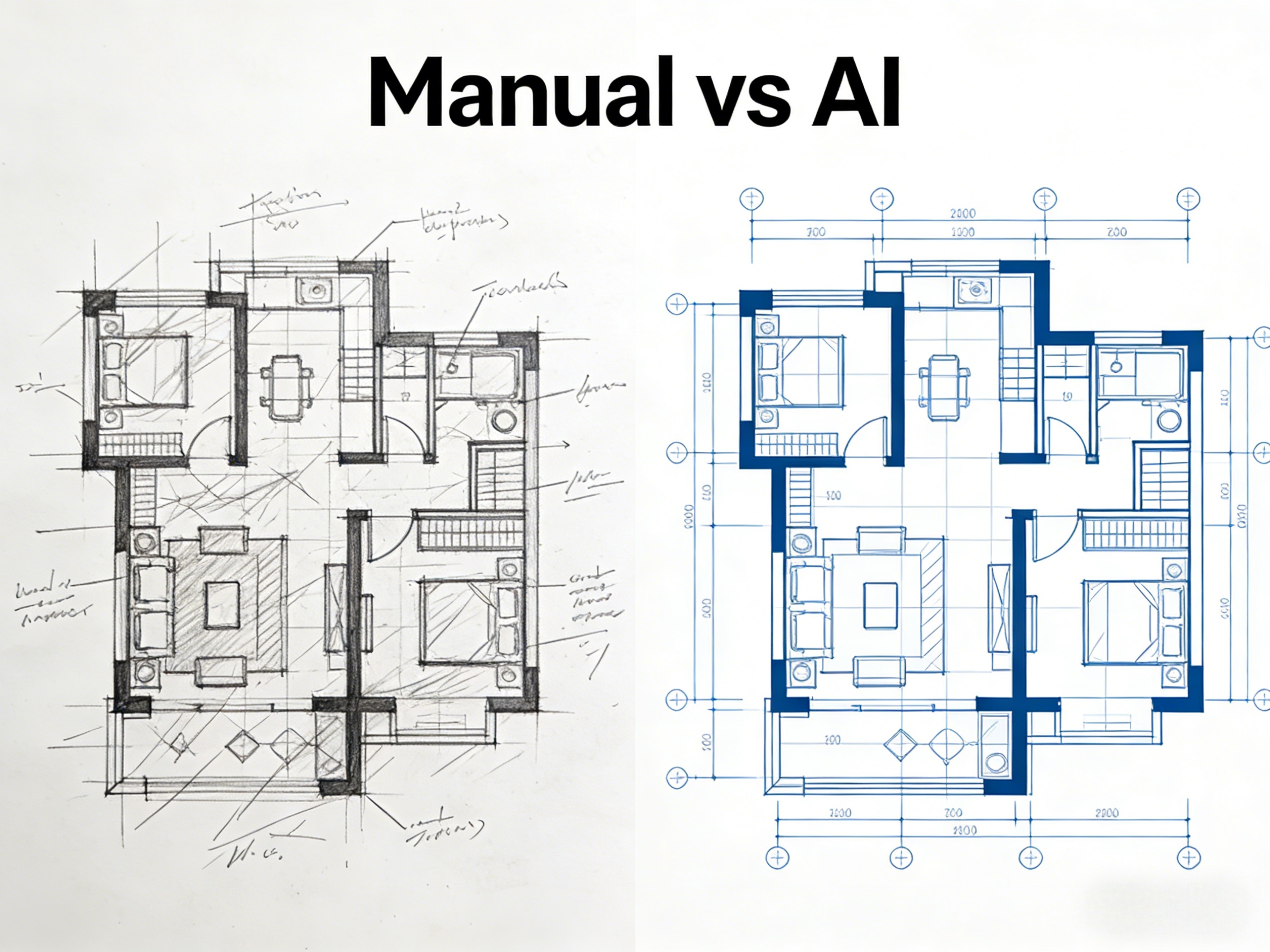
- Versatile Inputs (Text & Image): This is the game-changer. I can use the Text-to-Image feature to describe what I want, or use Image-to-Image to convert a messy photo of a prototype into a clean CAD drawing.

6 Industries Where This AI Cad Drawing Generator Shines
This isn’t just a gimmick; it’s a versatile tool for generating diverse technical drawings and design visualizations. To write this review, I wanted to test its absolute limits outside of my own daily workflow.
Here is how the AI performs across different professional engineering and architectural disciplines:
1. Mechanical Parts & Engineering
Mechanical engineers can skip the manual sketching. You can prompt the AI to create a “Gear mechanical part CAD drawing with dimension annotations.” It outputs a precise technical representation, like a connecting rod with a bore detail view, instantly.
2. Architectural Floor Plans
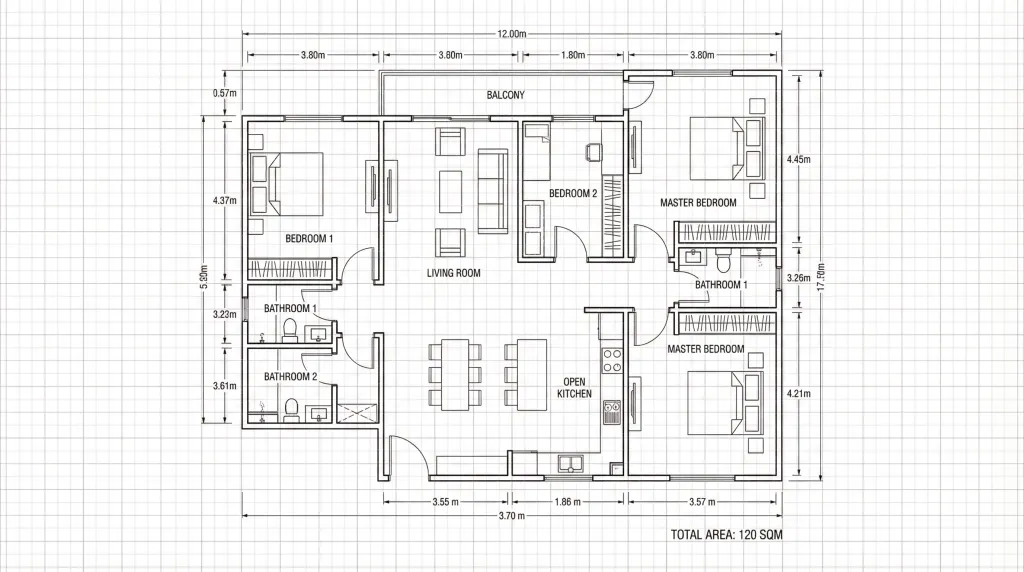
Instead of drawing walls manually, architects can generate a “Restaurant floor plan CAD drawing with furniture” or a complete “3-bedroom apartment floor plan” in seconds to show clients during early concept phases.
3. Structural Details & House Design
For building designers prepping presentations, the tool can create a “Residential structure section CAD drawing with framing details” or a stunning two-story house axonometric drawing to visualize the interior layout.
4. Civil Engineering & Urban Planning
For large-scale concepts, urban planners can effortlessly generate a “Subdivision master plan CAD drawing with lot boundaries” or a detailed “Road cross-section CAD drawing with drainage and layers.”
5. Heavy Infrastructure (Bridges)
I specifically wanted to test its civil engineering capabilities, so I uploaded a reference photo of a bridge. I was honestly blown away when the AI converted it into a highly detailed “Steel truss bridge CAD drawing with structural details.”
6. Electrical Systems
It even handles complex schematics! Electrical engineers can generate a “Warehouse lighting layout CAD drawing with circuits” or instantly visualize power risers for a 4-story building.

My 3-Step Workflow for Automated CAD Generation
You don’t need any prior CAD experience to master this. The intuitive interface is incredibly beginner-friendly. Here is my exact process:
Step 1: Upload Your Design Input or Enter a Prompt
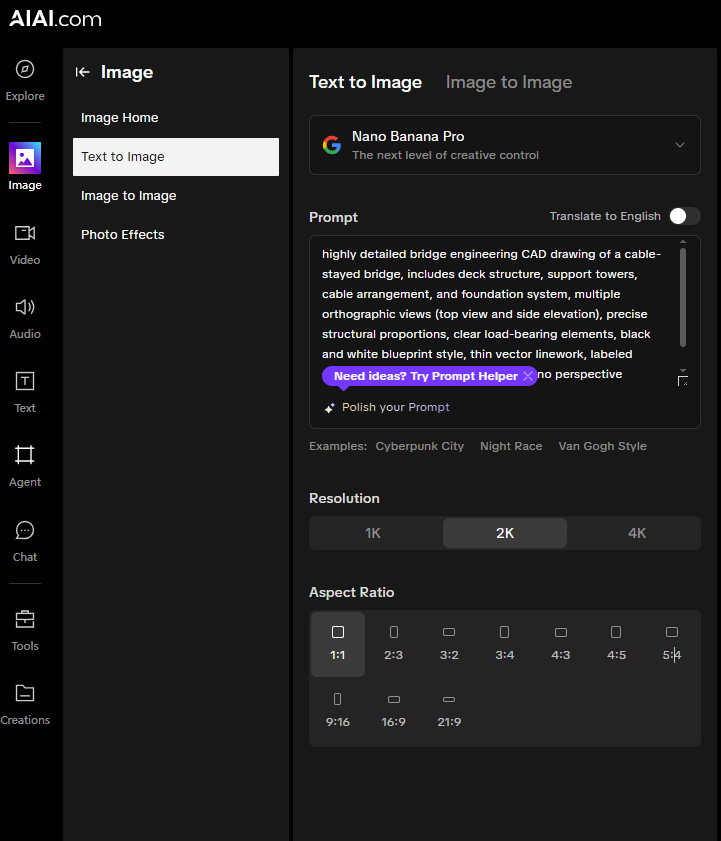
Open the tool on AIAI.com. You can either type a detailed text description of what you need, or upload a hand-drawn sketch, a photo of a prototype, or a reference image.
Step 2: Define Parameters and CAD Style
This is where you get specific. Select your output specifications such as scale, dimensions, and the required CAD standard (e.g., mechanical, architectural, or electrical).
Step 3: Generate and Export Your CAD Images
Click ‘Generate’. The AI swiftly processes your input and creates precise technical drawings. Within minutes, you can download your high-resolution work for concept development and idea visualization.
The Honest Truth: Is It Free, Private, and Easy?
Whenever I recommend a new tool, people always ask about the catch. Here is exactly how AIAI.com operates:
- Free to Use (Generous Free Tier): You don’t need to commit to an advanced plan right away. AIAI.com offers a free tier for new users to test the basic functions of the AI Cad Drawing Generator. You can explore the essential features and generate a few technical drawings completely free of charge.
- Strictly Private: Data confidentiality is critical in engineering. Your designs, uploads, and generated technical drawings are kept strictly private and secure.
- Beginner-Friendly: You do not need an engineering degree or an expensive AutoCAD license to use this. The automated workflow is designed for everyone, from beginners to professional engineers.
Focus on creativity while the AI handles the complexity.
[Click Here to Start Using the AI Cad Drawing Generator for Free]

I’ve always liked the look of traditional pencil drawings. A simple graphite sketch can make a portrait feel personal, while Read more
AI CAD Drawing Generator for Floor Plans: Hack for Beginner Drafters

Struggling with a long-distance relationship this Valentine's Day? Discover how to use an AI couple photo maker to create realistic Read more

Creating CAD drawings has always required patience, technical skills, and familiarity with professional design software. While tools like traditional CAD Read more