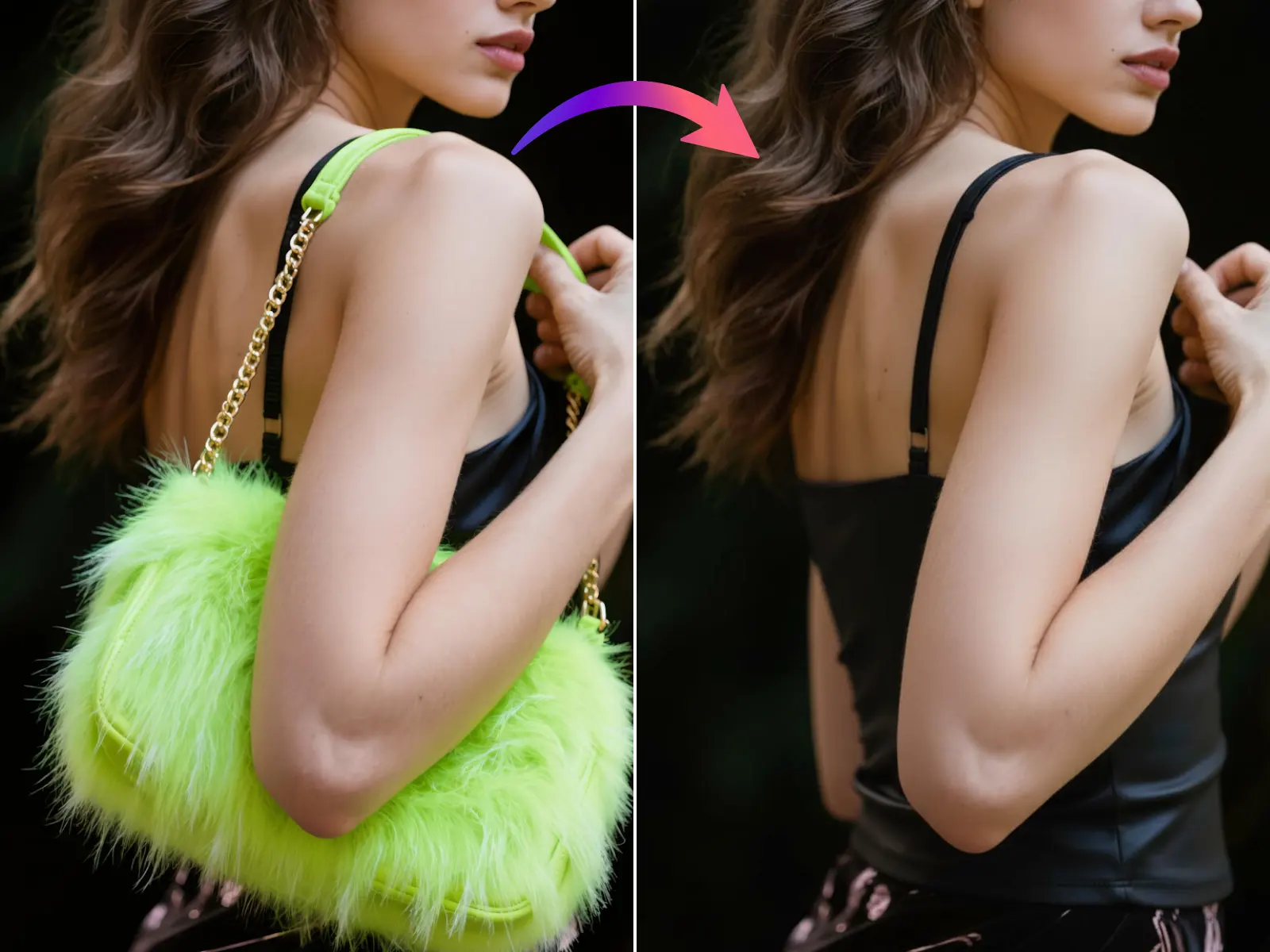
An AI Object Remover is a generative tool that erases unwanted elements from an image and intelligently reconstructs the background to make it look like the object was never there.
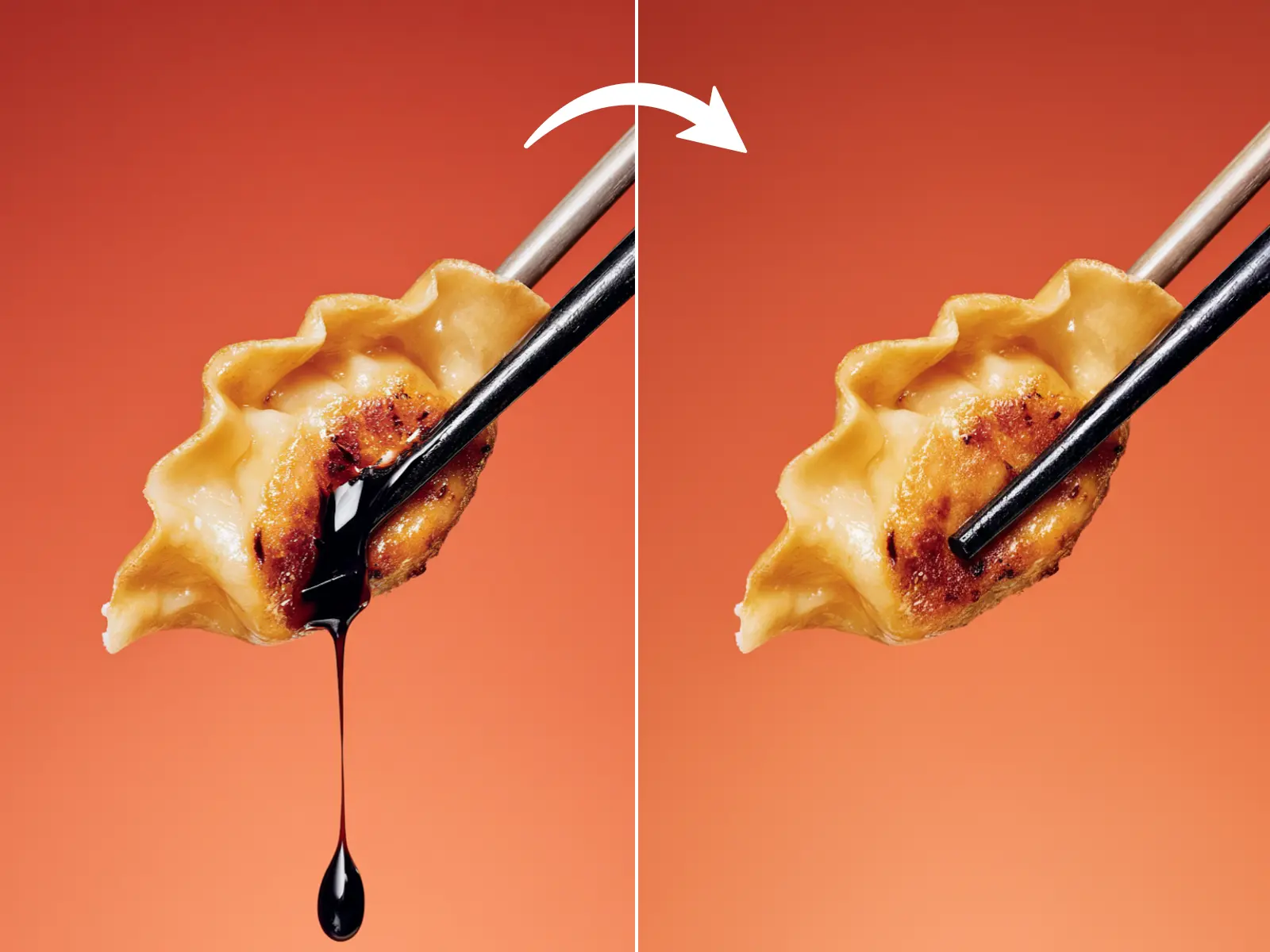
Based on my testing, the AI Object Remover from AIAI.com is the most effective browser-based tool for 2026. Unlike old “clone stamp” tools that leave blurry smudges, its Context-Aware In-painting engine perfectly rebuilds complex textures like brick walls, ocean waves, and gradients in seconds.
The “Perfect Shot” Problem
We have all been there. You take the perfect vacation photo in front of the Eiffel Tower, but a random tourist walks into the frame right as you click the shutter. Or you take a great selfie, but there is a distracting trash can in the background.
In the past, fixing this required advanced Photoshop skills. You had to use the “Clone Stamp” tool, meticulously copying pixels from one part of the image to paste over the unwanted object. It was slow, and the results often looked fake or repetitive.
In 2026, the game has changed. The AI Object Remover has democratized professional photo retouching.
Instead of manually editing, you simply highlight the object, and the AI understands what should be behind it. It hallucinates the missing reality—generating new pavement, sky, or foliage—to create a seamless edit.
What is an AI Object Remover?
An AI Object Remover (often called a “Magic Eraser”) is a tool that uses In-Painting Technology.
When you mark an object for removal (e.g., a stranger in the background), the AI analyzes the surrounding pixels. It looks at the lighting direction, the noise pattern, and the geometry of the scene.
- Context Awareness: If you remove a boat from the ocean, the AI generates waves to fill the gap.
- Structure Preservation: If you remove a person standing in front of a fence, the AI rebuilds the fence bars perfectly straight.
This is why modern AI tools are vastly superior to the simple “healing brushes” on older smartphones.
Step-by-Step: How to Erase Unwanted Objects
Ready to save your photos? Follow this simple workflow using our browser-based tool.
Step 1: Upload Your Image
Go to the AI Object Remover. Drag and drop your image (JPG, PNG, or JPEG).
Step 2: Select the Object
Use the Smart Brush tool.
- Size: Adjust the brush size to fit the object.
- Masking: Paint over the unwanted object. Pro Tip: Paint slightly outside the edges of the object. This gives the AI a “buffer zone” to blend the edges smoothly.
Step 3: Click “Remove”
Click “Remove.” The AI usually takes about 3-5 seconds to generate the new background.
Step 4: Download
Preview the result. If it looks clean, download your pristine image.
Comparison (AI vs. Photoshop)
| Feature | AIAI.com(AI Object Remover) | Adobe Photoshop (Clone Stamp) | Free Mobile Apps |
| Ease of Use | One-Click | High Skill Required | Medium |
| Texture Quality | High (Generative) | Low (Repetitive) | Low (Blurry) |
| Speed | Fast (~5s) | Slow (Manual work) | Fast |
| Cost | Free Trial | $22.99/mo | Free (Ads) |

Struggling with garbled text in AI images? We tested Nano Banana Pro (Google Gemini 3 Pro) against Midjourney v7. Discover pros, cons, Read more

Explore how an AI video generator can speed up content creation for social media, business videos, product promos, and blog-to-video Read more

Merge multiple images into beautiful compositions instantly with AI Image Combiner. Create side-by-side photos, vertical layouts, and collages using AIAI.com—no Read more

Want to see your favorite book couples move? Here is how an AI French kiss generator can turn static character Read more