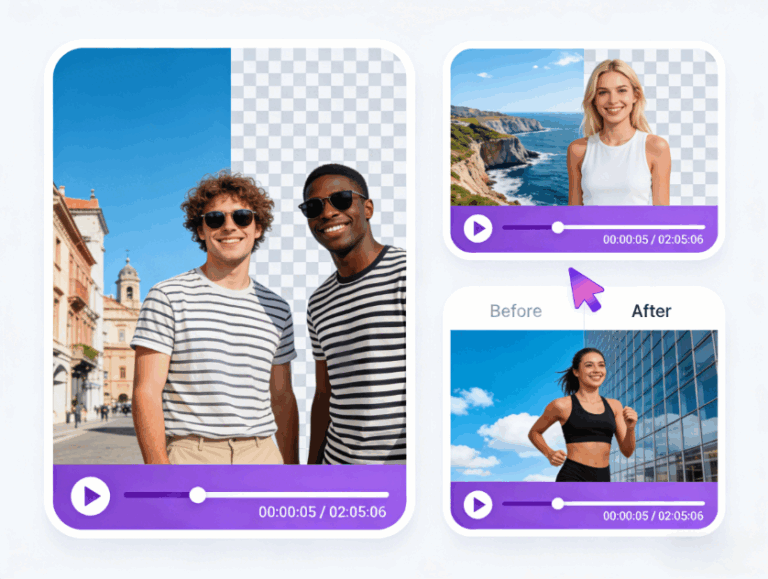
Let’s be real for a second: trying to remove green screen from video manually can be a nightmare.
If you’ve ever tried to key out footage in Premiere Pro or After Effects, you know the struggle. You set up your lights, you think it looks perfect, but the moment you apply the “Ultra Key” effect, you’re left with fizzing noise around your hair or a weird green halo.
We built the AIAI.com tool because we were tired of tweaking parameters. We wanted a way to remove green screen from video instantly, right in the browser, without the headache.
Today, I’m going to show you how to extract subjects from any background in just 3 simple steps—no Hollywood studio setup required.
Stop Fighting with “Bad Lighting”
The biggest lie about green screens is that they are “easy.” They aren’t. They require perfectly even lighting, which is hard to achieve in a bedroom or home office.
Here is why our AI tool beats manual chroma keying every time:
- It Ignores Shadows: Traditional keyers get confused by shadows on the green fabric. Our AI looks for the person, not just the color. It automatically separates you from the background, even if your green screen is wrinkled or poorly lit.
- Automatic Spill Suppression: You know that annoying green tint that reflects onto your white shirt? We fix that automatically. The tool neutralizes the color spill so your skin tones look natural, not alien.
- Motion Blur Handling: Usually, when you move your hand fast, it disappears or becomes transparent. We analyze the motion vectors to keep fast-moving objects solid and opaque.
How to Remove Green Screen from Video (The 3-Step Process)
You don’t need to download heavy software or buy a powerful PC. We designed this workflow to be the fastest on the web.
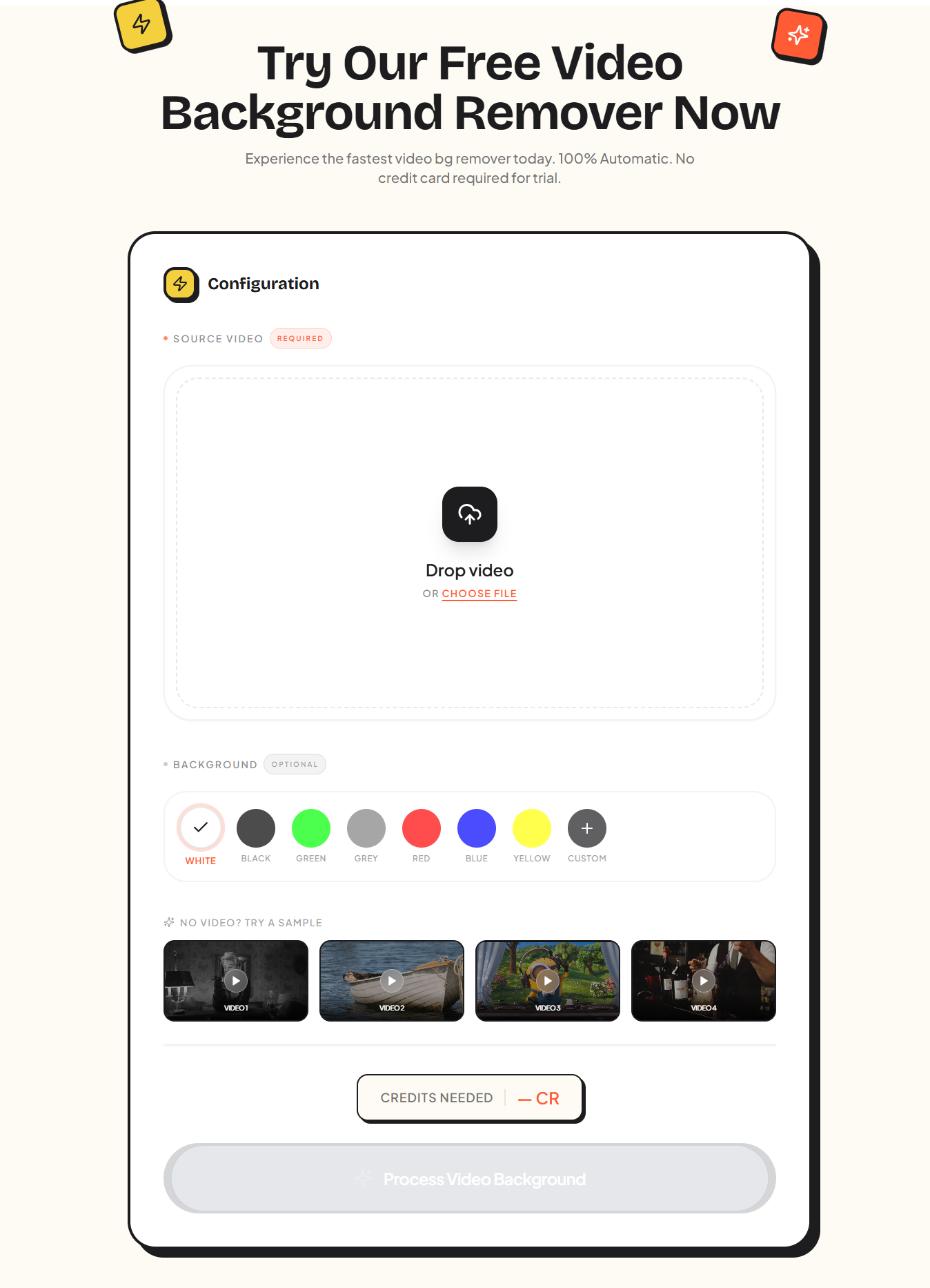
Step 1: Upload Your Footage
Drag and drop your video file into the Configuration box above. We accept all major formats (MP4, MOV, WebM). Whether it’s a pro green screen shot or just you standing against a white wall, it works.
Step 2: AI Auto-Processing
You don’t need to pick a color range manually. Our algorithm detects the background automatically. It handles fine edges—like frizzy hair or glasses—better than most standard plugins.
Step 3: Download or Swap
Once it’s done, you have two options:
- Transparent Export: Download your video with an Alpha Channel (transparent background) to use in your favorite editor.
- Instant Background Swap: Use our built-in library to immediately place yourself in a newsroom, a sci-fi landscape, or just a clean blurred office.
4 Creative Ways to Use This Tool
It’s not just for removing backgrounds; it’s for unlocking new content possibilities.
Game Streaming: Remove green screen from video feeds to overlay your webcam on gameplay (OBS style) without a physical screen.
Virtual News Studios: Perfect for students or corporate updates. Remove the background and place yourself in front of a virtual weather map or news desk.
Social Media Clips: Repurpose your long-form YouTube videos into TikToks by changing the background to something punchy and vertical.
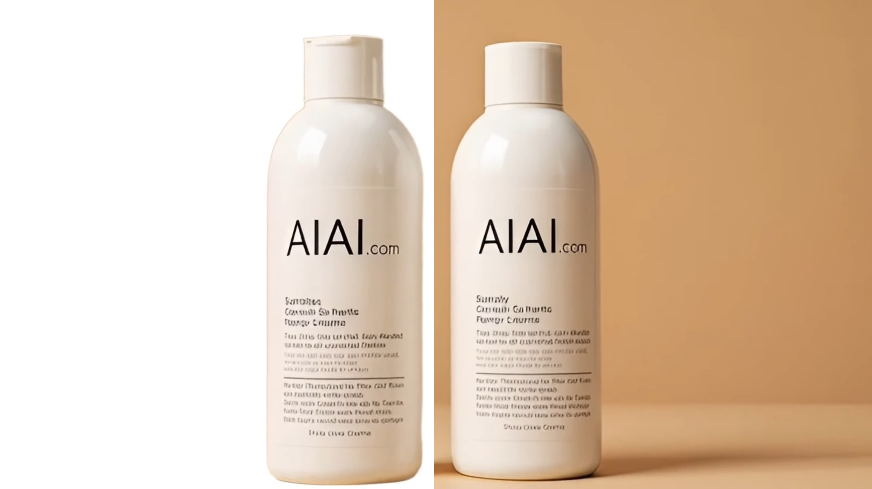
One Product, Every Season: Shoot your product on a simple green turntable once. Then, swap the background for Christmas, Summer, or Black Friday sales instantly.
Try It Free (No Credit Card Required)
We know you want to test the quality before committing. That’s why AIAI.com offers a generous Free Plan.
- Free Plan ($0/mo): Includes 20 Credits. Perfect for testing a few clips to see the edge quality for yourself.
- Pro Plan ($7.99/mo): Serious about content? Get 300 Credits and priority processing.
- Ultimate Plan ($39.99/mo): For agencies and power users who need to process hours of footage.
Ready to fix your footage?
Stop wasting time on manual masking.
[Remove Green Screen from Video for Free – Try It Now]
Frequently Asked Questions
Q: Do I actually need a green screen?
A: Surprisingly, no. While the tool is optimized to remove green screen from video, the AI is smart enough to remove any background—white walls, messy bedrooms, or busy streets.
Q: Can I export with transparency?
A: Yes. You can download your clip in formats that support transparency, making it easy to layer over other videos.
Q: Is my data safe?
A: Absolutely. Your videos are processed securely and are not used to train public models without your permission.
Learn how to use an AI video background remover to easily cut out messy backgrounds from your Reels, TikToks, and Read more