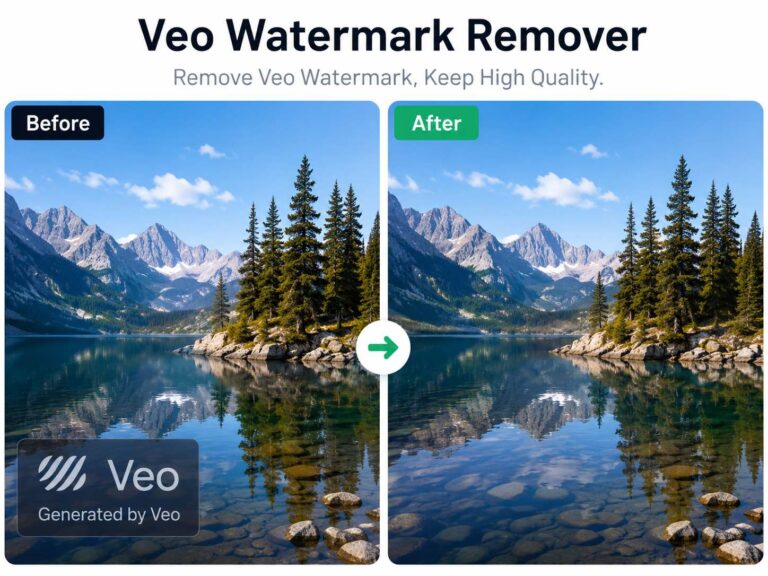
I finally found a way to clean up video watermarks that doesn’t look terrible.
I have a hard drive full of old projects, family clips, client drafts, stock footage I bought years ago. All I have left are the proxies with those annoying timestamps burned in, or some low-res export with a logo slapped in the corner.
For a long time, my “fix” was pretty lazy: I’d just scale the video up to 110% to push the logo off-screen. Yeah, it kills the resolution and ruins the framing, but it was better than spending three hours in After Effects trying to rotoscope a background.
These Rough Fixes Can Kill Your Engagement
The Crop (Aspect Ratio Killer)
Zooming in to push a watermark off-screen changes your resolution. If you are trying to output a crisp 1080p or 4K video, cropping can drop you to 720p or an awkward, non-standard resolution. Plus, if the logo is near the center, you lose essential visual context.
The Blur
This is the “censored” look. While it technically hides the text, it creates a “dead zone” on the screen. Viewers’ eyes are biologically drawn to anomalies. A blurry box acts like a magnet, distracting them from your actual content.
Why Manual Removal is A Nightmare
If you’ve ever tried to manually remove an object from video, you know the pain. You aren’t just painting over one image; you’re painting over 24 or 60 images for every single second of footage.
I used to try using the “Content-Aware Fill” in Adobe. It works, but it’s heavy. You have to mask the object, track the motion, generate a reference frame, and then let your computer sound like a jet engine while it renders. It’s a total overkill when you just want to clean up a quick clip for social media.
The Modern Tool: Generative AI In-Painting
The new standard isn’t “erasing”; it’s reconstruction.
Modern AI tools use a process similar to Photoshop’s “Content-Aware Fill,” but applied across time and frame. The AI looks at the pixels surrounding the watermark in previous and future frames to guess what should be behind the logo.
Testing the AI route
But generative AI has shifted the workflow. We no longer have to spend hours in After Effects masking frame-by-frame.
I recently started testing out dedicated AI tools to see if they could actually handle the hard work. Most of them just smudge the pixels so it looks like a greasy thumbprint on the lens.
But I stumbled onto Watermark Remover by AIAI.com, and it’s actually decent.
I decided to really stress-test the tool with a surreal, high-detail AI clip. It was a profile shot of a girl set against a backdrop of burning orange planets and galaxies. The real challenge here was the hair strands floating in micro-gravity.
Usually, this is where standard watermark removers fall apart. When you have fine details like hair moving against a complex, swirling background, most tools just create a muddy blur. You typically lose those individual strands and the background galaxy ends up looking like a smudged painting.
The results here were honestly impressive. The AI managed to separate the floating hair from background without leaving that tell-tale “ghosting” effect. It actually filled in the missing galaxy textures behind the watermark while keeping the fine edges of the hair crisp.
Watermark Removal Workflow
Here is the exact workflow I used with Watermark Remover by AIAI.com. The biggest difference here vs. other tools is that you don’t have to manually paint over the logo.
- Upload the highest quality file you have
Drag and drop your video into the dashboard. Try to use the original raw file rather than a compressed social media download if possible, the more pixel data the AI has, the better the reconstruction. - Let the Auto-Detect run
This is the “magic” part. Instead of making you squint at the screen and paint a box around the text, the AI analyzes the footage to find static overlays. It automatically identifies the watermark, timestamp, or logo that stays in the same position across the frames. - Review and Process
Just hit the removal button. The AI then processes the temporal data (looking at past and future frames) to fill in the gap. - Export
Download your clean video. (Pro tip: Always double-check the first few seconds of the download to make sure the aspect ratio is still correct).
3 Tips for “Impossible” Watermarks
Sometimes AI struggles. If you have a massive translucent watermark covering the whole screen, or a logo over a face, here is how to help the AI out:
Break it up: If there are multiple logos (e.g., one in the corner, one in the center), process the video twice. Remove the center one first, save it, then re-upload to remove the corner one.
Static vs. Dynamic: AI works best on static shots (tripod) or smooth pans. If you have a shaky handheld shot, stabilize the footage before you try to remove the watermark.
The Legal Note: Always make sure you have the rights to modify the footage. This technology is best used for restoring your own lost files, cleaning up stock footage you’ve licensed, or removing automatic timestamps from camera setups.
Is It Perfect?
Not entirely. If you have a watermark covering someone’s face while they are talking and moving their head, the AI is going to struggle. You might get some weird artifacts there.
But for 90% of use cases: logos in the corner, timestamps on the bottom, or those annoying “Rec” overlays, it’s faster than firing up professional editing software and looks way better than cropping.
If you are sitting on footage that’s unusable because of a stray logo, give Watermark Remover by AIAI.com a shot. It saved a few of my old clips that I thought were trash.

Looking for a Snapchat Watermark Remover? Learn how to clean up Snapchat videos with AI, preserve video quality, and reuse Read more

Learn how to remove watermarks from video without installing any app. By leveraging AI Video Inpainting on AIAI.com, you can Read more

Looking for a reliable text remover from video free tool? I tested AIAI.com to erase TikTok watermarks and hardcoded subtitles. Read more

Looking for a Meta AI Watermark Remover? Don't let logos ruin your video reach. Use our free AI tool on Read more