If you are using Meta’s latest generative AI features on Instagram, Facebook, or Threads to create video content, you absolutely need a Meta AI Watermark Remover.
Here is the harsh reality: while Meta’s native AI video tools are incredible for generating quick B-roll or surreal clips directly in your feed, that shimmering “Imagined with AI” label in the corner is a “reach killer.” Social media algorithms (especially TikTok and Reels) aggressively downrank videos with visible third-party watermarks. They see it as “low-effort” or “reposted” content, and they bury it.
So, you have two choices: let the watermark tank your engagement, or use a specialized Meta AI Watermark Remover to clean up your footage.
I’ve tested the generic “blur” tools, and they look terrible. Today, I’m going to show you how to use AIAI.com to reconstruct your video background seamlessly—saving your aesthetic and your algorithm ranking.

Meta AI Watermark Remover vs. Blurring: Why Precision Matter
Most people try to crop the video or use a simple blur effect, but a true Meta AI Watermark Remover works differently.
The problem with the “Imagined with AI” label is that it often sits on top of complex textures—like a moving ocean, a highly detailed face, or a shifting cloudscape. If you use a basic blur tool, you leave a smudge that ruins the video’s professional look.
The tool on AIAI.com uses AI In-painting.
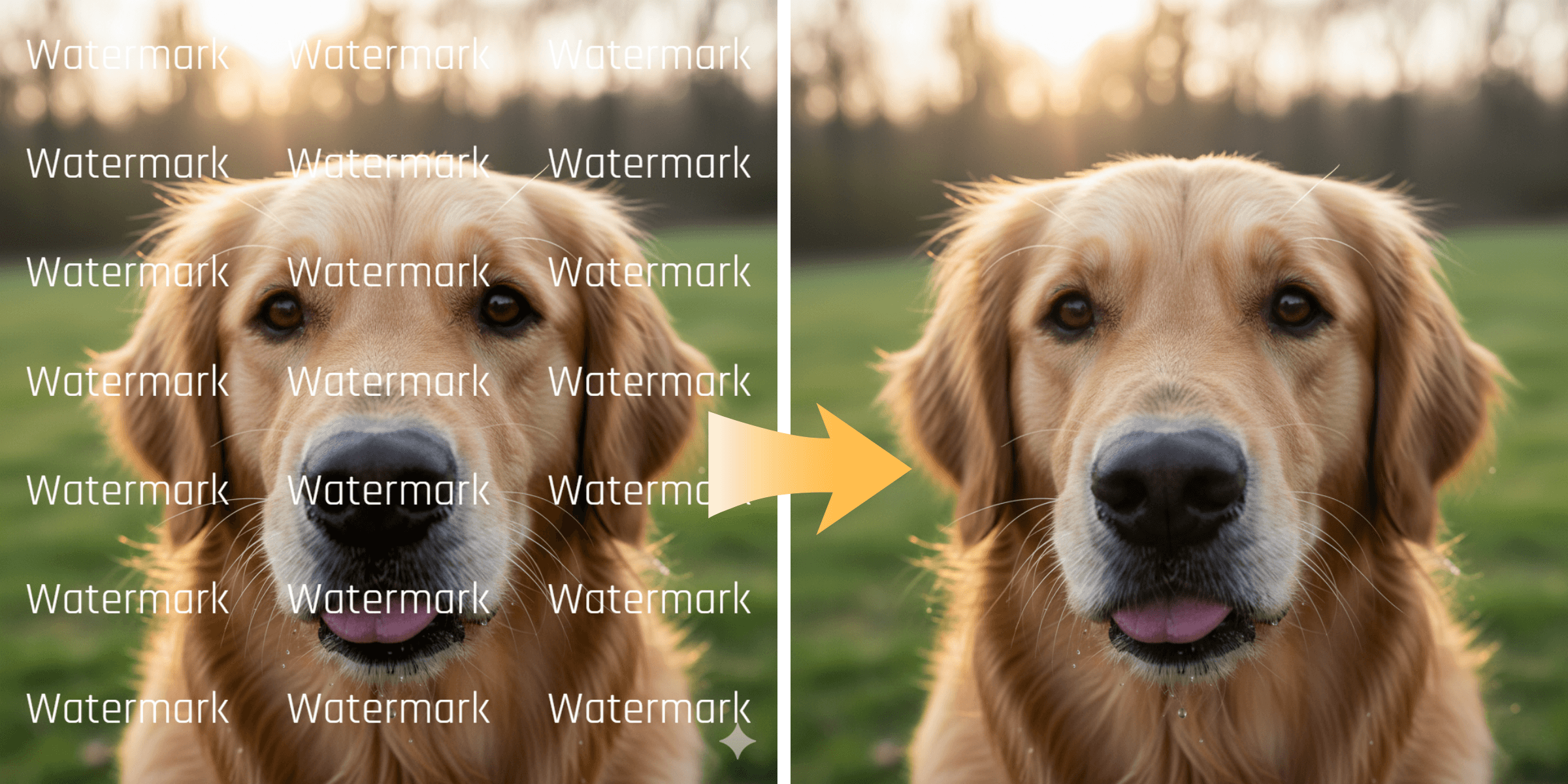
It analyzes the pixels around the watermark and predicts what should be behind it. It doesn’t just hide the logo; it rebuilds the missing part of your video. This is why a dedicated Meta AI Watermark Remover is essential for keeping your content 4K and crisp.
How to Use the Meta AI Watermark Remover on AIAI.com (3 Steps)
You don’t need to be a video editor to do this. We built this tool to be the fastest Meta AI Watermark Remover on the web.
Step 1: Upload Your Clip
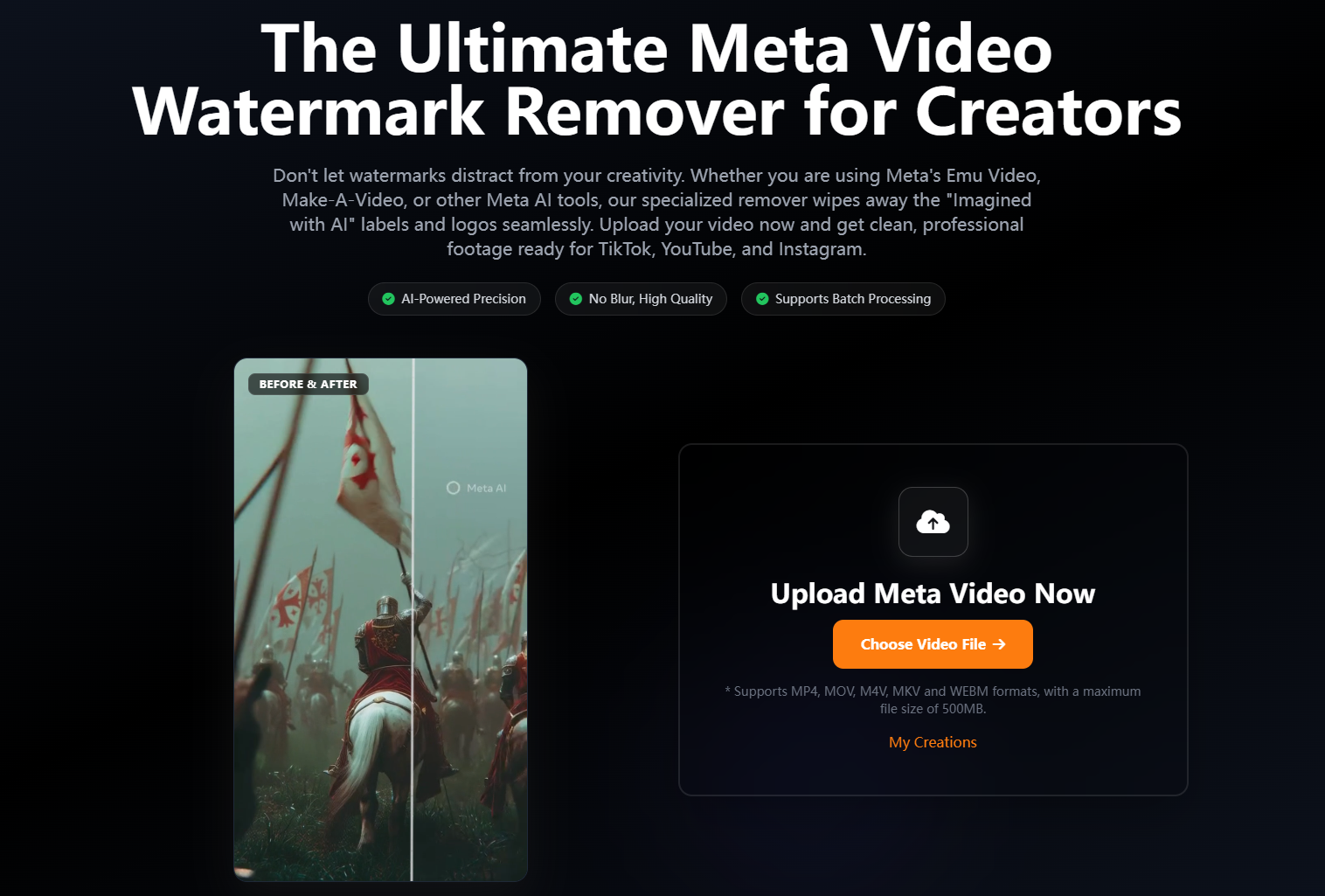
Go to the tool page on AIAI.com. Drag and drop your MP4 file generated from Instagram or Facebook. (It works best on clips under 500MB).
Step 2: Highlight the Watermark
Our AI often auto-detects it. If not, simply draw a box over the “Imagined with AI” text or the Meta logo.
- Creator Tip: Give the box a little “breathing room” so the AI can see the surrounding texture for better reconstruction.
Step 3: Process & Download
Click remove. In seconds, you have a clean file. Unlike other free tools that compress your video, our Meta AI Watermark Remover lets you download in original quality, ready for TikTok or YouTube Shorts.
Is Using a Meta AI Watermark Remover Ethical?
This is a common question. Is it okay to use a Meta AI Watermark Remover?
My take is simple: Yes, for aesthetics, but don’t mislead.
We remove the watermark because it clashes with our visual style and hurts algorithmic performance. We want the video to look like a cohesive piece of art, not a corporate ad for Meta.
However, transparency is key. Even after using a Meta AI Watermark Remover, you should still tag your post as “AI Generated” using the platform’s native toggle or in your captions (e.g., #AIArt or #MetaAI). This builds trust with your audience while keeping your visual feed clean.
Try the Meta AI Watermark Remover for Free
Don’t let a logo dictate your creative freedom. If you have a folder full of cool AI videos that you haven’t posted because of that ugly label, it’s time to fix them.
Go to AIAI.com now. It’s free to try on your first few clips.
[Click Here to Start Using the Meta AI Watermark Remover]

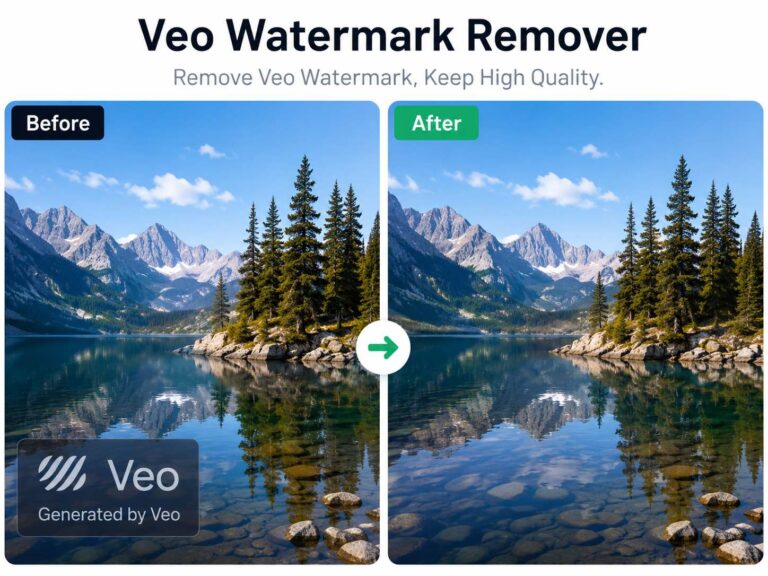
Need to clean up your Veo clips? I found the only watermark remover that handles complex motion and rain physics. Read more
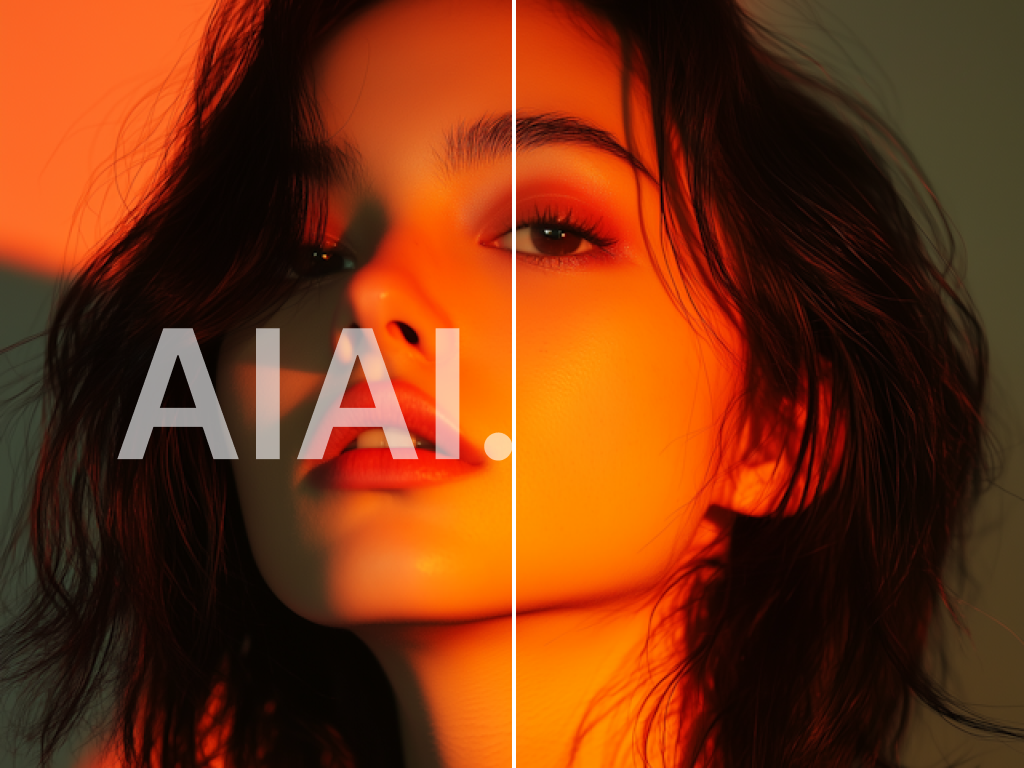
Looking for a reliable text remover from video free tool? I tested AIAI.com to erase TikTok watermarks and hardcoded subtitles. Read more

Remove Logos from Videos Easily with Gemini Logo Remover When working with existing video content, tools like Gemini Logo Remover Read more
Remove unwanted logos, social media stamps, and trial watermarks from your clips. Learn how WatermarkRemover.aiai uses AI to easily clean Read more