If you’ve ever tried creating a CAD drawing from scratch, you know how time-consuming it can be. Even for experienced designers, starting with a blank screen in tools like AutoCAD or SolidWorks can take hours before the first usable draft appears.
That’s where an AI CAD generator changes the workflow.
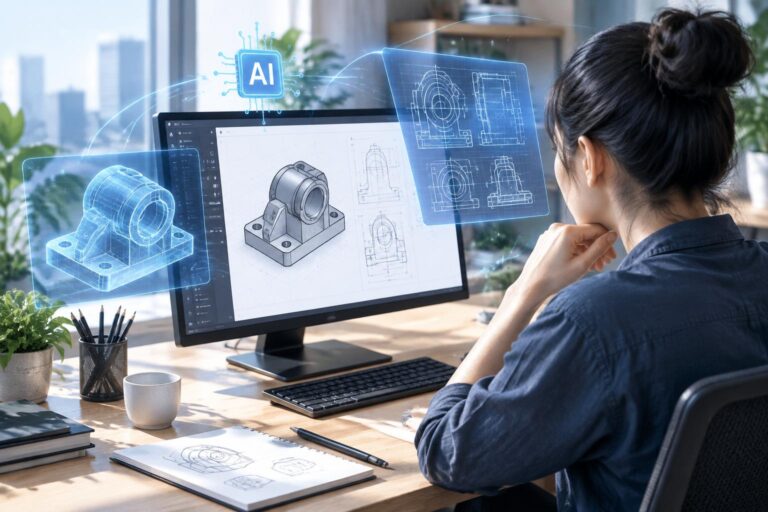
Instead of building every line manually, AI can help convert a rough idea, sketch, or text description into a structured CAD drawing. It’s a surprisingly practical tool for engineers, product designers, architects, and even hobby makers who just want to prototype faster.
Let’s walk through how it works—and why more people are starting to rely on AI for early-stage CAD design.
What Is an AI CAD Generator?
An AI CAD generator is a tool that uses artificial intelligence to automatically create CAD-style drawings based on prompts, sketches, or reference images.
Instead of manually modeling every element, you simply describe what you want. The AI interprets the input and generates a technical-style drawing that can serve as a starting point for further refinement.
For example, you could input something like:
- “Mechanical gear with 24 teeth and center bore”
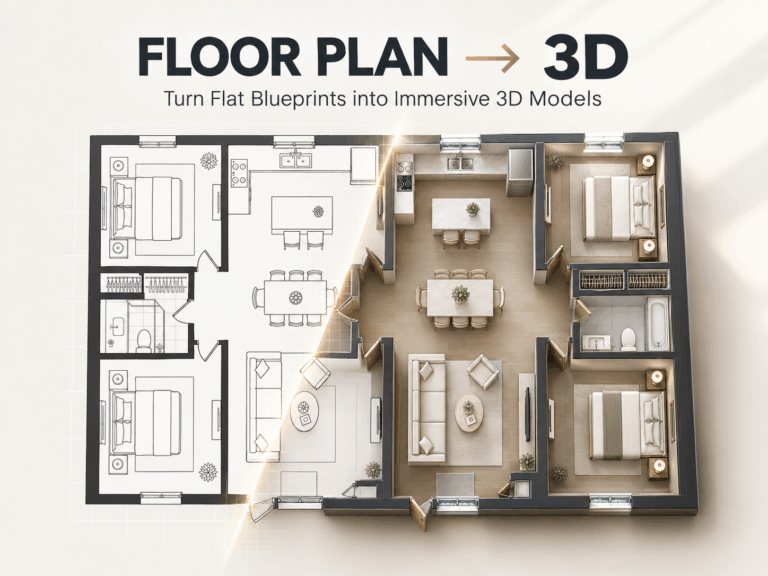
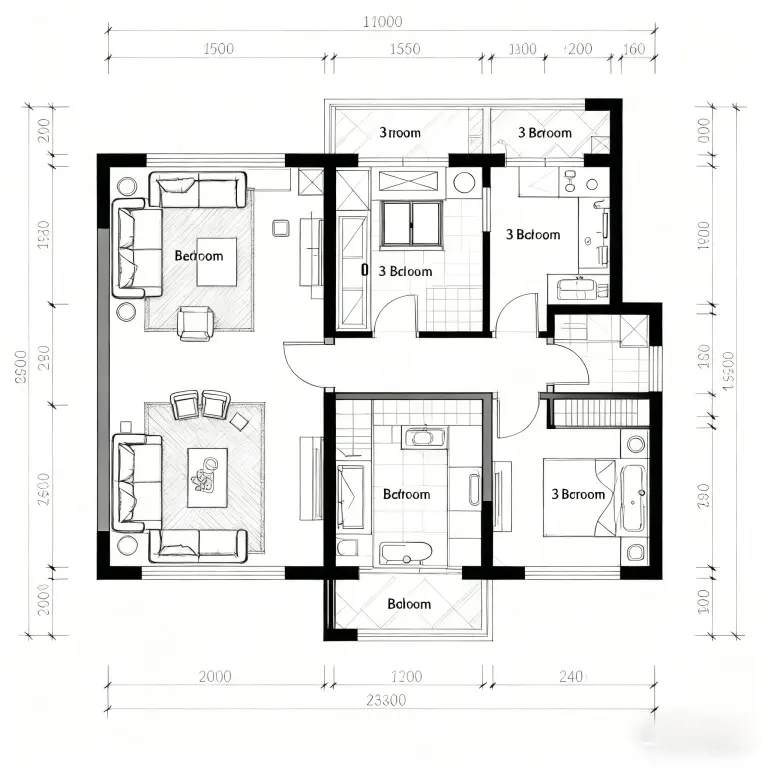
- “Simple floor plan for a small studio apartment”
- “Bracket with two mounting holes and rounded edges”
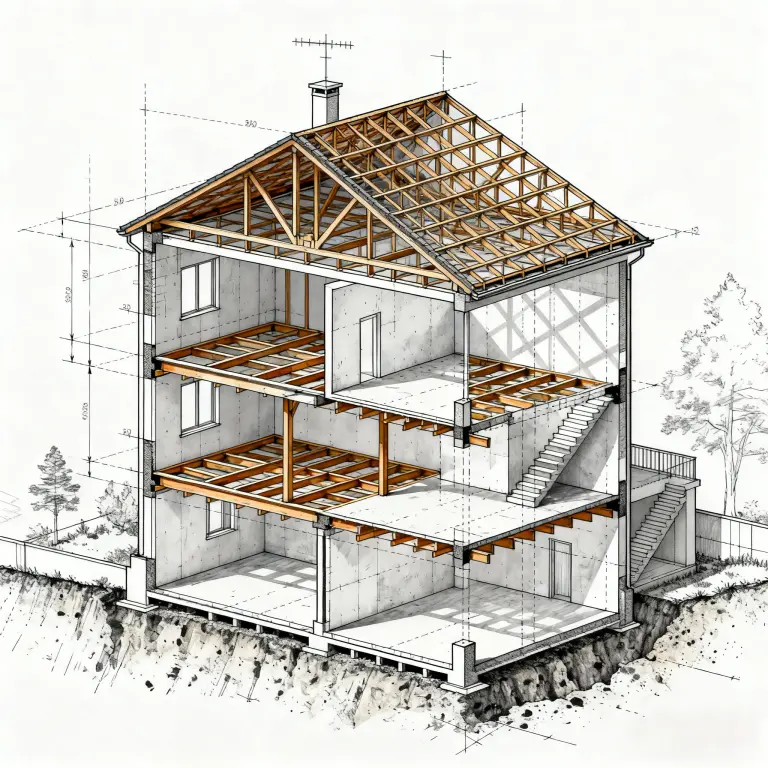
Within seconds, the AI produces a structured visual draft resembling a CAD diagram.
Think of it as AI-assisted drafting, rather than a full replacement for traditional CAD software.
Why Designers Are Using AI for CAD Workflows
The biggest benefit is speed.
Traditional CAD design often involves multiple steps:
- Create a concept
- Sketch the geometry
- Translate it into a CAD model
- Adjust dimensions and constraints
With an AI CAD generator, the early concept phase becomes much faster.
Here are a few common reasons people are adopting it:
Faster Prototyping
Engineers and product designers often need quick visual drafts before committing to detailed modeling. AI can generate a starting structure in seconds.
Idea Exploration
Instead of manually creating five variations of a design, you can generate multiple options quickly.
Lower Barrier for Beginners
For someone new to CAD tools like Fusion 360, AI-generated drafts can make the learning process less intimidating.
Visual Communication
Sometimes you just need a clear technical-style image to show an idea to a teammate or client. AI-generated drawings work surprisingly well for this.
How an AI CAD Generator Typically Works
Most tools follow a simple workflow.
1. Describe the Object
You start with a prompt describing the design.
Example:
“A metal mounting bracket with two bolt holes and a right-angle bend.”
The more specific the description, the better the result.
2. Generate the CAD-Style Drawing
The AI processes the prompt and generates a technical-style drawing with lines, angles, and mechanical structure.
3. Refine or Export
You can then:
- regenerate variations
- download the image
- use it as reference for CAD modeling
Some tools also allow sketch-to-CAD generation, where you upload a rough drawing and the AI refines it.
A Simple Way to Try It
If you’re curious how this works in practice, you can experiment with an online ai cad generator.
For example, the generator on AIAI CAD Drawing Generator lets you describe a mechanical object and instantly produce a CAD-style drawing. The interface is fairly straightforward—you type your prompt, generate a design, and download the result.
It’s not meant to replace professional CAD modeling, but it’s surprisingly useful for quick drafts or concept visuals.
Best Use Cases for AI CAD Generators
AI-generated CAD drawings are especially helpful in early design stages.
Here are some common scenarios:
Product Concept Drafts
Before building a full 3D model, designers often want a quick technical-style visual to validate the idea.
Mechanical Components
Things like brackets, gears, housings, and connectors are relatively easy for AI tools to interpret.
Educational Use
Students learning engineering or design can experiment with prompts and see how different mechanical structures are represented.
Rapid Brainstorming
Sometimes you just want to explore variations without spending hours modeling them manually.
Tips for Getting Better AI CAD Results
If you try an AI CAD generator, prompt quality matters a lot.
A few tips:
Be specific with shapes
Instead of saying
“a machine part”
Try
“rectangular mounting plate with four corner holes”
Mention dimensions or features
For example:
- bolt holes
- rounded edges
- central shaft
- symmetric design
Use technical language
Words like bracket, flange, housing, frame, or hinge help the AI understand mechanical structure.
AI CAD Tools Won’t Replace CAD Software (Yet)
It’s worth noting that AI CAD generators are not replacements for full engineering tools.
Software like AutoCAD or SolidWorks still handles:
- precision modeling
- dimension constraints
- manufacturing tolerances
- simulation and assembly
AI simply speeds up the concept phase.
Think of it as a smart drafting assistant rather than a full CAD system.
The Future of AI in CAD Design
AI is gradually becoming part of design workflows.
We’re already seeing tools that can:
- convert sketches into CAD geometry
- generate 3D models from prompts
- optimize mechanical structures automatically
As these models improve, designers may spend less time drafting and more time refining ideas.
And honestly, that’s the exciting part.
Instead of staring at a blank CAD workspace, you can start with a generated concept—and iterate from there.
Final Thoughts
An AI CAD generator is one of those tools that seems simple at first but quickly becomes useful once you try it.
Whether you’re a professional designer or just experimenting with mechanical ideas, AI can help you:
- generate quick CAD-style drafts
- explore design variations
- speed up early concept work
If you’re curious, try generating a few mechanical prompts and see what comes out. The results can be surprisingly helpful for visualizing ideas.
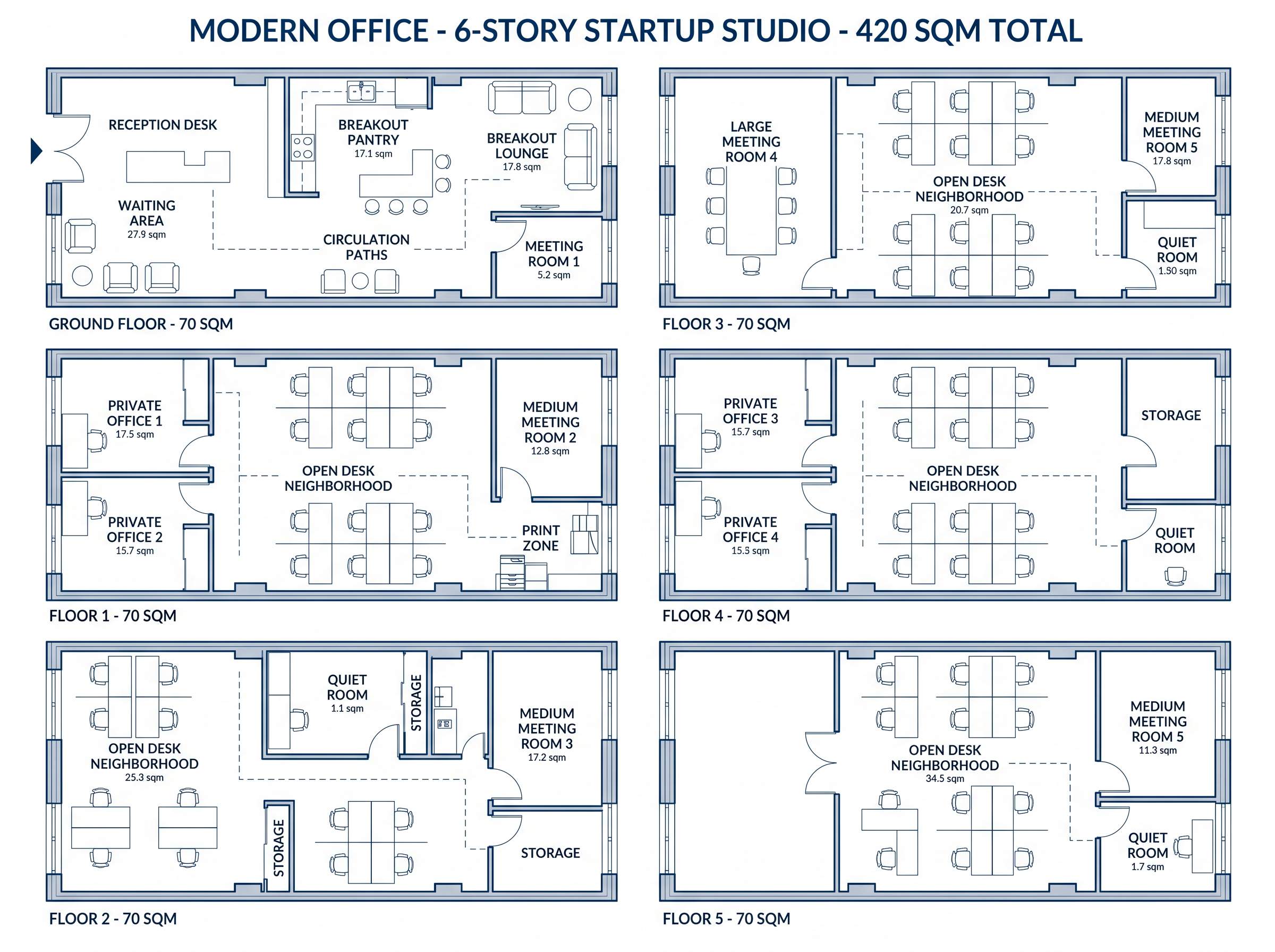
Stop sketching by hand. Learn how to generate a professional office floor plan in minutes using AI. Input your team Read more

Instantly Delete Any Text from Videos Using AI Videos today often come with unwanted text overlays. Whether it's subtitles, timestamps, Read more

Struggling with a long-distance relationship this Valentine's Day? Discover how to use an AI couple photo maker to create realistic Read more

Want to see your favorite book couples move? Here is how an AI French kiss generator can turn static character Read more