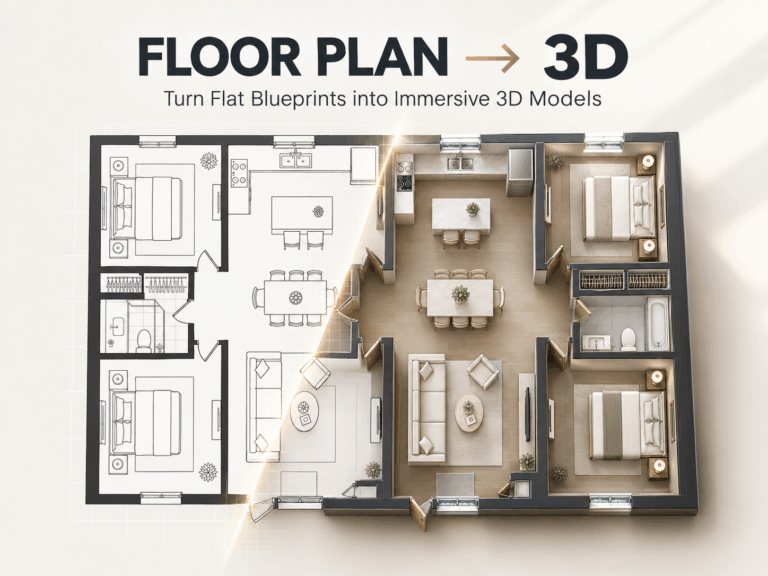
Creating CAD drawings can be a time-consuming process. From defining dimensions and drafting layouts to adjusting technical details and revisions, even simple designs can require hours of manual work. For architects, engineers, and product designers, repetitive drafting tasks often slow down the entire design workflow.
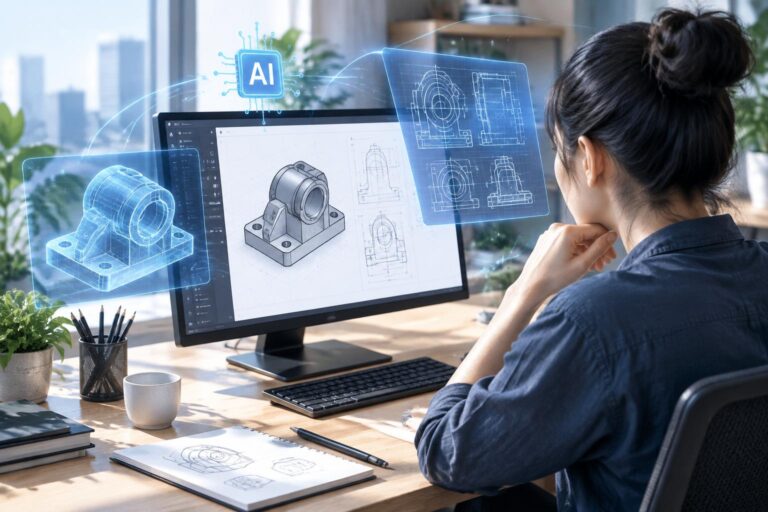
An AI CAD drawing generator changes that. Instead of building every drawing from scratch, you can transform text descriptions, sketches, or design requirements into CAD-ready drawings in minutes. By automating repetitive drafting tasks, AI helps professionals work faster, explore more design options, and focus on innovation rather than manual drawing.
Introduction
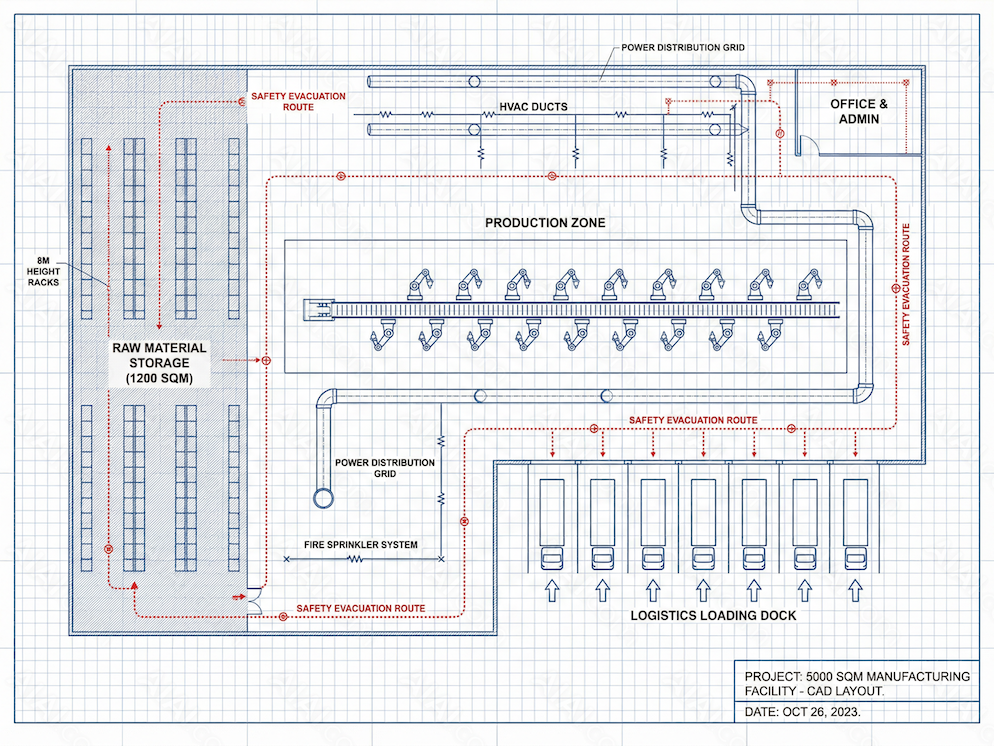
Creating CAD drawings traditionally requires extensive technical expertise, repetitive drafting work, and countless hours of manual adjustments.
Today, an AI CAD Drawing Generator can automate much of this process. By transforming text descriptions, sketches, or design requirements into structured CAD drawings, AI helps professionals accelerate design workflows while reducing drafting time.
In this guide, we’ll explore how AI CAD drawing generators work, their benefits, common use cases, and how to get the best results from AI-assisted drafting.
What Is an AI CAD Drawing Generator?
An AI CAD Drawing Generator is an artificial intelligence-powered tool that automatically creates CAD drawings based on user inputs such as:
- Text prompts
- Technical specifications
- Hand-drawn sketches
- Existing images
- 2D concepts
- Design parameters
Instead of manually drawing every component, users can leverage AI to generate draft-ready CAD files significantly faster.
How It Works
Typical workflow:
- Input design requirements
- AI analyzes dimensions and constraints
- Automatic drawing generation
- User review and refinement
- Export to CAD-compatible formats
Why AI CAD Drawing Generators Are Transforming Design Workflows
- Faster Drafting
AI can generate preliminary drawings in minutes instead of hours.
- Reduced Repetitive Tasks
Engineers and designers spend less time creating standard layouts and repetitive geometry.
- Improved Productivity
Teams can focus on problem-solving and innovation rather than manual drafting.
- Faster Design Iteration
Multiple design concepts can be generated and evaluated quickly.
- Lower Learning Barrier
Even users with limited CAD experience can create technical drawings more efficiently.
Key Features of an AI CAD Drawing Generator
Text-to-CAD Generation
Convert written instructions into CAD-ready drawings.
Example:
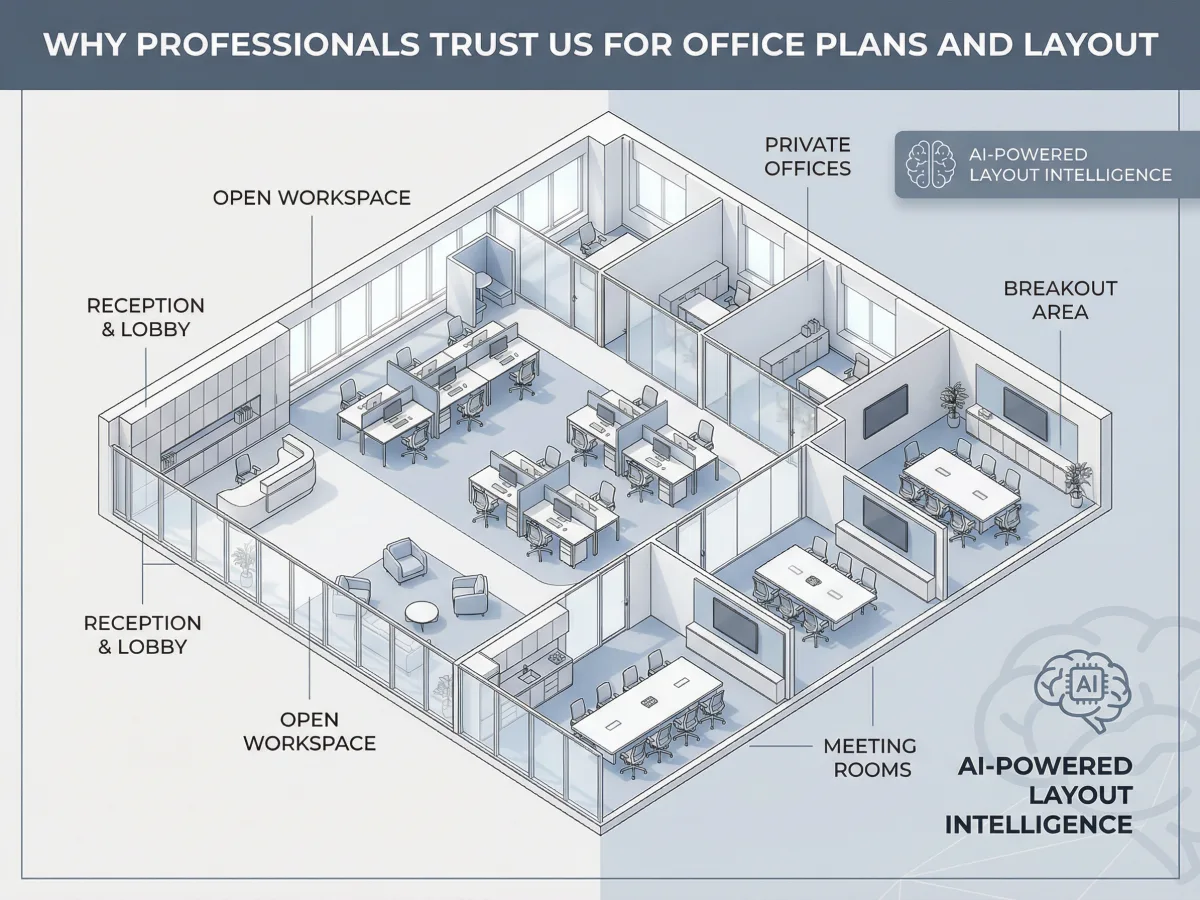
“Generate a 20×30 ft single-story office floor plan with two meeting rooms and one reception area.”
Sketch-to-CAD Conversion
Transform hand sketches into digital CAD drawings.
Automated Dimensioning
AI automatically applies measurements and annotations.
Smart Object Recognition
Recognizes walls, doors, windows, mechanical parts, and structural elements.
Parametric Design Assistance
Modify dimensions and design parameters dynamically.
Multi-Format Export
Support for:
- DWG
- DXF
- STEP
- STL
Industries Using AI CAD Drawing Generators
Architecture
- Floor plans
- Building layouts
- Concept development
Mechanical Engineering
- Component design
- Manufacturing drawings
- Assembly documentation
Civil Engineering
- Infrastructure planning
- Site layouts
- Utility drawings
Interior Design
- Space planning
- Furniture layouts
- Renovation projects
Product Design
- Prototype development
- Technical drawings
- Design visualization
AI CAD Drawing Generator vs Traditional CAD Software
| Feature | AI CAD Drawing Generator | Traditional CAD Software |
|---|---|---|
| Drafting Speed | High | Moderate |
| Manual Work | Low | High |
| Learning Curve | Lower | Steeper |
| Design Iteration | Fast | Slower |
| Automation | Extensive | Limited |
| Productivity | Higher | Depends on skill level |
Best Practices for Using an AI CAD Drawing Generator
Provide Clear Design Requirements
Include:
- Dimensions
- Materials
- Functional requirements
- Constraints
Start with Simple Concepts
Generate a basic version before adding complexity.
Verify Technical Accuracy
Always review AI-generated drawings before manufacturing or construction.
Combine AI with Professional Expertise
AI accelerates drafting but human oversight remains essential.
Generate Multiple Variations
Explore alternative layouts and designs before finalizing.
The Future of AI CAD Drawing Generation
Emerging AI technologies are expected to provide:
- Real-time CAD generation
- Voice-to-CAD workflows
- Automated engineering calculations
- AI-assisted optimization
- Generative design recommendations
- BIM integration
As AI continues to evolve, CAD drafting will become faster, smarter, and more accessible than ever before.
Conclusion
An AI CAD Drawing Generator is transforming how architects, engineers, and designers create technical drawings.
By automating repetitive drafting tasks, accelerating concept development, and improving productivity, AI allows professionals to focus more on design innovation and less on manual work.
Whether you’re creating floor plans, mechanical components, construction drawings, or product prototypes, AI-powered CAD generation can significantly streamline your workflow and help bring ideas to life faster.

AItab: Turn Your Browser into a Smart Assistant in Seconds AItab connects with the aiai.com ecosystem. It turns web browsers Read more
This guide demonstrates how to use the Nano Banana Pro model to create a detailed Zootopia 2 Character Profile Sheet, Read more

DeepSeek V3.1 Release: Higher Thinking Efficiency, the First Step Towards the Agent Era The new DeepSeek-V3.1 has launched, almost six Read more
Stuck on a workspace layout deadline without the budget for an interior designer or the patience for CAD software? Here Read more