Ever recorded or downloaded a video that was almost perfect… except for that annoying text sitting right on top of it? Maybe it’s a watermark, burned-in subtitles, or a platform logo that just ruins the frame.
It happens more often than you think. The tricky part is that not all video text is the same—some can be removed easily, while others are literally “baked” into the pixels.
In simple terms, there are two types of video text:
- Softcoded text (editable subtitle tracks): separate subtitle files or embedded subtitle tracks that can be turned on or off in compatible players (such as SRT files or MKV soft subtitles)
- Hardcoded text (burned-in text): permanently merged into the video image and cannot be toggled off
Once you understand this difference, everything below becomes much easier.
In this guide, you’ll learn 5 practical ways to remove text from videos, including free methods, quick fixes, and AI-powered solutions. Most of them take just a few minutes, and one of them can even handle it automatically.
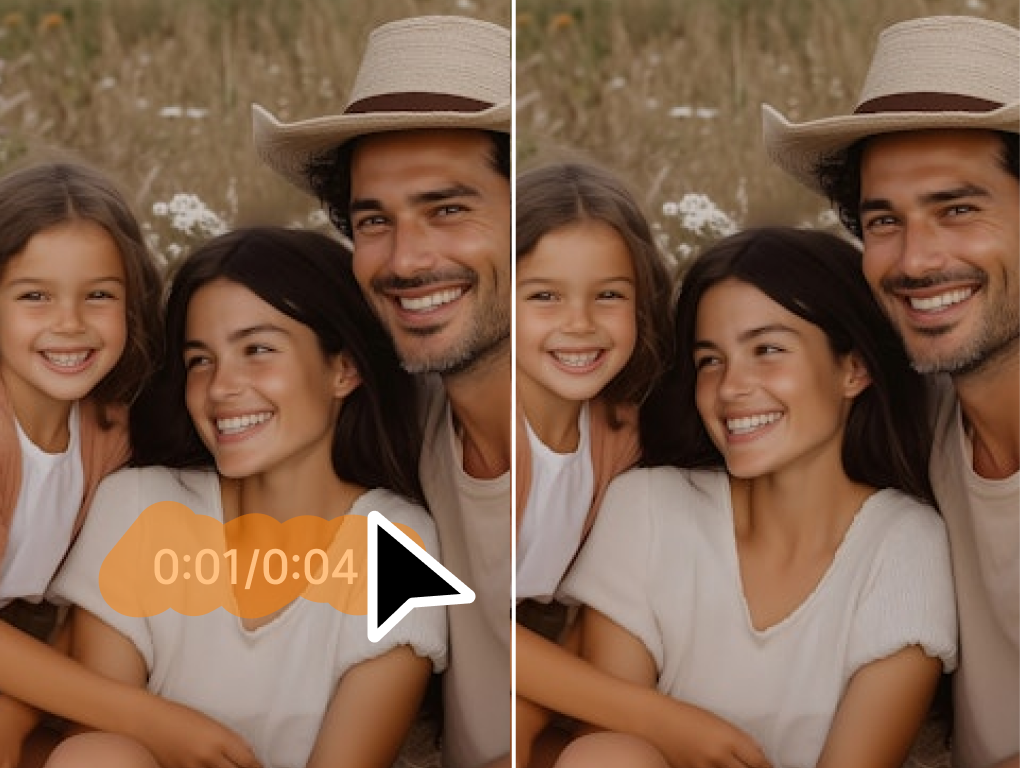
1. Understanding Why Text Gets “Stuck” in Videos
Before jumping into solutions, it helps to know why some text is removable and some isn’t.
Softcoded text usually refers to external subtitle files or embedded subtitle tracks that can be turned on or off in compatible video players. These are not part of the actual video image.
Hardcoded text, on the other hand, is part of the actual video pixels. Once it’s exported, it becomes permanent—like paint dried onto a wall.
Here’s a simple way to tell:
- If you can toggle subtitles → it’s softcoded
- If it’s always visible no matter what → it’s hardcoded
Why does this matter? Because the method you choose depends entirely on this.
Softcoded = easy fix
Hardcoded = requires cropping, AI repair, or masking
2. Method 1: Use an AI-powered online tool (fastest & cleanest result)
If you want the fastest way to remove text from a video without learning editing software, AI tools are still the best option.
Modern AI video removers work through frame-by-frame inpainting, meaning they analyze the selected area, detect surrounding pixels, and reconstruct the background automatically.
A good example is AIAI’s Remove Text from Video tool.
How it works:
Step 1: Upload Video
Upload your file directly (supports MP4, MOV, WebM) with sizes up to around 500MB.
Step 2: AI Processing & Preview
You’ll be asked to manually highlight the text area using a brush or selection box. Once you mark the region, the AI reconstructs the background based on surrounding pixels. You’ll also get a short preview to check the result.
Step 3: Download Clean Video
If you’re satisfied, you can process the full video and download the final version.
There’s also a simple “Start Removing” button that triggers the workflow.



Best for:
- Watermarks in corners
- Simple subtitles or static text
- Social media clips
- Videos with stable backgrounds
Limitations:
- Complex motion scenes may reduce accuracy
- Full export usually requires credits
Why this matters:
Compared with manual editing, this removes most technical barriers. You don’t need masking, plugins, or timeline editing.
3. Method 2: Crop the Video to Eliminate Edge Watermarks
Sometimes the simplest solution is cropping.
If the text is near the edges (corners, top bars, or bottom watermarks), you can remove it by cropping.
Best for:
- TikTok / Reels watermarks
- Corner logos
- Static captions near edges
Things to keep in mind:
- Cropping changes aspect ratio
- You may need platform-specific resizing (TikTok, IG, YouTube Shorts)
4. Method 3: Cover Text with Blur or Color Overlay
When removal isn’t clean, covering the text is a practical backup option.
You can hide text using:
- Blur effect
- Solid color blocks
- Stickers or overlays
When to use it:
- Text overlaps faces or moving subjects
- AI removal struggles with complex backgrounds
- Quick social media edits
Pros:
- Very easy
- Works on any video type
Cons:
- Not truly invisible like AI removal
- If the text moves or changes position across frames, manually tracking blur masks can be time-consuming and may affect visual quality
- Can look distracting if overused in cinematic videos
5. Method 4: Re-export from Original Project File
If you created the video, this is the cleanest method.
Go back to your editing project and:
- Locate the text layer
- Delete or disable it
- Re-export the video
Best for:
- Content creators
- Editing teams
- CapCut / Premiere / editing apps
6. Method 5: Use Desktop Video Editing Software
Advanced software gives you more control:
- Content-aware fill
- Masking tools
- Frame-by-frame editing
- Manual object removal
Best for:
- Complex scenes
- Professional editing
- High-quality production
Downsides:
- Steeper learning curve
- Time-consuming
- Requires installation and computing power
7. FAQ
Can I remove hardcoded text from videos?
Yes, but you’ll need AI tools or manual editing since the text is part of the pixels.
Will removing text reduce video quality?
Not necessarily. AI tools reconstruct missing areas using surrounding frames, especially in simple scenes.
Is it legal to remove watermarks from videos?
It depends on ownership and usage rights. In most cases, it is acceptable for your own content, licensed materials, or files you have permission to edit. However, removing watermarks from copyrighted content you don’t own may violate copyright laws.
Can I do this on my phone?
Yes. Many AI tools like AIAI work directly in mobile browsers.
How long does it take?
Usually under a minute for short videos, and a few minutes for longer or complex ones.
Conclusion
Removing text from videos is much easier today than it used to be.
- Need speed → AI tools
- Need simplicity → Crop or blur
- Need precision → Re-edit source file
- Need control → Desktop software
For most users, an AI tool like AIAI’s Remove Text from Video is the easiest starting point.

Want to turn yourself into a vintage collectible? Discover the best AI Action Figure Generator to transform photos into custom Read more

If you’ve been using Meta’s latest generative features on Instagram or WhatsApp, you’ve likely encountered that frustrating "Imagined with AI" Read more
As someone who tests AI tools regularly, I've downloaded plenty of AI-generated images for blog posts, social media content, and Read more

Struggling to design eye-catching posters without graphic design experience? Discover how an AI poster generator can turn simple text prompts Read more