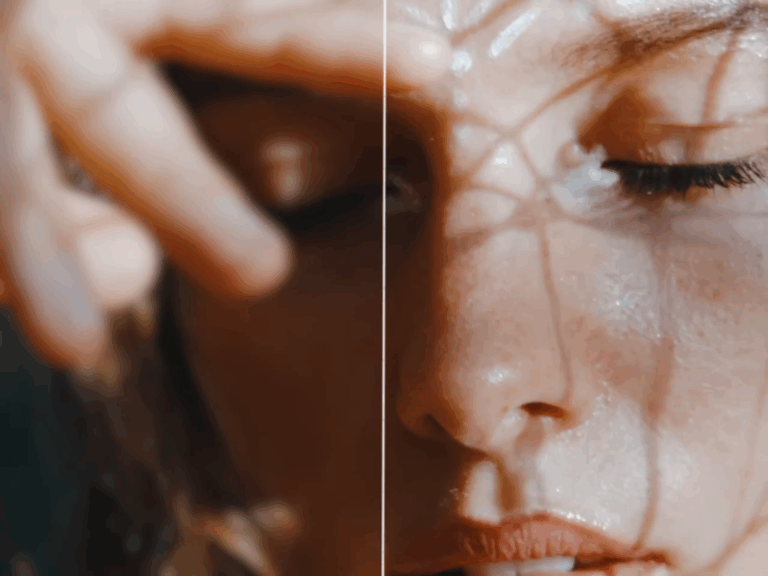
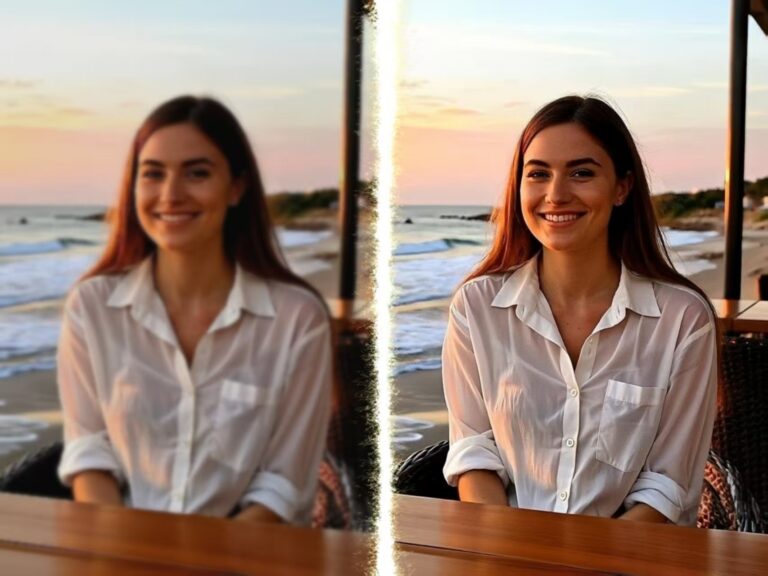
You capture a great moment — a sunset on vacation, your kid blowing out birthday candles, a quick clip for Instagram. When you watch it later, it looks soft. Just blurry enough to be disappointing.
At first, I used to blame myself. Maybe I moved too fast. Maybe my phone camera just wasn’t great back then. But as time went on, I began to realize this wasn’t entirely my fault. A lot of videos look blurry not because we messed up. But because technology moved forward. Screens got better and expectations got higher. Our old footage didn’t.
That’s when I decided to give an AI video upscaler a shot. I wanted to see if it could actually bring some of that lost detail back. Instead of reshooting something that can’t be recreated, I upgrade the footage I already have. And yes, it actually works.
Common Reasons for Blurry Videos
Blurry video isn’t always obvious at first. It usually shows up later. When you switch devices, upload to a platform, or watch on a bigger screen.
Low Resolution vs Modern Screens
A few years ago, 720p looked perfectly fine. Early 1080p looked sharp and clean on smaller laptops and phones.
Today we’re watching content on 4K TVs and ultra-sharp smartphone displays. When older footage gets stretched across these high-resolution screens, the missing detail becomes obvious. Edges look soft. Faces lose texture. Everything feels slightly out of focus.
The video itself hadn’t changed at all. What changed was the screen I was watching it on. Suddenly, all the flaws were impossible to ignore.
Compression, Motion, and Low Light
Another big factor is compression. Social media platforms reduce file size by removing data. That’s how they make videos load faster. But when data disappears, detail disappears with it.
Fast motion can also cause blur, especially if your camera struggled to keep up. Add low light into the mix, and it gets worse. In dark environments, cameras raise ISO and reduce clarity. The result? Grainy shadows and soft edges.
Individually, these issues might seem small. Together, they make your footage look noticeably worse.
Traditional Editing Can’t Truly Fix Blurry Videos
Before discovering AI Video Upscaler, I tried fixing blur the old-fashioned way. I increased sharpness and boosted contrast. Sometimes it helped a little. Most of the time, it makes things worse.
Traditional editing tools can’t create new detail. They can only enhance what’s already there. If the pixels don’t contain enough information, sharpening just exaggerates noise and rough edges.
It might look slightly better at first glance. But zoom in, and it falls apart. That’s when I realized I needed something smarter.
How AI Video Upscalers Improve Video Quality and Upscale to 4K
An AI video upscaler doesn’t just stretch a video to a larger size. It rebuilds detail.
Frame-by-Frame Detail Reconstruction
Instead of treating your video as one single block, AI looks at it frame by frame. It recognizes faces, textures, movement and shapes. Based on that analysis, it adds realistic detail where information is missing. It’s basically filling in the gaps in a way that actually makes sense to the human eye.
That’s how you can convert 1080p to 4K while keeping it natural. The image becomes clearer, not just bigger.
Fixing Blur Without Over-Sharpening
What I like most is how balanced the results look.
Good AI upscaling improves clarity without creating harsh outlines. The skin still looks smooth. Hair looks defined but not crunchy. Background details become clearer without turning artificial.
It feels like your video was shot on a better camera.
When an AI Video Upscaler Is Worth Using
I don’t upscale every single video I record. But there are moments when it absolutely makes sense.
For example:
- Old travel footage I want to rewatch on a 4K TV
- Family videos that mean too much to lose
- Social media clips that look soft after upload
- Client content that needs to look more professional
If a video is slightly blurry, low resolution, or compressed, AI upscaling can make a noticeable improvement and restore old videos without reshooting.
Now, if a clip is extremely damaged or completely out of focus, no tool can perform miracles. But for everyday blur and softness? The difference is real.
Sometimes the difference is subtle, and sometimes it really surprises you. Either way, I’d rather improve a good memory than just let it sit there looking blurry.
Why I Use AIAI.com to Fix Blurry Videos
After testing different options, I kept coming back to AIAI.com.
A couple of years ago, I filmed a short video of my dog playing in the living room. It was a regular afternoon. Sunlight was coming in through the window, toys were scattered across the floor, and he was running back and forth chasing a squeaky ball.
But when I watched it later on my laptop, I immediately noticed how soft it looked. His fur didn’t have much detail. When he moved quickly, everything blurred together. The background looked slightly washed out. It didn’t feel as vivid as the moment I remembered.
I tried adjusting sharpness in my editing app. The edges became harsher, and the noise in the darker corners of the room became more visible. It didn’t look natural anymore. So I uploaded the clip to AIAI.com.
A few things really stood out when I tried it:
- The results look clean and natural
- No strange artifacts or weird distortions
- The interface is straightforward
- Processing time is reasonable
His fur looked more defined. You could see more texture around his face. The motion blur during his quick jumps was reduced. Even the light coming through the window looked cleaner. It still felt like the same moment.
Fix Blurry Videos Online in 3 Simple Steps
If you’re curious how I do it, this is the exact process I follow on AIAI.com.
Step 1: Upload Your Video. I head to the site and upload the blurry file. Most standard video formats work without any issues.
Step 2: Choose the Output Resolution. I usually select 4K if I plan to watch it on a large screen. If it’s for social media, HD might be enough.
Step 3: Download the Enhanced Version. After processing, I download the improved version and compare it side by side with the original. The added clarity is usually obvious within seconds.
Frequently Asked Questions
What Video Types Work Best? From my experience, videos that are just a little soft tend to see the biggest improvement. Low-resolution phone footage, compressed social media clips, and indoor recordings usually see strong improvement. Videos that are completely out of focus may not improve as much.
Does the AI video upscaler Change the Original Video? No worries! Your original file stays safe. It’s only the enhanced version that gets created. You can always keep both.
Do I Keep the Rights to My Videos? Yes. You still own your content. Upscaling simply improves the visual quality of a video you already created.
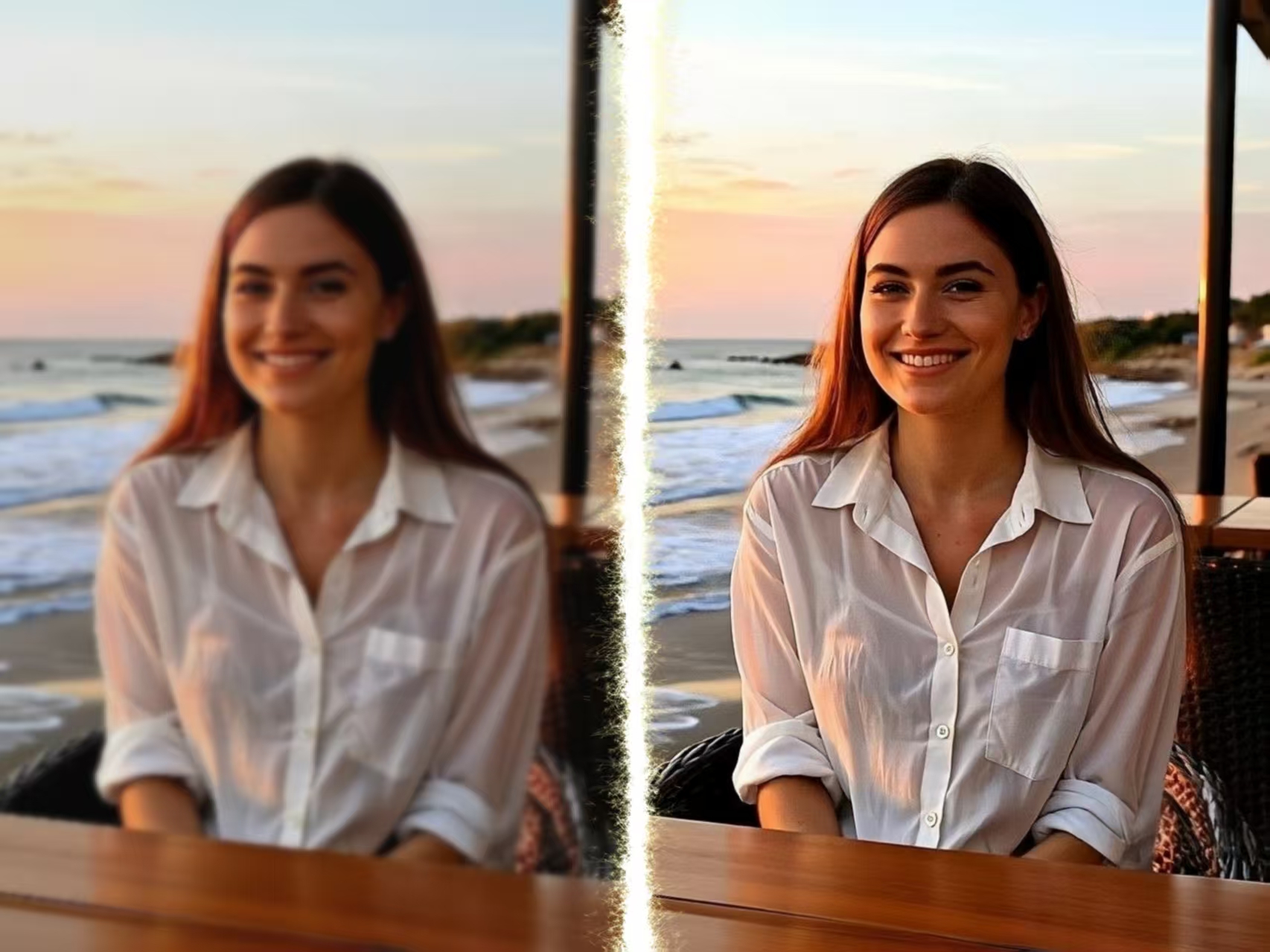
Old videos looking blurry on modern screens? I tested an AI video upscaler to enhance video quality up to 4K Read more
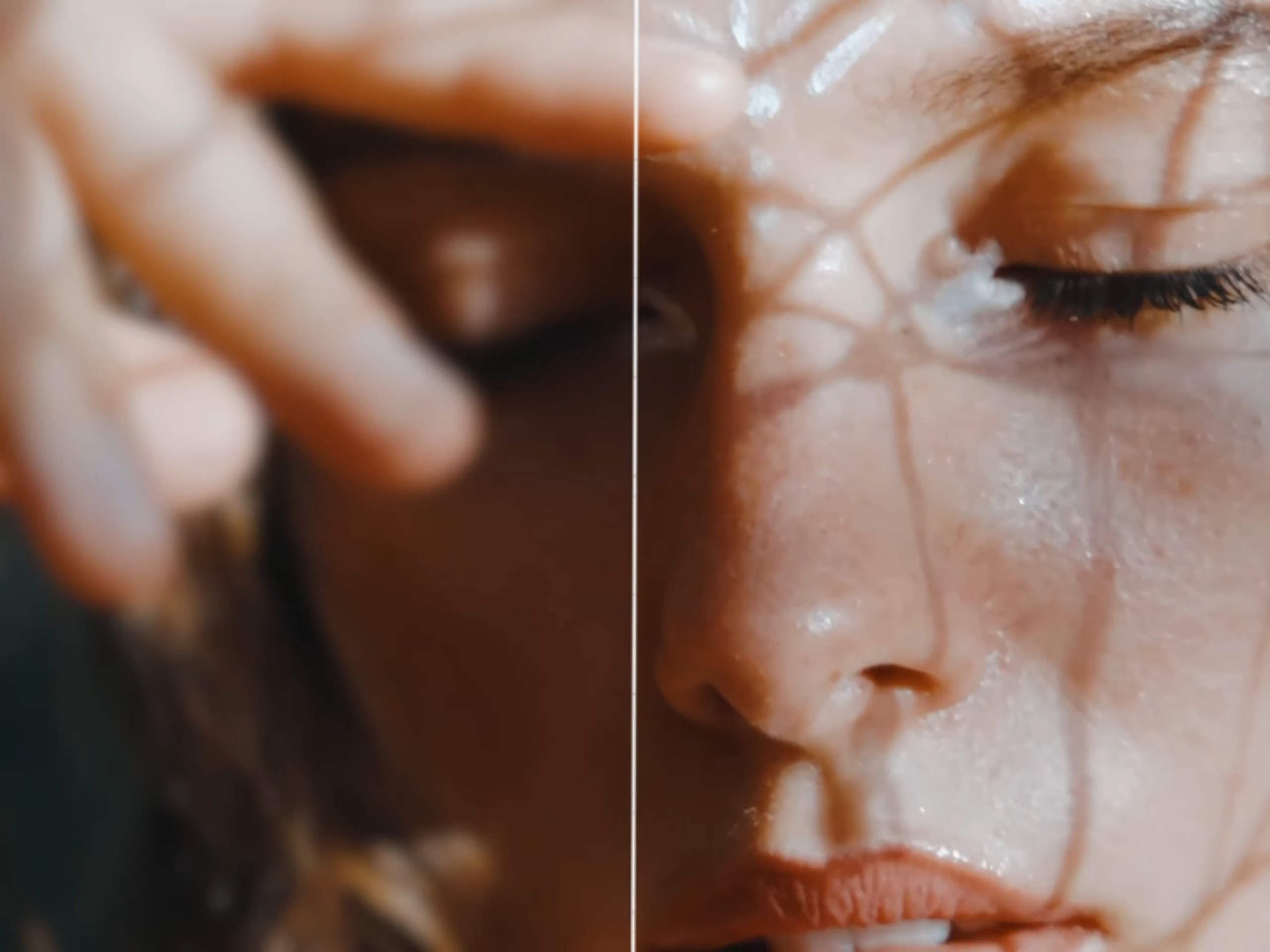
Don't let resolution limit your creativity. Experience the most powerful AI image upscaler free at AIAI.com. From photo upscale to Read more