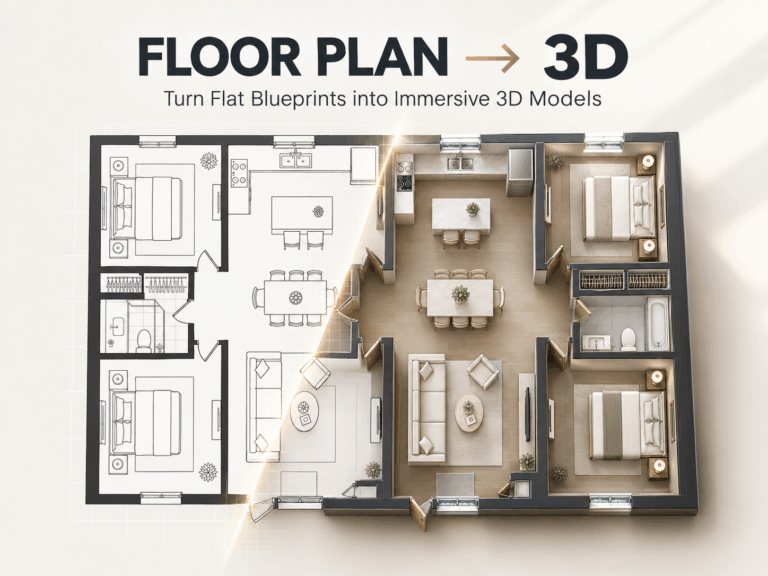
An AI CAD Drawing Generator is exactly the kind of tool engineers and designers have been searching for.
While browsing Reddit’s r/CAD and r/engineering forums, I kept seeing the same complaint: people spending hours tracing rough sketches, recreating floor plans, or doing repetitive drafting work that feels like it should already be automated.
So I decided to test the AI CAD Drawing Generator on AIAI.com.
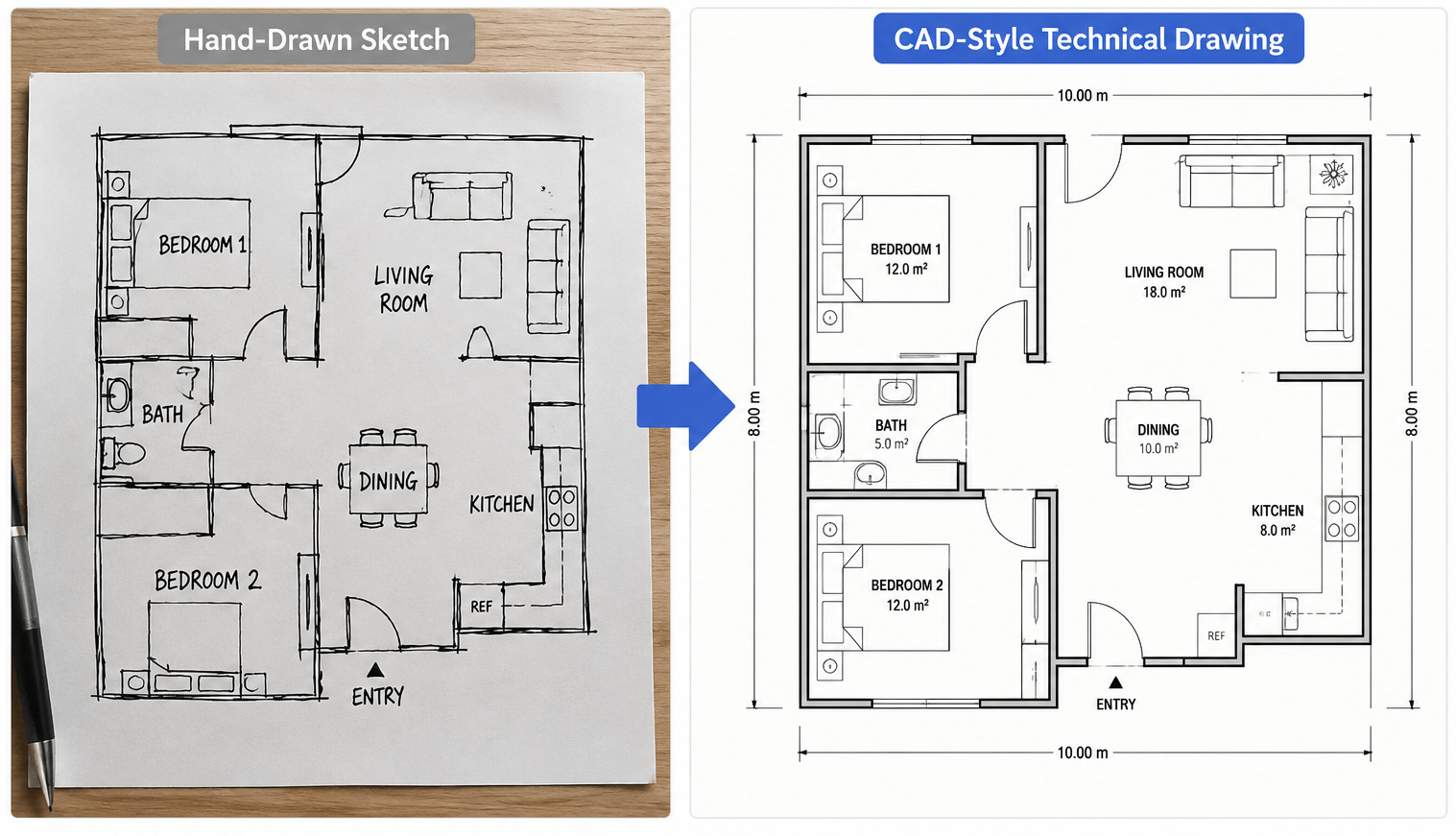
By uploading a simple sketch, I was able to generate a clean CAD-style drawing in minutes. Here’s how it works and what kinds of technical drawings it can create.
Why AI CAD Generation Is Gaining Attention
Traditional CAD software remains the industry standard for detailed engineering and architectural work. However, for many projects, the first step isn’t creating production-ready drawings—it’s simply visualizing an idea.
AI CAD generators help bridge that gap by transforming text prompts, sketches, and reference images into technical-style drawings within seconds.
Some practical benefits include:
- Faster concept visualization
- Reduced time spent creating initial layouts
- Easy conversion of sketches into structured drawings
- Multiple design variations generated quickly
- Helpful visual references before moving into professional CAD software
Rather than replacing CAD tools, AI works best as a creative assistant that accelerates the early stages of the design process.
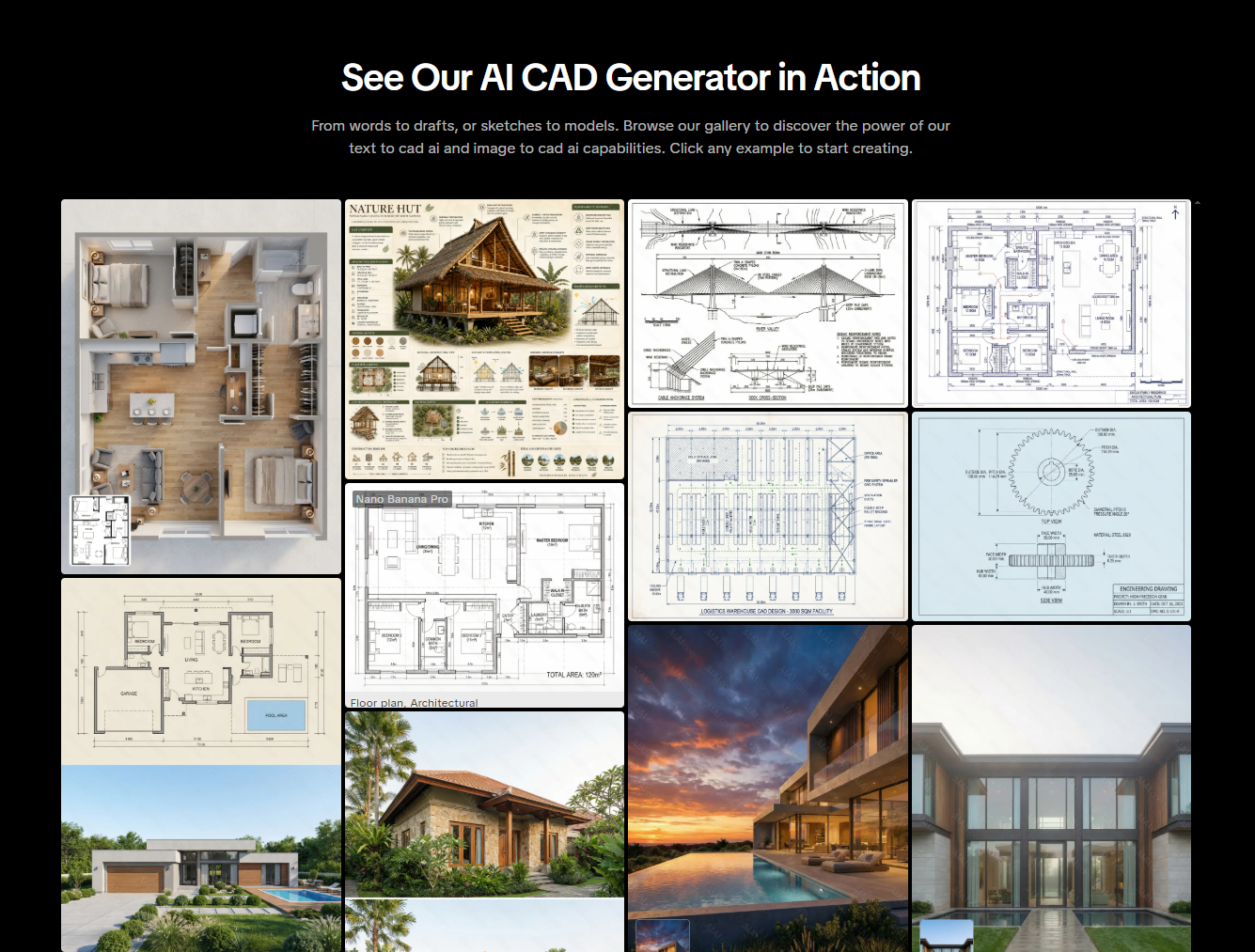
6 Types of Technical Drawings You Can Generate
1. Mechanical Components
Generate CAD-style illustrations of gears, brackets, shafts, connecting rods, and other mechanical parts from sketches or text prompts.
2. Architectural Concepts
Create building elevations, section drawings, architectural concepts, and presentation visuals for residential or commercial projects.
3. Floor Plans
Generate apartment layouts, office floor plans, restaurant concepts, and interior space arrangements with clean technical linework.
4. Infrastructure Concepts
Visualize bridges, road systems, and civil engineering structures for planning discussions and proposal presentations.
5. Electrical Layouts
Create schematic-style drawings and electrical system concepts that can serve as visual references during planning.
6. Urban Planning Designs
Generate subdivision layouts, master plans, road networks, and land-use concepts for urban development projects.
How to Generate CAD-Style Drawings with AI (3 Steps)
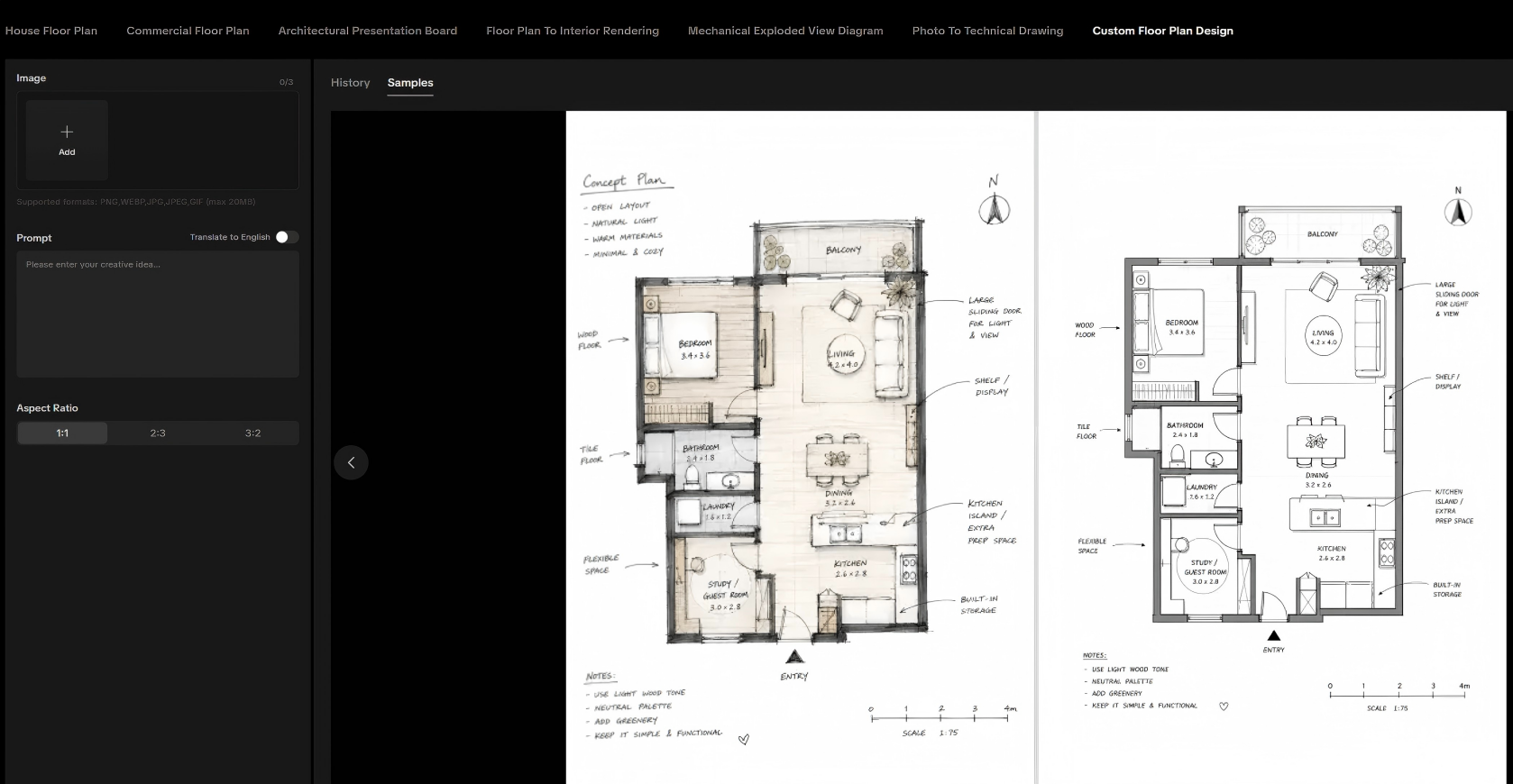
One of the most appealing aspects of the platform is its simplicity. You don’t need prior CAD experience to start creating technical-style visuals.
Step 1: Upload a Sketch or Enter a Prompt
Open the AI CAD Drawing Generator on AIAI.com and either upload an image or enter a detailed text description of your design. You can use:
- Hand-drawn sketches
- Product photos
- Concept drawings
- Text descriptions
Step 2: Choose Your Preferred Style
Select the visual style that best matches your project goals. Depending on the type of design, you may want a mechanical, architectural, electrical, or blueprint-inspired appearance.
Step 3: Generate and Download
Click Generate and allow the AI to process your request. Within moments, you’ll receive a high-resolution CAD-style drawing that can be used for presentations, concept reviews, and design exploration.
AI CAD Generator vs Traditional CAD Software
(Editor’s Note: AI excels at quick visualization, while traditional software handles manufacturing.)
| Feature | AI CAD Generator | Traditional CAD Software |
| Learning Curve | Beginner Friendly | Requires Training |
| Concept Visualization | Excellent | Good |
| Speed | Very Fast | Manual |
| Precision Editing | Limited | Advanced |
| Documentation | Limited | Professional Grade |
| Best Use Case | Ideation & Visualization | Production Drawings |
Example Prompts for Better Results
If you’re not sure where to start, these example prompts can help generate more detailed outputs:
- Mechanical Component: “Generate a detailed CAD-style drawing of a connecting rod with front, side, and sectional views.”
- Residential Floor Plan: “Generate a CAD-style floor plan for a modern three-bedroom apartment with furniture layout.”
- Bridge Design: “Generate a technical drawing of a steel truss bridge with structural details and labeled components.”
- Electrical System: “Generate an electrical wiring layout for a four-story commercial building.”
- Urban Planning: “Generate a subdivision master plan with roads, green spaces, and residential lots.”
What About Privacy and Cost?
Before using any AI design platform, it’s important to understand how your data is handled and what pricing options are available.
AIAI.com offers a free tier that allows users to test the platform before committing to a paid plan.
For projects involving confidential information, users should always review the platform’s latest privacy policies and terms of service before uploading proprietary materials. As with most AI tools, it’s good practice to avoid uploading sensitive project files unless you have confirmed the platform’s data handling procedures.
Frequently Asked Questions
Can AI-generated CAD drawings replace professional CAD software?
Not entirely. AI-generated drawings are best used for concept development, visualization, brainstorming, and presentations. Detailed engineering documentation still requires professional CAD software.
Can I convert a hand-drawn sketch into a CAD-style drawing?
Yes. Uploading sketches is one of the most common use cases for AI CAD generators.
What industries can benefit from AI CAD generators?
Architecture, engineering, interior design, product design, manufacturing, construction, and urban planning are among the industries that can benefit from AI-generated technical visuals.
Are AI CAD drawings suitable for production use?
They are generally most useful during concept and planning stages. Production-level engineering work should always be reviewed and finalized using professional CAD tools.
Final Thoughts
If your goal is to quickly transform ideas, sketches, or reference images into technical-style visuals, an AI CAD Drawing Generator can significantly accelerate the early stages of the design process.
While it won’t replace professional CAD software for engineering documentation, it can be a valuable tool for concept development, client presentations, brainstorming sessions, and rapid design exploration.
You can experiment with your own sketches and prompts on AIAI.com to see how AI-generated technical drawings fit into your workflow.
[Try the AI CAD Drawing Generator for Free Here]

As a hobbyist artist and social media content creator, I’ve always loved the clean, minimalist look of line drawings—but I’m Read more

Looking for the best AI Feet Generator? I tested popular AI image tools and compared their features, image quality, and Read more

Looking for a reliable text remover from video free tool? I tested AIAI.com to erase TikTok watermarks and hardcoded subtitles. Read more

Create visual course syllabi for “Introduction to Media Studies” using Nano Banana 2. Explore prompts, templates, and real examples for Read more