We all have them. That folder of photos that aren’t quite good enough to post but too meaningful to trash.
The dimly lit dinner where everyone’s faces are shadowy. The beach sunset where your family turned into silhouettes. The group shot at your cousin’s wedding where the flash made everyone look mildly haunted.
These aren’t bad memories, they’re bad photos. And for the longest time, fixing them meant either learning complex Photoshop skills or paying someone else to fix them .
The Old Options Weren’t Great
I tried learning proper photo editing once. Opened Photoshop, saw approximately 47,000 buttons and sliders, closed it immediately, made peace with my mediocre camera roll.
Paying a professional to fix casual snapshots felt absurd too. “Yes hello, I’d like to commission a restoration of this blurry image of my friends eating nachos.”
So the bad photos just sat there, taking up storages.
But the landscape of photo editing has shifted dramatically. Anyone can now use AI-powered tools to rescue those “almost great” photos with nothing more than a simple description of what they wished the photo to look like.
AI Changed the Game
Here’s what’s different now: tools like Nano Banana Pro let you just describe what you want. Regular words. No technical knowledge required.
Dim restaurant shot? “Brighten it up, blur the background to make my friends pop, and make the lighting look like warm candlelight.”
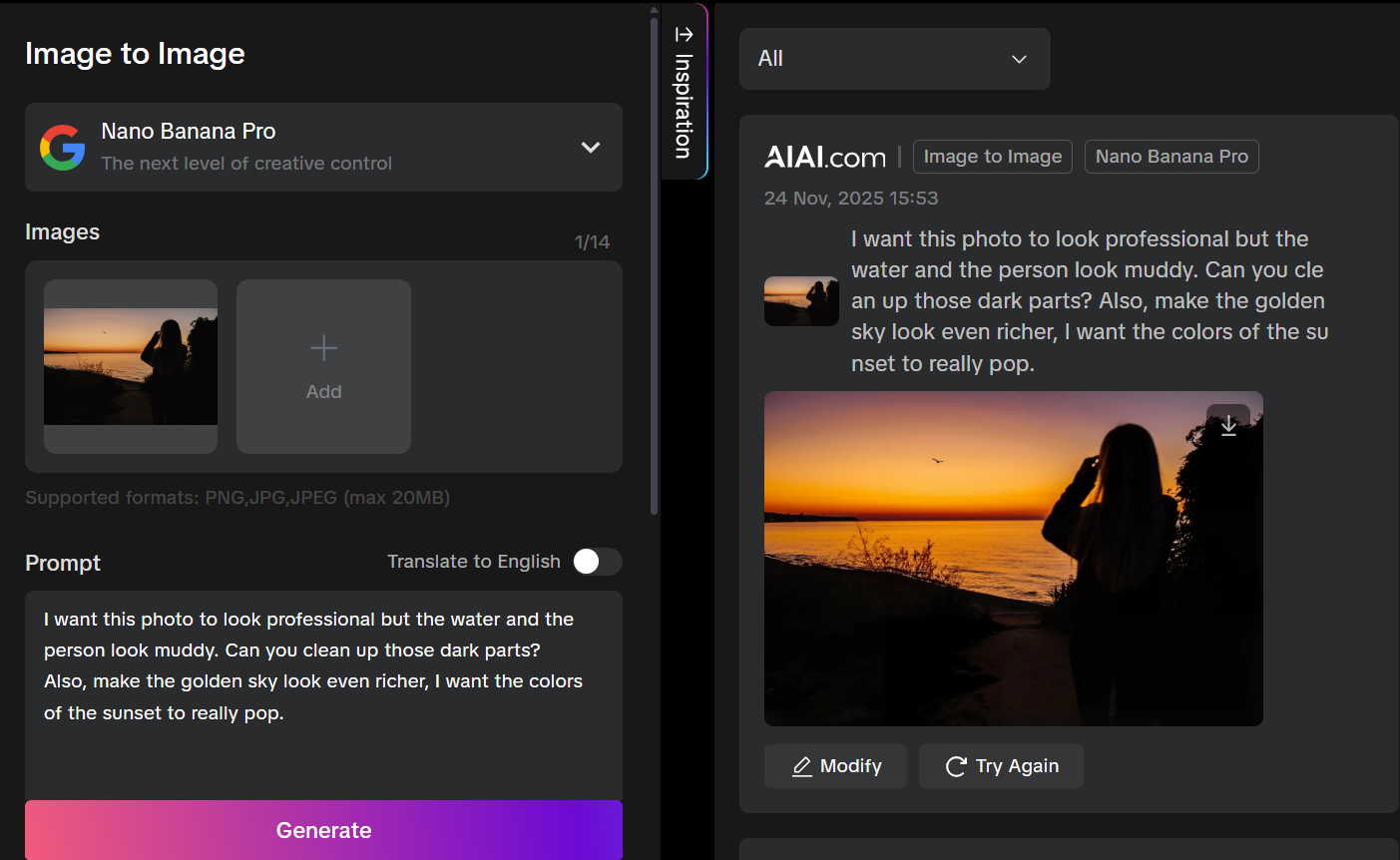
Backlit vacation disaster? “Fix the shadows on faces but keep the sunset looking good.”
Weird fluorescent office lighting? “Make the skin tones look normal and correct that greenish cast.”
The AI handles all the technical nonsense like exposure, color temperature, depth of field, while you just explain the vibe you’re going for. What might take an experienced editor fifteen minutes of careful adjustments happens in seconds.
Save the photos you almost deleted
If you’ve been meaning to rescue some of those photos sitting in your camera roll, the steps are simple:
Go to AIAI’s new google nano banan pro model.
Upload a photo. Type what you wish it looked like. Wait a few seconds. Done.
No tutorials. No learning curve. No YouTube rabbit hole about adjustment layers.
The results aren’t magazine-cover perfect, but they actually look like how the moment felt—which is the whole point of taking photos in the first place. Plus, this work directly in your browser, no software to download or install.
Give It a Shot
If your camera roll is full of almost-great photos, give Nano Banana Pro a shot.
Worst case, nothing changes. Best case, you rescue a memory you’d written off years ago.
Those photos deserve better. And now fixing them doesn’t require a design degree.
Want to try rescuing some of your own photos? Nano Banana Pro is available on AIAI, use free tokens to get started.
Some Tips for Better Results
While the model itself is remarkably intuitive, a few tips can help you get even better outcomes:
Be specific about what you want. “Make this photo better” gives the AI less to work with than “brighten the faces, reduce the noise, and make the background slightly blurred.”
Mention the mood you’re going for. Terms like “warm and cozy,” “bright and airy,” or “dramatic and moody” help guide the aesthetic direction.
Don’t be afraid to iterate. Your first prompt might get you 80% of the way there. A follow-up instruction for modification can refine the remaining details.
Start with your most challenging photos. If the AI can rescue your worst shots, you’ll have confidence it can handle anything in your library.
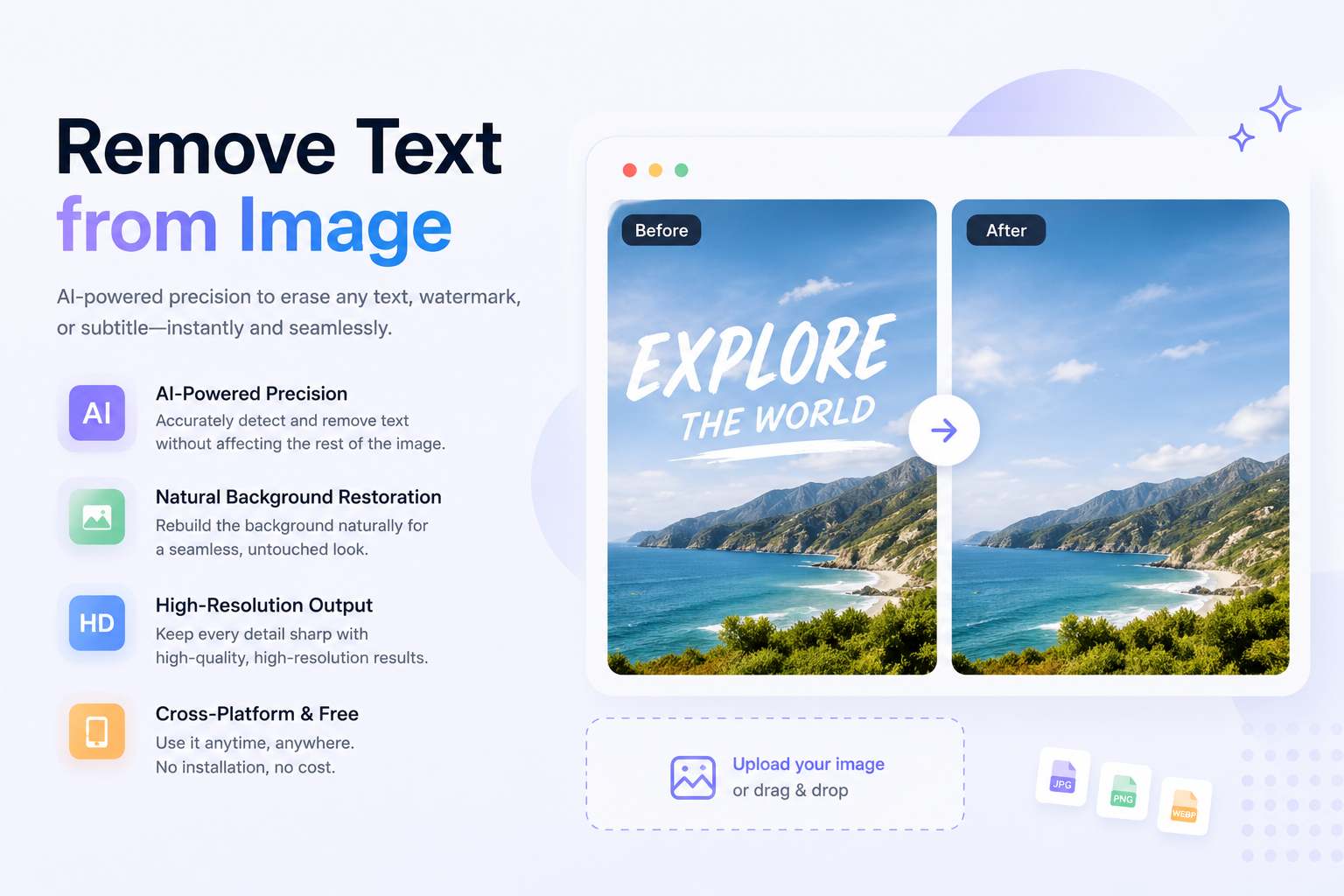
Remove text from image instantly with AI. Clean watermarks, subtitles, and overlays while preserving background quality and high-resolution details.
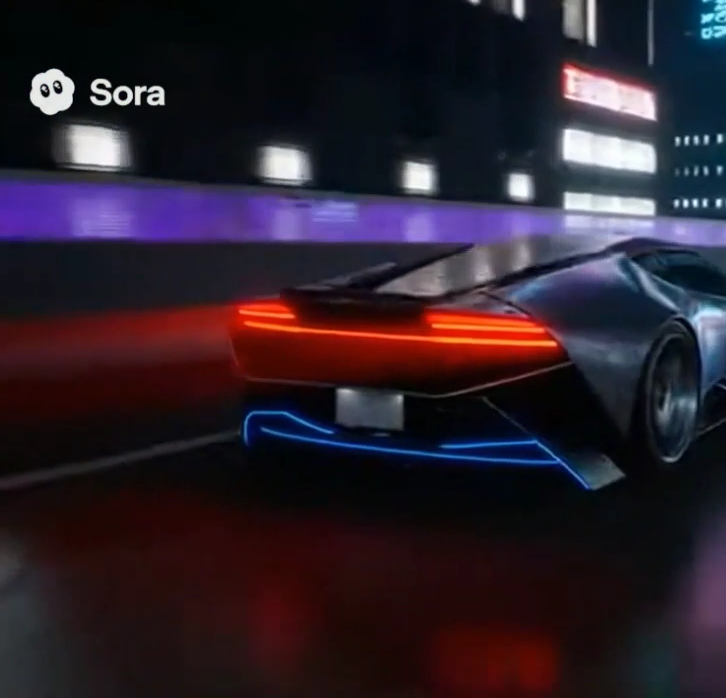
Stop blurring your videos. I tested popular watermark removers on complex AI-generated clips (Sora 2). See the before/after results and Read more
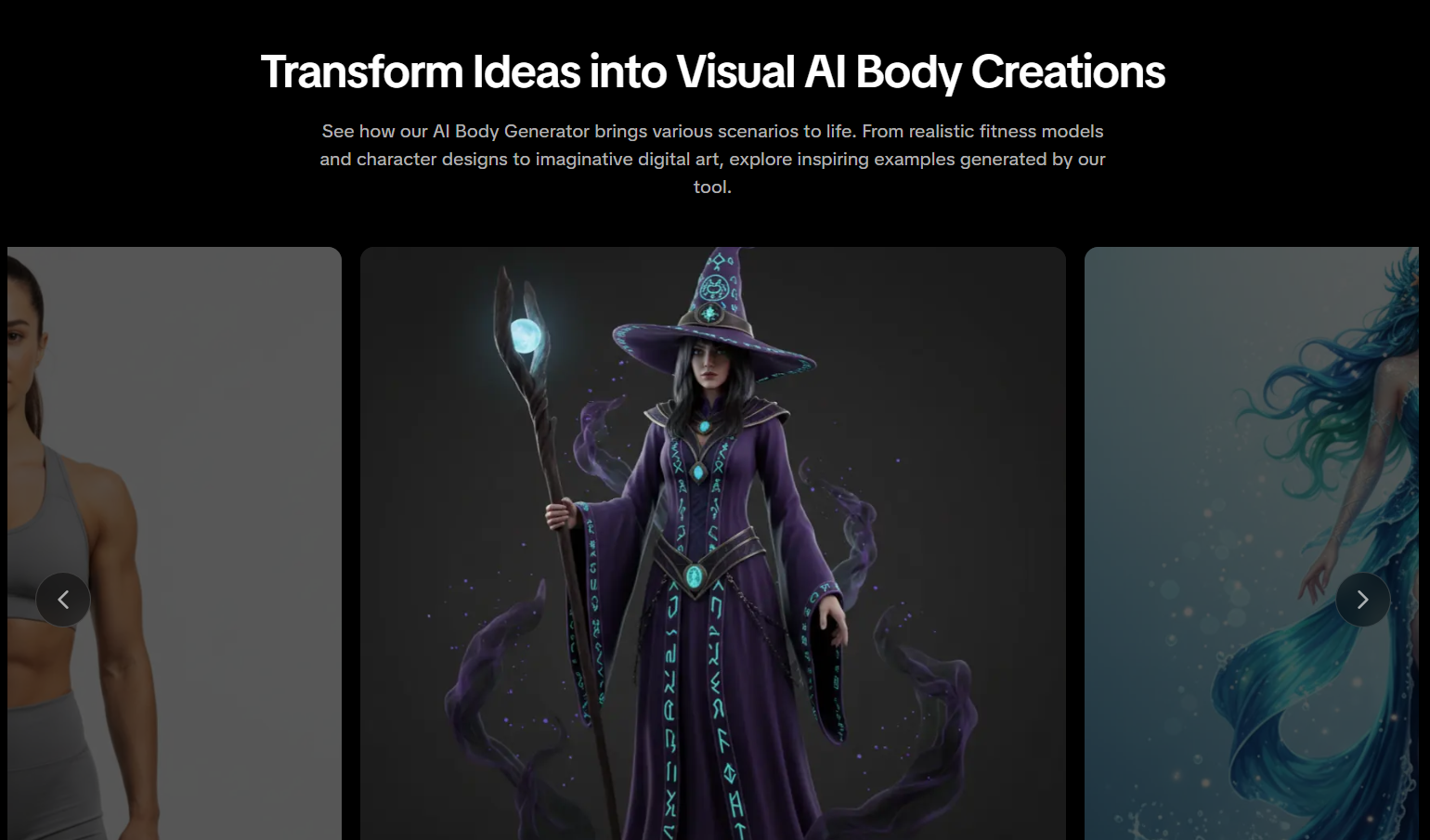
Create Realistic Body Transformations from Photos Have you ever wondered what you'd look like with six-pack abs, a lean athletic Read more

Tired of scrolling through terrible stock images with fake checkered backgrounds? Here is how to make your own custom graphics Read more