Have you always wanted to try a bob, dye your hair platinum blonde, or sport some bangs, but been too hesitant to take the plunge? With the help of AI, you no longer have to imagine it in your mind. Nano Banana Pro is a powerful AI tool that allows you to virtually try on new hairstyles by simply uploading a photo of yourself.
This tutorial will guide you step-by-step on how to use Nano Banana Pro to create your own unique new hairstyle.
Preparation: The Right Photo is Key
You can log in to our website AIAI.com. This site comes with the Nano Banana Pro system, and it offers you several free trial opportunities. Before opening the tool, the quality of the final result largely depends on the photo you upload. To ensure the best experience, keep these points in mind:
– Lighting: Choose a photo taken in even natural light.
– Hair Visibility: Make sure your current hairstyle is fully visible and not obscured by a hat.
– Background: A simple background is ideal, but as long as you follow the steps below, Nano Banana Pro can handle complex backgrounds as well.
– Face Angle: Take the photo facing the camera directly.
Step-by-Step Guide: Change Your Hairstyle Without Changing Your Face, Easily Preserving Your Personal Characteristics
Follow these steps to ensure that the AI only modifies your hairstyle while keeping your facial features and outfit intact.
Step 1: Upload Your Photo to the “Editing” or “Generation” Function Area
Open Nano Banana Pro and note: Do not use the default “Text to Image” function, as it will generate a completely new character. You need to find the function options labeled “Editing”, “Fill Generation”, or “Image to Image”. Then click “Upload Image”, select a high-resolution personal portrait photo.
Step 2: Write “Directional Editing” Instructions
Unlike regular image generation, changing hairstyles requires precise instructions. You need to clearly tell Nano Banana Pro what to modify and, more importantly, what to keep unchanged.
To ensure that your face shape, outfit, and background are 100% preserved, use the formula of “Action + Target + Limiting Conditions” to organize your instructions.
1.Action (What to do):Start with a clear verb. Instead of just writing “golden hair”, use precise verbs like “replace” or “change”.
2.Target (What to modify):Clearly describe your current hairstyle. This way, the AI can precisely locate the pixels to be modified, and you don’t have to manually draw a mask.
3.Limiting Conditions (What to keep):This is the core to maintaining your personal identity! Be sure to clearly tell the AI that everything except the hairstyle should remain unchanged.
- Universal Instruction Formula:
Replace [Current Hairstyle] with [New Hairstyle], keeping the face shape, background, and outfit completely unchanged.
Step 3: Write Precise Prompt Words
Next, you need to input a text instruction into Nano Banana Pro. To ensure the best results, the prompt words should focus on the “hairstyle” core.
Prompt Word Formula
[Hairstyle Name], [Hair Color], [Hair Texture], [Length], realistic style, 8K ultra-high definition, rich in details
Reference Examples
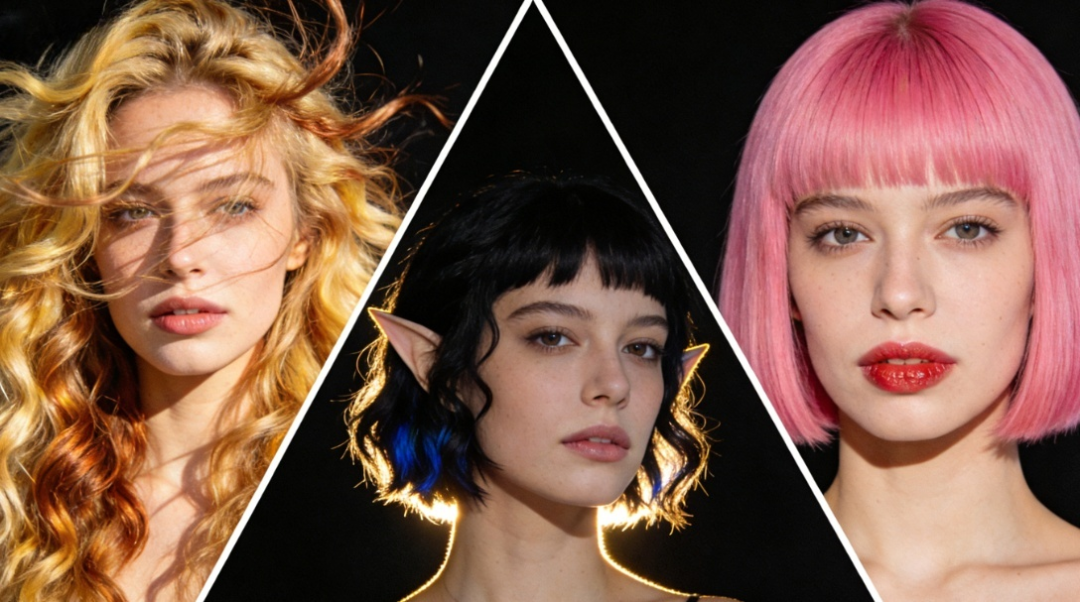
Long wavy blonde hair, middle parting, voluminous and layered, natural and realistic texture.
Short black pixie cut, messy and choppy, trendy and avant-garde.
Pink bob with bangs, straight hair, soft and natural lighting.
Important Reminder: Do not describe facial features (such as “beautiful woman” or “blue eyes”) in the prompt words. Since we are only modifying the hairstyle area, the AI only needs to know the hairstyle-related information. Describing facial features may confuse the AI and cause it to modify the facial features within the hairstyle mask area.
Step 4: Generate the Effect and Optimize Repeatedly
Click the “Generate” button. Nano Banana Pro usually provides 2-4 different hairstyle effects.
- Satisfied with the result? Just download your favorite version directly.
- Not satisfied? Don’t worry! For these common issues, you can easily solve them with precise instructions.
Problem Scenario Solution Instruction:
- The hairstyle looks like a “plastic helmet” The hairstyle lacks details and the color looks like a solid block. Add some messy and disheveled texture to the hair to make the hairstyle more natural. Don’t make it too stiff and keep the face unchanged.
- Facial features are modified Even if the instructions are strict, the AI may still slightly smooth the skin or change the eye shape. Restore the facial features to the original state, only modify the pixels in the hairstyle area, and ensure that the skin texture is exactly the same as the original.
- The hairstyle style is incorrect, such as too short length or color deviation. Make the hair a little longer, just reaching the shoulder, and change the hair color from bright yellow to cold gray brown. Keep the background unchanged.
- The edge transition is too harsh The connection between the forehead and the new hairstyle looks fake (this is a common problem in AI image editing, called “edge blurring”). Optimize the connection effect of the hairline to make the transition between the skin and the hair clearer and more natural.
Summary
Try on new hairstyles with Nanabana Pro and never worry about a bad haircut again! As long as you master the use of the mask tool and write precise prompt words, you can easily achieve various hairstyles from bob to braids, from dark brown hair to blonde, while perfectly preserving your face shape, clothing, and background characteristics.
Upload your photo now and find your exclusive “destined hairstyle”!
Explore how AI for Creative Writing tools can help with storytelling, character development, and content creation. See which AI writing Read more
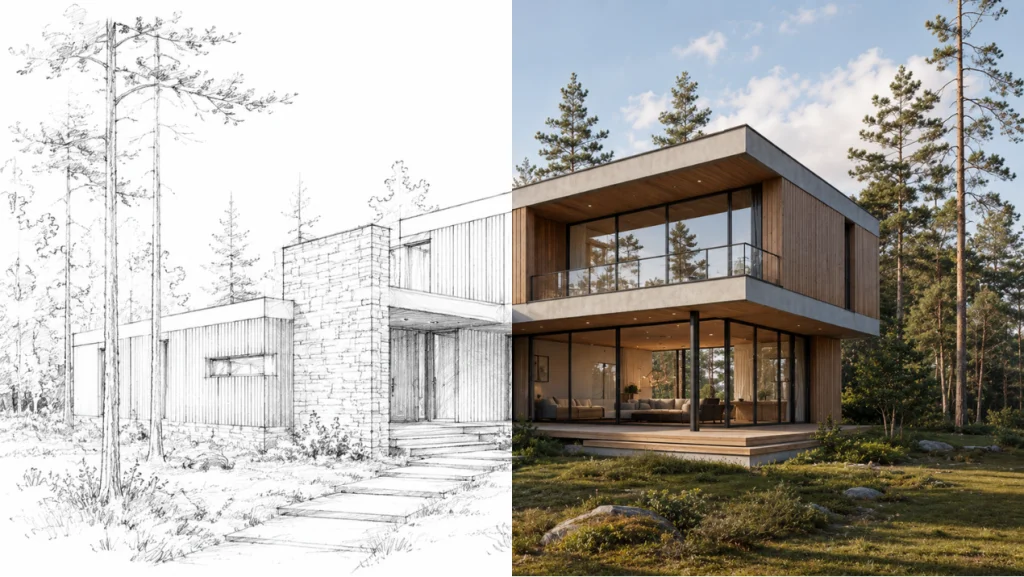
Can an AI Architecture Generator actually deliver buildable structural details, or is it just pretty, impossible-to-construct pictures? Here is my Read more

Discover how a video text remover can quickly and easily remove subtitles, watermarks, and unwanted text from your videos. Learn Read more
Still wasting hours manually aligning grey boxes in Figma before writing a single line of copy? Discover how generative AI Read more