As a filmmaker, your worst enemy is randomness. You don’t want AI to “guess” what your protagonist looks like; you want it to animate the character you already designed.
While Text-to-Video (TTV) gets all the hype, professional creators know the truth: Image to Video generator technology is the real workhorse for production.
Why? Because TTV is like rolling dice—you hope the lighting and composition turn out okay. Image to Video (I2V) is like handing a VFX artist a finished storyboard and saying, “Make this move.” On AIAI.com, we combine the stability of reference images with the precision of text prompts, giving you the control you need for serious storytelling.
Check out this example by Vidu Q3. It brings a static watercolor illustration to life with synchronized Japanese dialogue—perfectly preserving the original hand-drawn style.

Why Image to Video Beats Text-to-Video for Accuracy
You hit the nail on the head: Control.
When you use an Image to Video generator, you are locking in the visual data before the motion begins.
- The “Anchor” (Your Image): The AI doesn’t need to hallucinate the character’s face, the costume details, or the lighting. It uses your uploaded image as the ground truth.
- The “Director” (Your Prompt): This is where I2V outperforms everything else. You don’t just upload a photo and pray. You add a Motion Prompt to guide the action.
Example:
- Without Image (TTV): “A cinematic shot of a detective looking left.” (The AI generates a random detective).
- With Image + Prompt (I2V): You upload your specific detective character. Then you type: “Slow camera push in, character turns head slowly to the left, subtle wind in hair.”
The result? The AI keeps your character’s face 100% consistent (Stable) while executing the exact movement you asked for (Accurate). This “Hybrid Control” is why models like Kling 3.0 and Veo 3.1 on AIAI.com are essential for continuity.
Which Image to Video Generator Fits Your Scene?
Different shots require different engines. Since AIAI.com aggregates them all, you can choose the right tool for the specific motion you need:
1. Kling 3.0 Pro: The “Action” Stabilizer
If you need complex physics—like a car drifting or a person running—Kling is unmatched. It respects the input image’s anatomy rigidly, meaning arms and legs won’t turn into spaghetti during fast motion.
- Best for: Narrative shorts, realistic character acting, and complex physics.
2. Vidu Q3 Pro: The “Flow” Specialist
Vidu excels at “flow.” It’s perfect for shots where you want the atmosphere to move (clouds, water, hair) while keeping the composition beautiful. It feels less like a simulation and more like high-end animation.
- Best for: Anime/Animation, music videos, and smooth looping backgrounds.
3. Veo 3.1: The “Cinematographer”
When pixel-perfect resolution matters more than movement, Google’s Veo 3.1 is the choice. It creates 4K-ready visuals with consistent lighting, ensuring your image doesn’t lose detail when it starts moving.
- Best for: High-end commercials, architectural visualization, and nature documentaries.
Quick Comparison: Top Image to Video Generator Specs (2026)
Can’t decide? Here is the technical breakdown of every model available on AIAI.com. We’ve benchmarked them on duration, resolution, and stability to help you plan your shoot.
| Model Name | Max Duration | Resolution | Stability (Motion) | Input Formats | Best For |
| Kling 3.0 Pro | 10s (Extendable to 3m) | 1080p / 4K | ⭐⭐⭐⭐⭐ (High) | JPG, PNG, WEBP | Complex Action (Running, Driving, Physics) |
| Vidu Q3 Pro | 4s / 8s / 16s | 1080p | ⭐⭐⭐⭐⭐ (High) | JPG, PNG | Anime & Flow (Smooth camera pans, hair, cloth) |
| Veo 3.1 | 10s+ | 4K (Cinematic) | ⭐⭐⭐⭐ (Med-High) | JPG, PNG, HEIC | Photorealism (Landscapes, Architecture, TV Ads) |
| Wan 2.6 | 5s – 10s | 720p / 1080p | ⭐⭐⭐ (Creative) | JPG, PNG | Abstract & Morphing (Artistic style transfer) |
| Grok Imagine | 10s – 15s | 1080p | ⭐⭐⭐⭐ (Med) | JPG, PNG | Unfiltered / Audio (Memes, bold concepts, sound) |
Editor’s Note: “Stability” refers to how well the model keeps the subject’s face/body consistent while moving. Kling is currently the king of consistency for human movement, while Veo wins on pure pixel clarity.
How to Use the Image to Video Generator on AIAI.com (Workflow)
Here is the professional workflow to turn static storyboards into usable video clips:
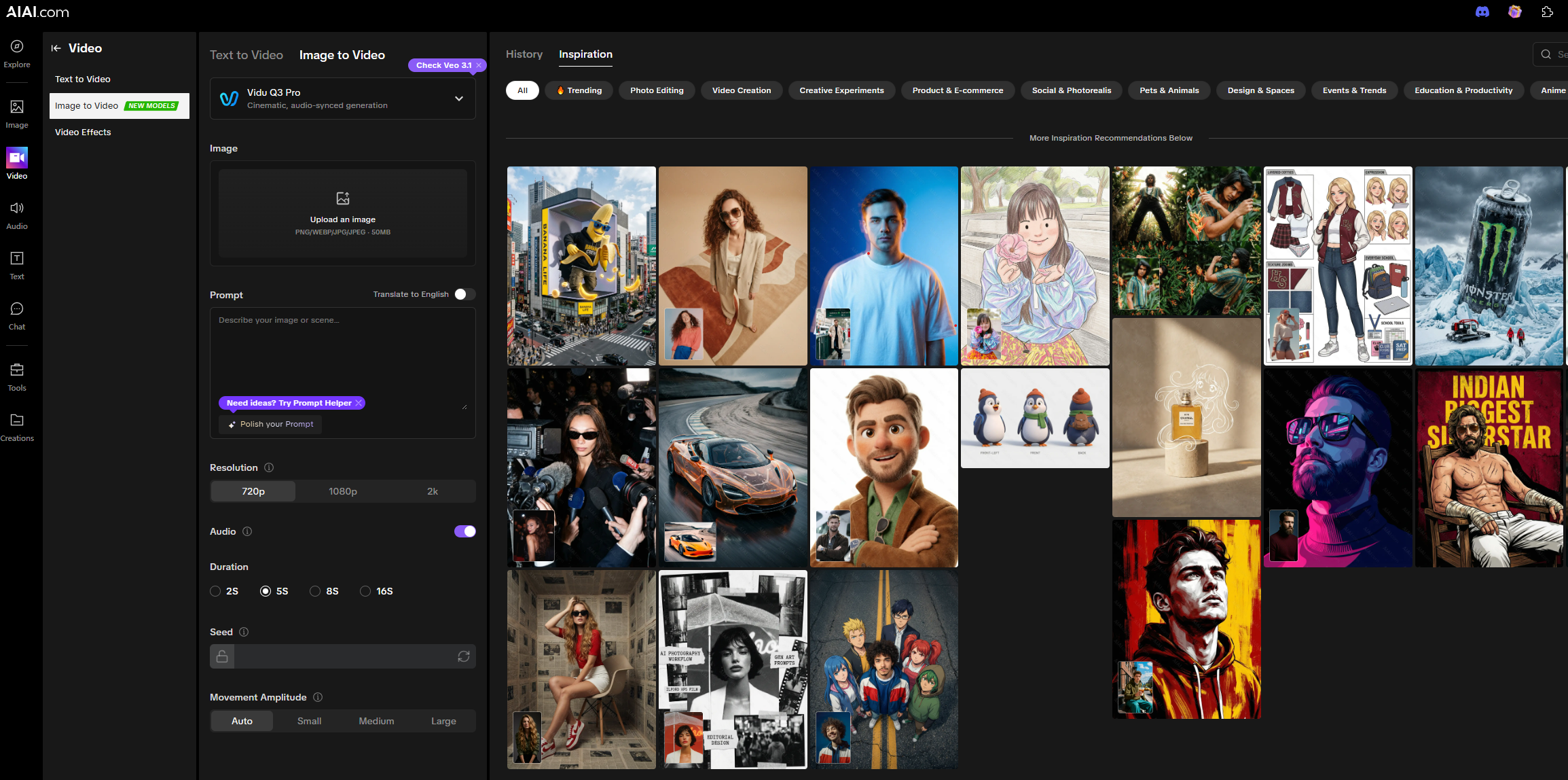
Step 1: Upload Your “Anchor” Image
Go to the Image to Video generator tab. Drag and drop your high-res storyboard or Midjourney upscale. (Tip: 16:9 works best for film).
Step 2: Add a Motion Prompt (Crucial Step)
Don’t just hit generate! This is where you ensure accuracy.
- Prompt Box: Type specific directions like “Camera pan right” or “Character smiles and blinks.”
- Why this matters: You are telling the AI exactly how to animate the pixels it already sees.
Step 3: Select Your Engine
Choose the model from the dropdown. Refer to the table above—use Kling for body movement, Veo for scenery.
Pro Tip: Don’t settle for the first result. Run the same source image + same prompt through two different models (e.g., Vidu vs. Kling). Comparing them side-by-side is the only way to find the perfect shot for your edit.
Step 4: Generate & Export
Hit “Generate.” Download the clip and drop it straight into Premiere Pro or DaVinci Resolve.
Try the Best Image to Video Generator for Free
We know that for filmmakers, “trust” comes from testing. That’s why AIAI.com offers Free Trial Credits to every new user.
You don’t need to commit to a subscription to see if Kling 3.0 can handle your action scene. Sign up, grab your free credits, and experience the stability of I2V technology yourself.
Stop rolling the dice with text-to-video. Start directing.
[Click Here to Use the Image to Video Generator on AIAI.com Now]
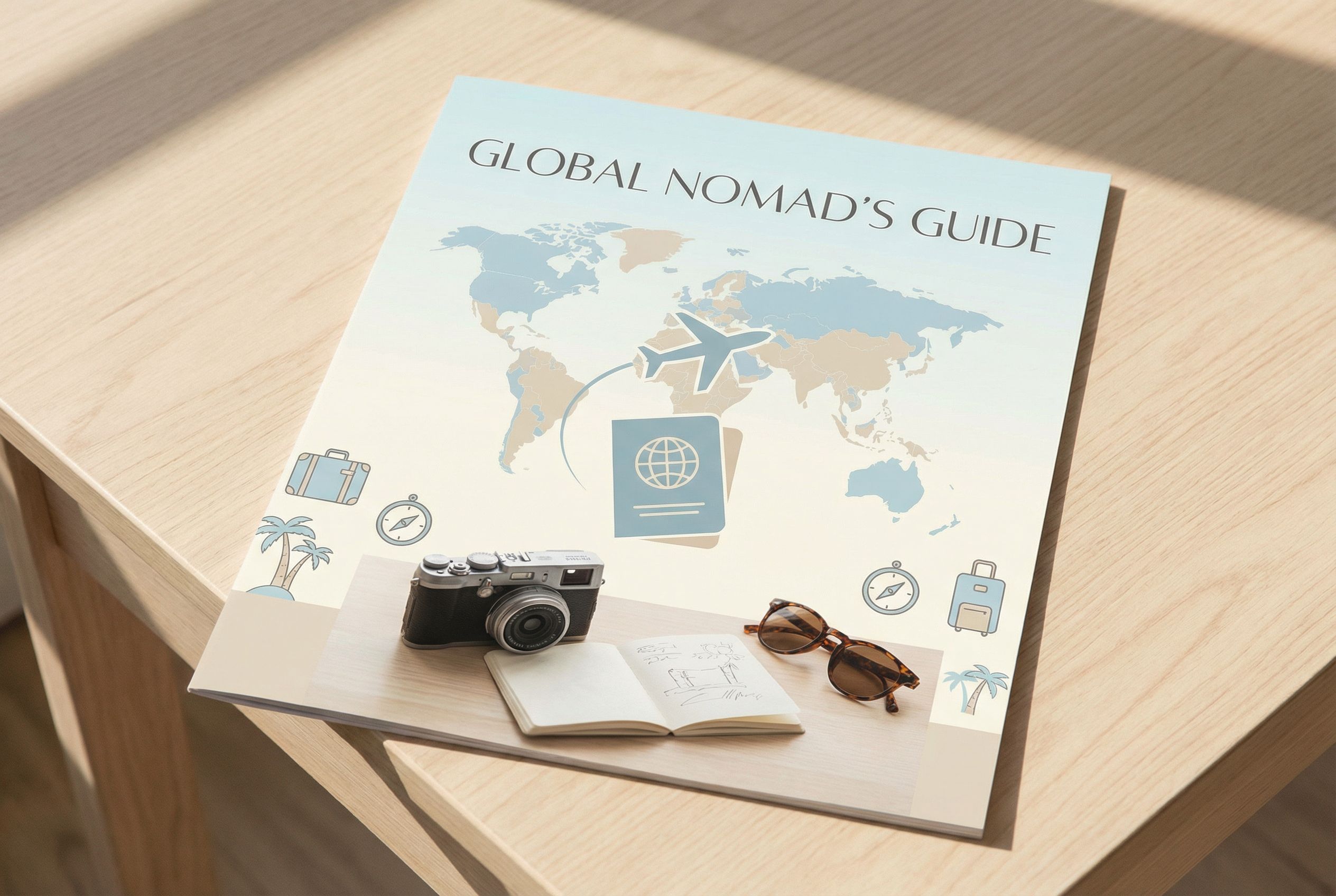
Learn how to create engaging, photorealistic travel tips infographics using Nano Banana Pro. This guide covers step-by-step instructions, real prompts, Read more
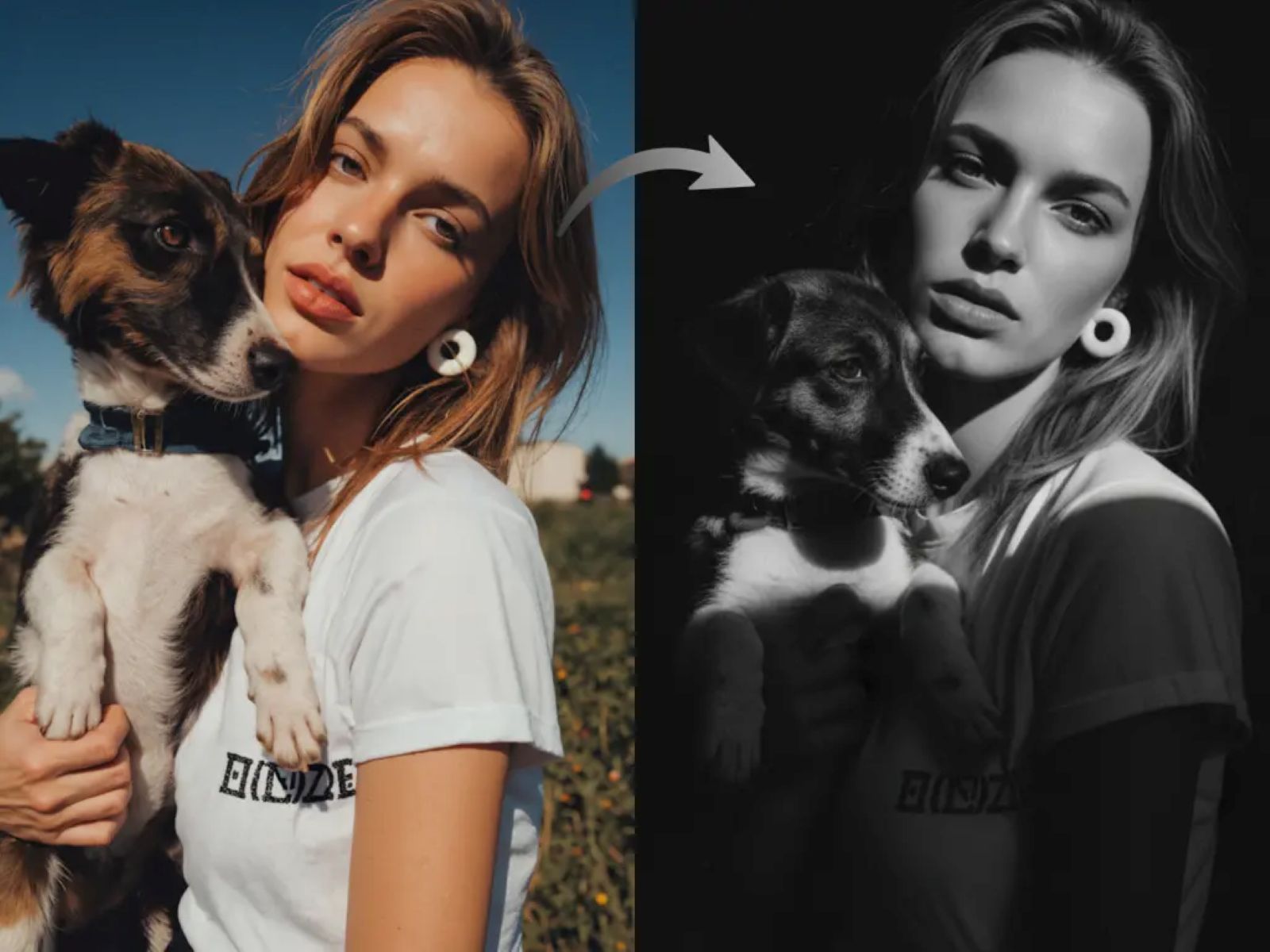
AI Black and White Art Portrait instantly convert your portraits into stunning black and white art using Nano Banana Pro's Read more
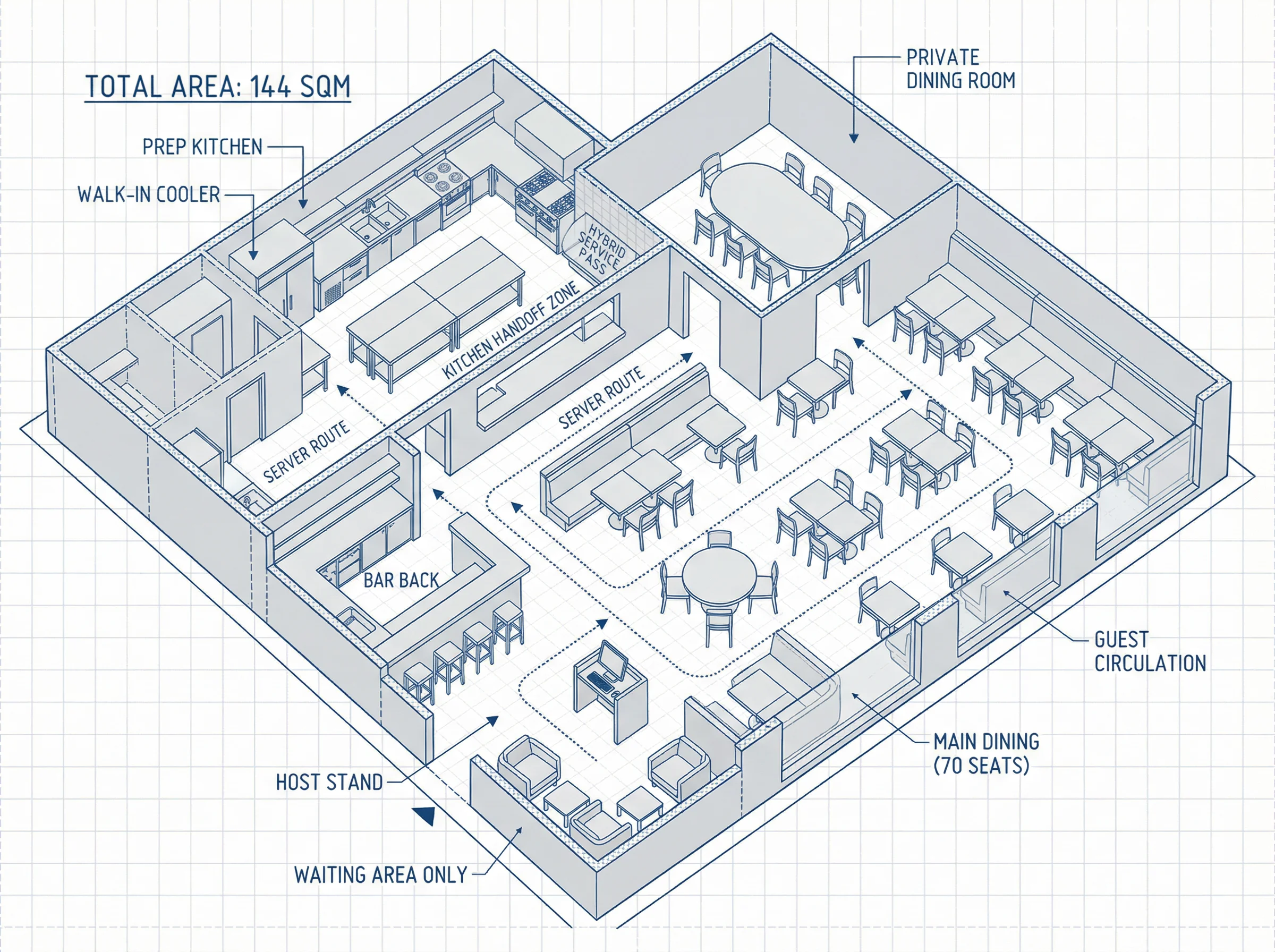
Learn how a well-engineered restaurant floor plan is crucial for success, balancing seating, kitchen flow, and guest experience. Discover how Read more
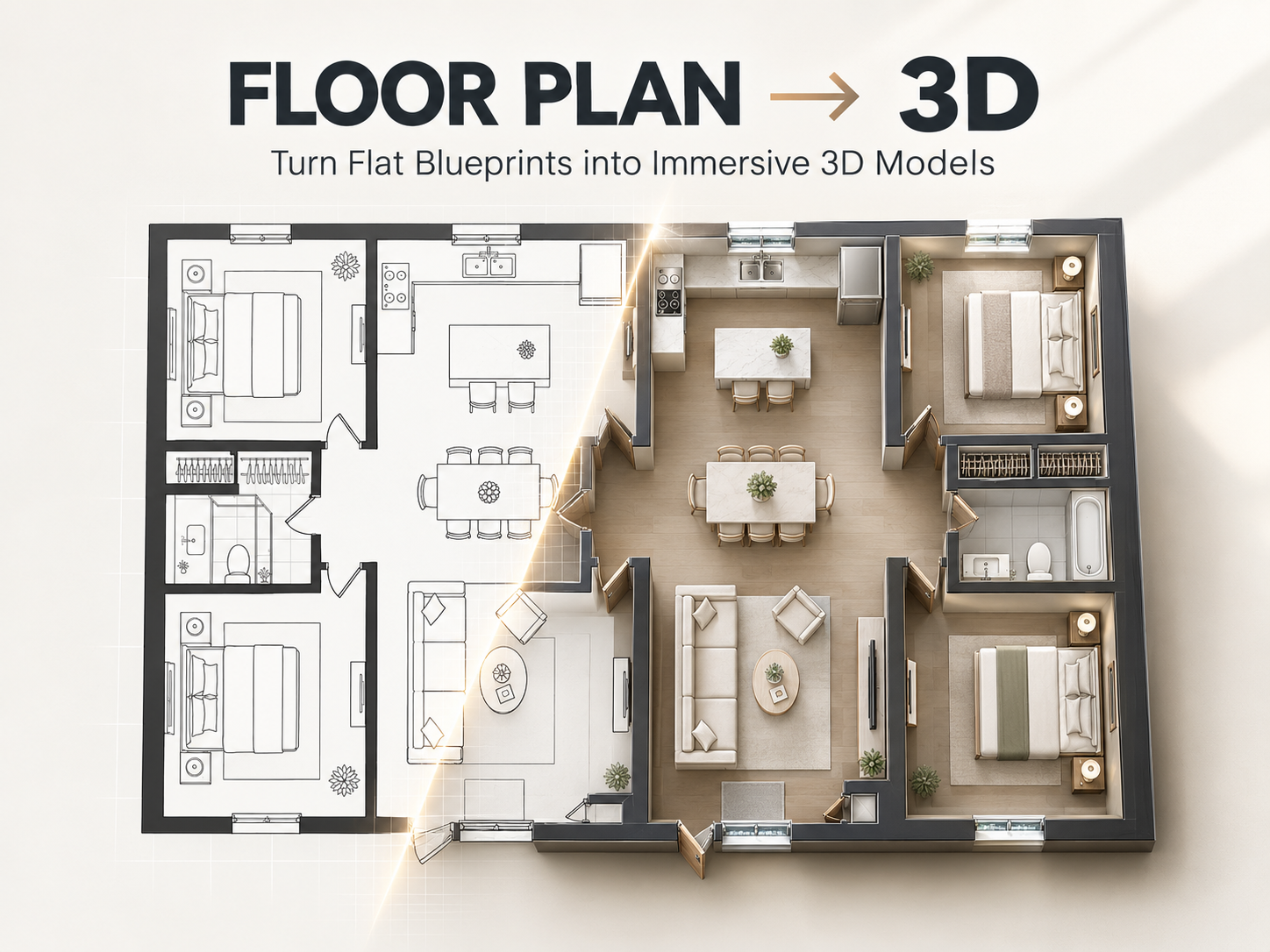
Looking for a fast floor plan to 3D workflow? Learn how I use AI tools on AIAI.com to turn flat Read more