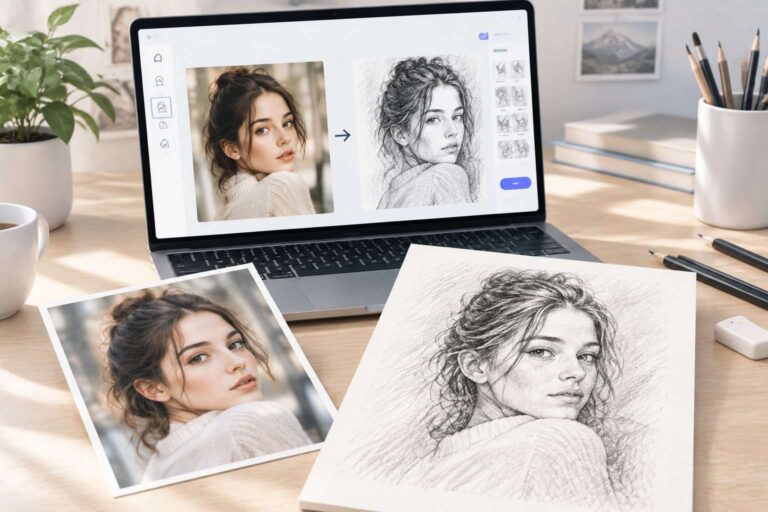
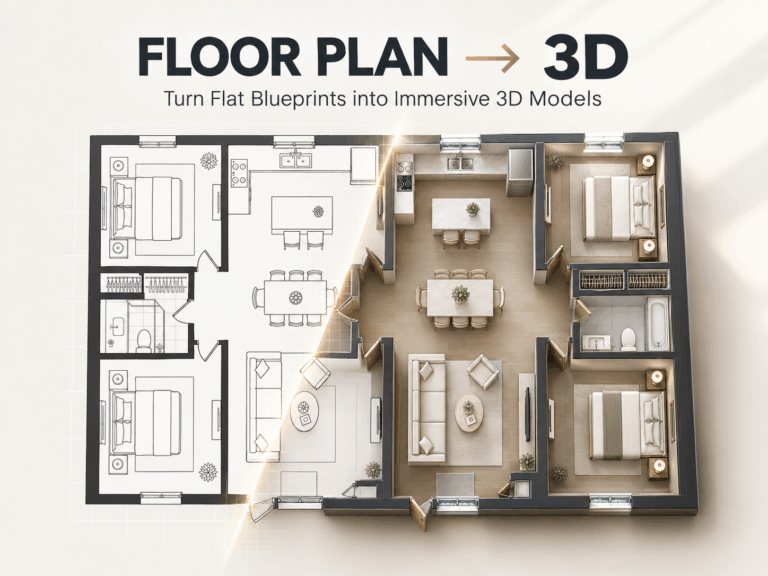
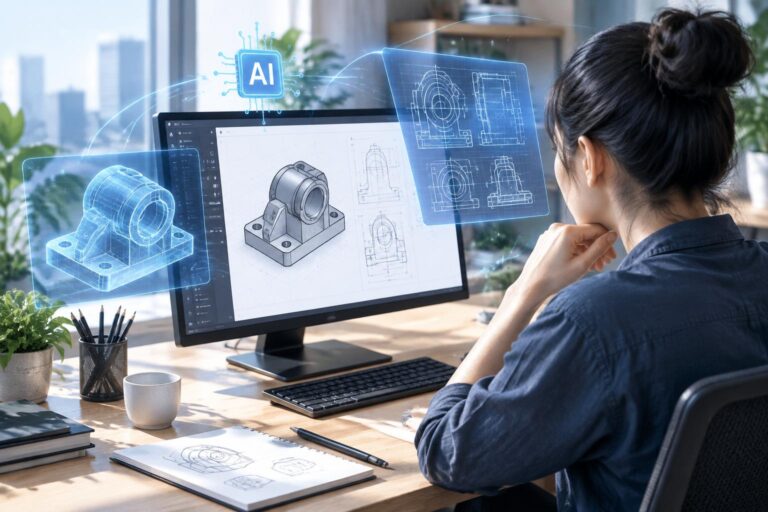
As a hobbyist artist and social media content creator, I’ve always loved the clean, minimalist look of line drawings—but I’m terrible at sketching by hand. Whether I want to turn a travel photo into a wall art piece, a pet photo into a cute sticker, or a product shot into a technical sketch, I used to spend hours fumbling with pencils and erasers, only to end up with messy, lopsided results.
That all changed when I discovered photo to line drawing AI tools. In just 60 seconds, I can turn any photo into a crisp, professional line drawing—no artistic skills required. Today, I’m sharing exactly how these tools work, why they’re a game-changer for beginners, and my step-by-step workflow to get perfect results every time.
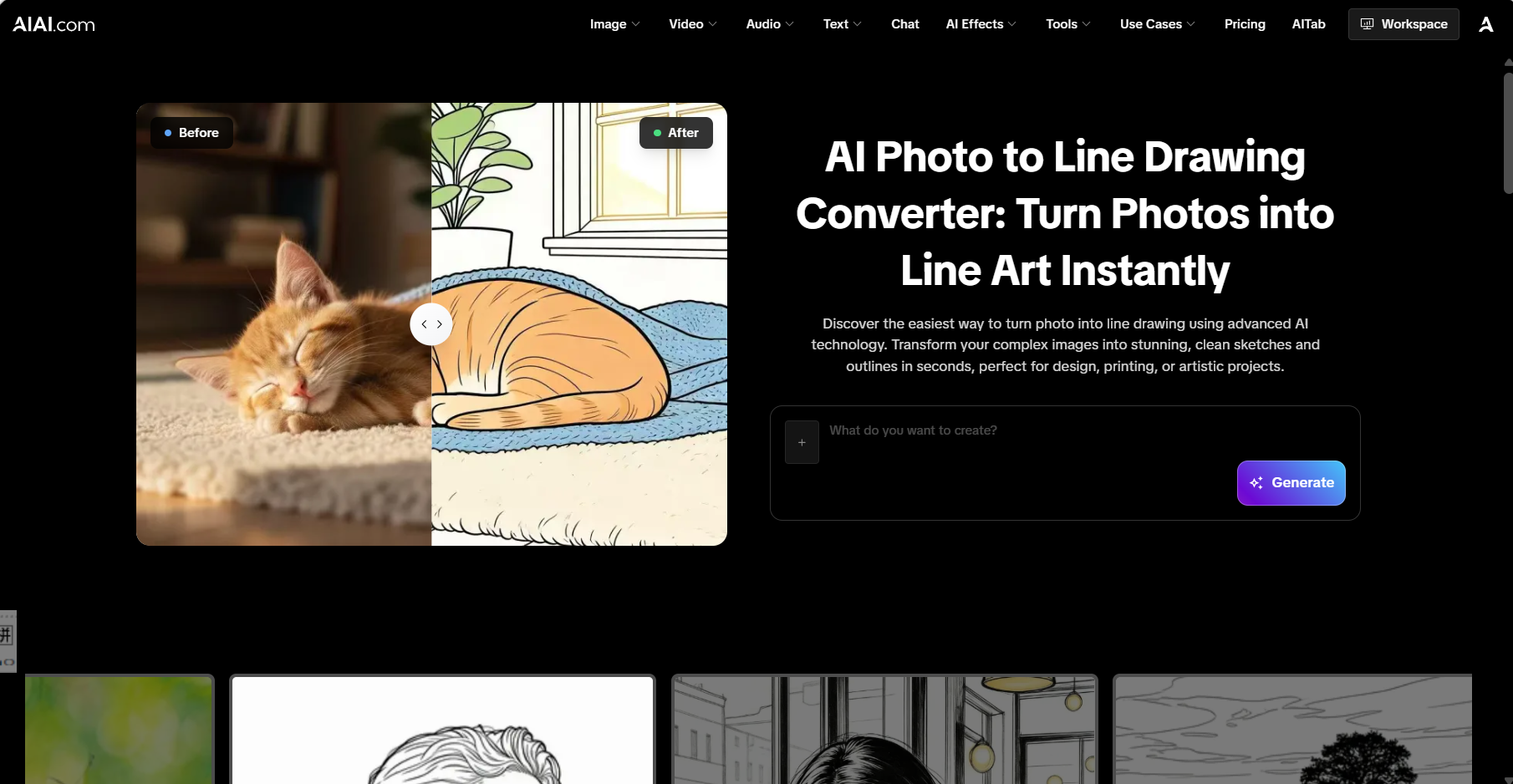
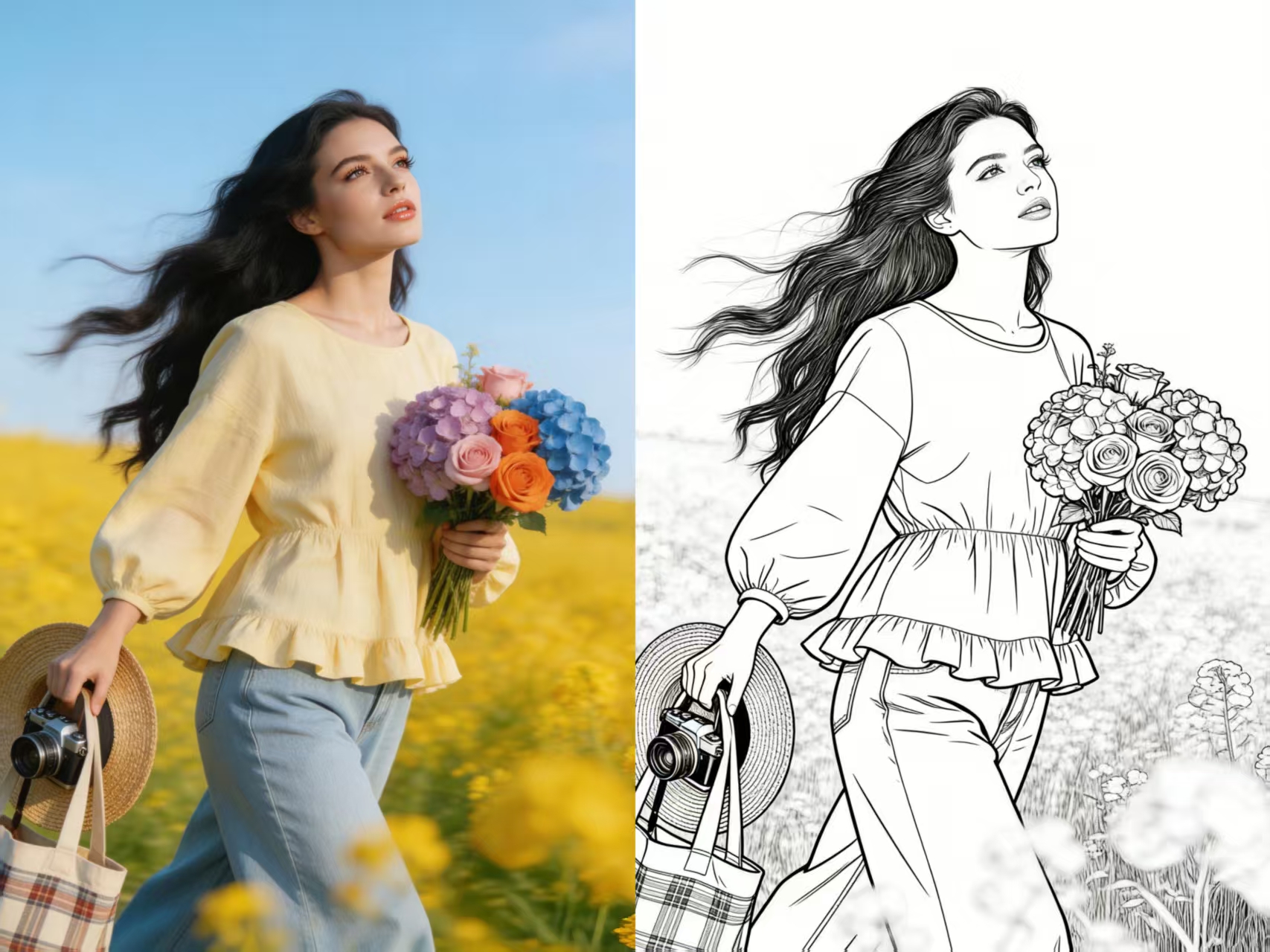
What Is a Photo to Line Drawing Tool?
At its core, a photo to line drawing tool uses AI to analyze the edges, shapes, and key details in a photo, then converts it into a clean, black-and-white line art sketch. Unlike basic filter apps that just desaturate or blur your image, these AI tools intelligently extract outlines, simplify complex details, and preserve the core composition of your original photo—whether it’s a portrait, landscape, or object.
The best part? You don’t need to know how to draw, use Photoshop, or even own a drawing tablet. Just upload a photo, adjust a few settings, and download your finished line drawing.
Why I Switched to AI for Photo to Line Drawing
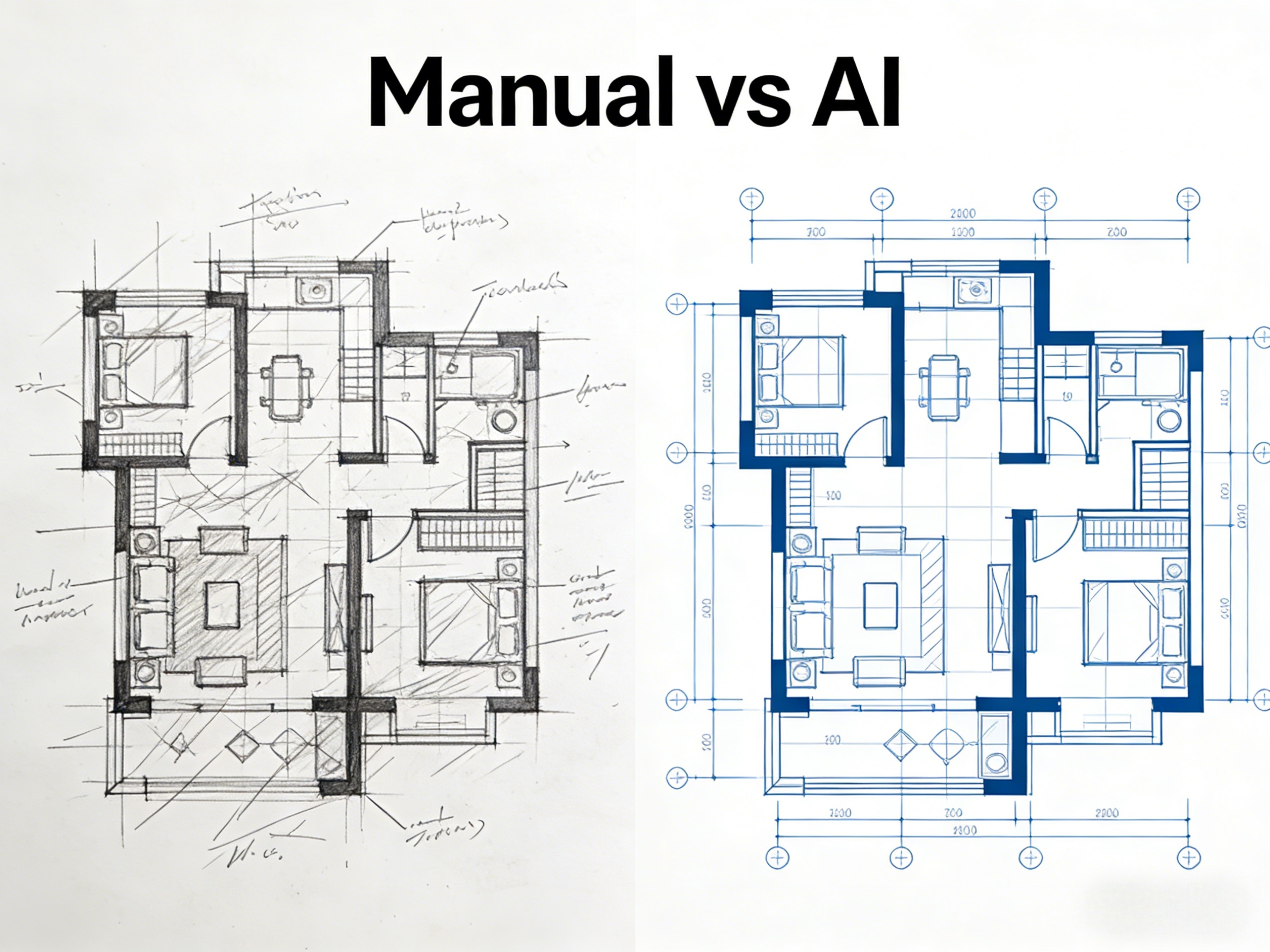
Before finding these AI tools, I tried every “manual” method to create line drawings:
Tracing by hand: Hours of work, messy lines, and inconsistent proportions.
Photoshop filters: Overly harsh edges, lost details, and a “cheap filter” look.
AI-powered photo to line drawing tools fixed all these problems. Here’s why they’re my go-to:
Zero artistic skill needed: I can’t draw a straight line, but I get professional results.
Preserves photo details: AI keeps the key features (like a pet’s face or a building’s architecture) while stripping away color and texture.
Fast workflow: 1-2 minutes per image, vs. hours of manual sketching.
High resolution: Export clean PNG/SVG files perfect for printing, social media, or design projects.
Customizable styles: Choose from technical sketches, cartoon line art, or minimalist outlines to match your needs.
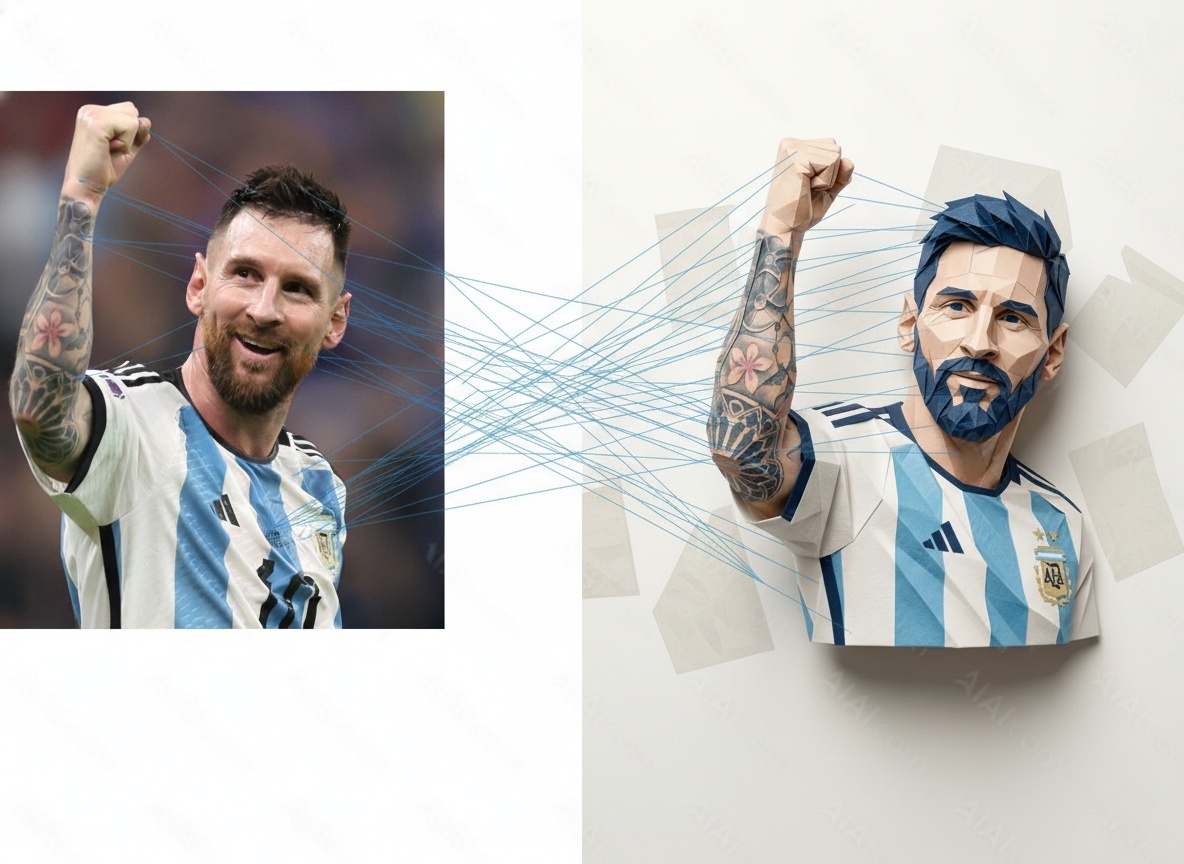
My 3-Step Workflow for Perfect Photo to Line Drawing Results
Step 1: Choose & Prep Your Photo
Start with a high-quality photo (at least 1080p resolution works best). For the cleanest line art:
- Pick photos with strong contrast light backgrounds work better than busy, cluttered ones
- Avoid blurry or overexposed images—sharp details make sharper lines.
- Crop out unnecessary background clutter to focus on the main subject.
Step 2: Upload to a Photo to Line Drawing AI Tool
Open your preferred photo to line drawing tool (I use the online version fromphoto to line drawing for its speed and quality). Upload your photo, then:
- Select a style: “Technical Sketch” for product/architectural photos, “Minimalist Outline” for portraits, or “Cartoon Line Art” for fun, casual designs.
- Adjust edge sensitivity: Slide the control to make lines thicker/thinner, or to simplify more details.
- Preview the result in real time to tweak until it looks just right.
Step 3: Refine & Download Your Line Drawing
Once you’re happy with the preview:
- Clean up any stray lines (most tools have a “Simplify” or “Smooth” option).
- Choose your export format: PNG for social media, SVG for scalable vector use (great for stickers or logos).
- Download your finished line drawing—no watermarks, no quality loss.
That’s it! In 3 minutes, I’ve turned a messy travel photo into a clean, frame-worthy line art piece.
Final Thoughts
If you’ve ever wanted to turn your favorite photos into clean, professional line art but lacked the drawing skills, photo to line drawing AI tools are a game-changer. They’re fast, easy, and affordable—perfect for beginners and creators alike.
Stop wasting hours on manual sketching or clunky filters. Upload your photo, adjust a few settings, and download your perfect line art in minutes.

Explore Nano Banana Pro's AI Short Hair Filter to instantly visualize yourself with a new short hairstyle. Experiment with cuts, Read more
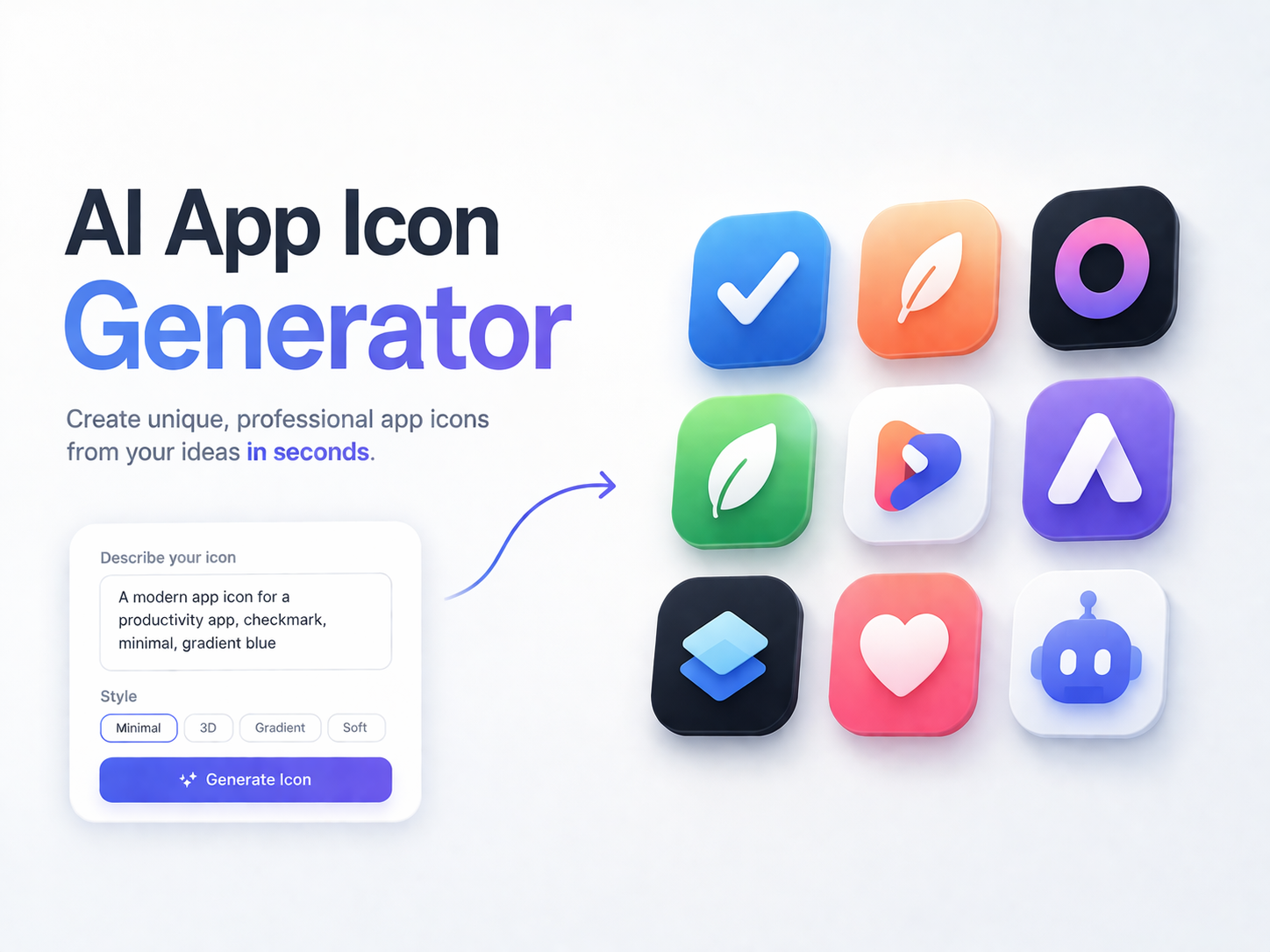
AI App Icon Generator: Design App Icons Without Starting from Scratch An app icon is one of the smallest design Read more
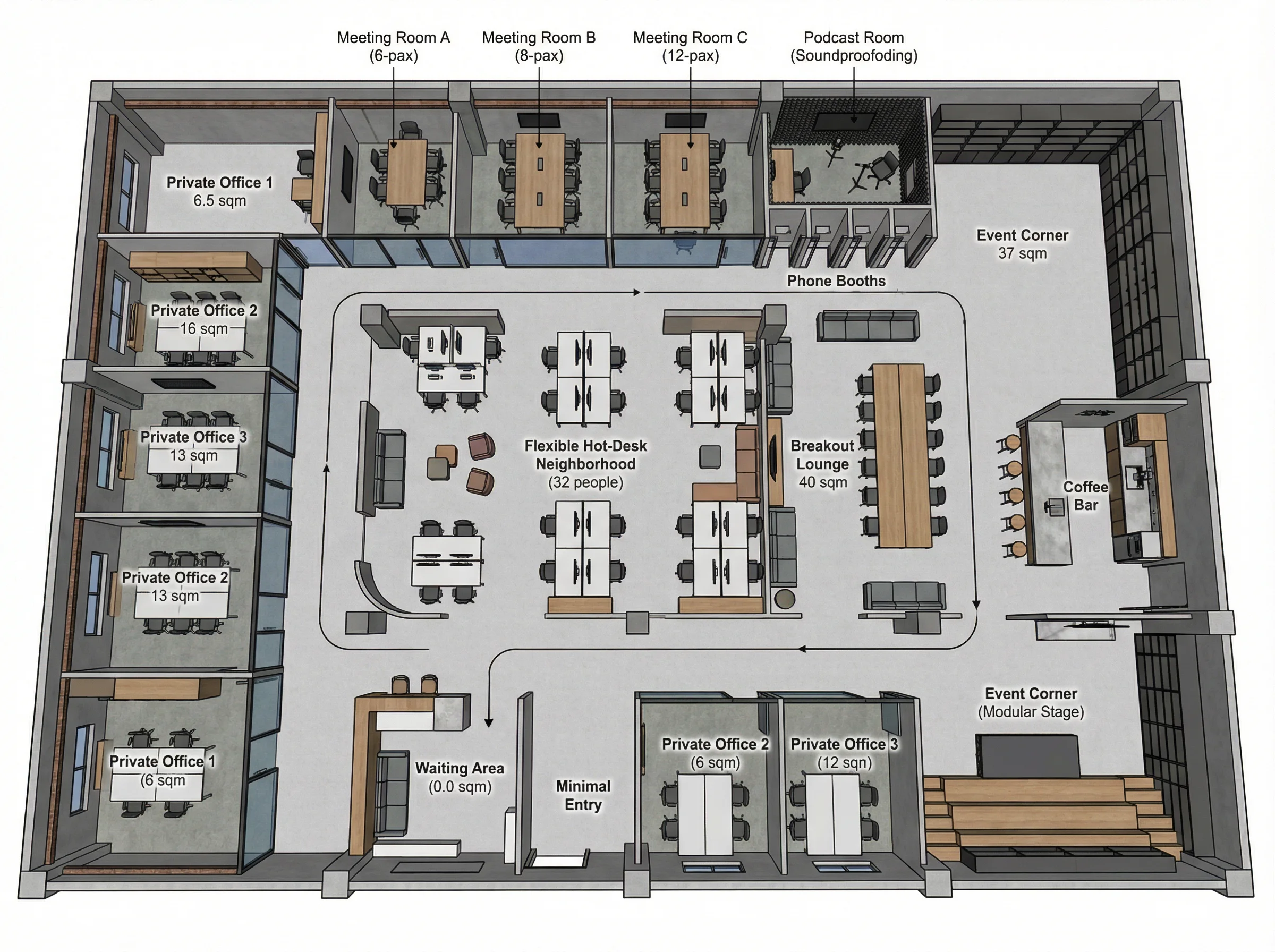
Designing an office layout always sounds easier than it actually is. On paper, it’s just desks, meeting rooms, maybe a Read more
AI CAD Drawing Generator for Floor Plans: Hack for Beginner Drafters