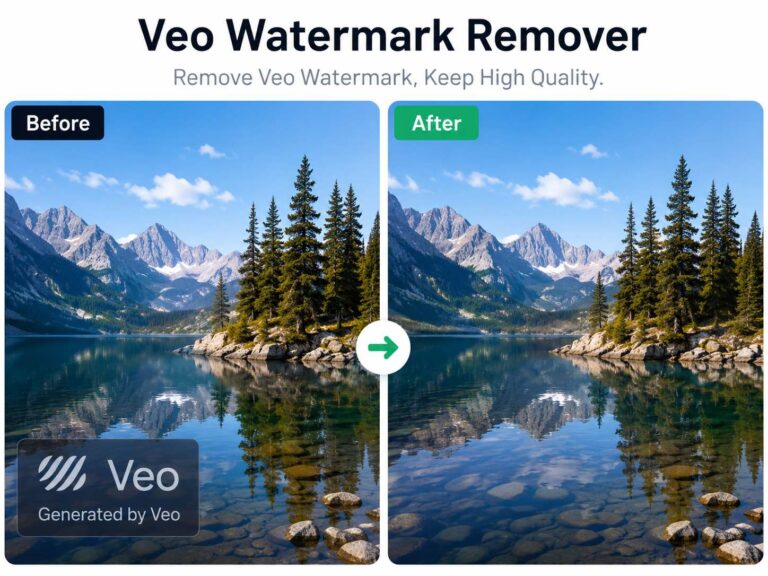
If you are using Google Veo for client mockups or internal storyboards, you have arguably already hit the wall: The Watermark.
I’ve dragged my generated video files into a dozen “Magic Watermark Erasers” this week. The results? Mostly useless. The majority of tools smear the pixels like a bad Photoshop clone stamp. This looks fine on a still image, but the second the camera moves, the background warps and “jitters.”
But after running a specific stress test, I found one that didn’t immediately ruin the footage.
I tested Watermark Remover by AIAI on a veo clip involving rain and city lights, basically the hardest thing you can ask an in-painting model to fix. Here is the honest breakdown of the workflow, the flaws, and how to use it for free.

Why Most Removers Fail on Veo Footage
Before I show you the fix, it is important to understand why this is hard.
Removing a watermark from a photo is easy; the AI looks at the surrounding pixels and guesses what should be there.
Removing a watermark from video requires Temporal Consistency. The AI not only has to guess what is behind the watermark, but it also has to track that guess across 100+ frames of movement.
The Stress Test: NYC Rain Scene
I didn’t want to test this on a static landscape. Any free app can fix a still background. I used a specific prompt in Google Veo to generate a “worst-case scenario” for removal tools.
The Prompt:
“A rainy apartment window looking out at a blurry New York City skyline at night. Raindrops roll down the glass, refracting the city lights behind them.”
Why I chose this:
The Veo logo is in the bottom right. In this clip, raindrops are rolling through the logo, and the background lights are drifting. A bad tool will just freeze that corner, killing the moving animation. I needed a tool that could figure out where the raindrops and streetlights should be going after they entered the erased zone.
The After Result
(Note: Watch the bottom right corner. The rain continues to flow even after the watermark is scrubbed.)
Does it actually work?
In my testing, WatermarkRemover by AIAI was the only tool that didn’t ruin the physics of the rain. Instead of a blurry grey patch, the glass texture stayed “wet,” and the tool actually kept raindrops moving through the area where the watermark used to be.
However, it wasn’t flawless.
For social media content, web backgrounds, or internal mockups, it’s invisible. If you are projecting this on a 4K cinema screen, a sharp eye might catch the edit.
Tutorial: How to Remove the Watermark (Free Workflow)
One thing I appreciated about this tool is that you don’t have to put down a credit card just to see if it works on your specific clip. Here is the exact workflow I used:
Step 1: Access the Tool
Head over to watermarkremover.aiai.com. (Ensure you are on the video tab, not the image tab).
Step 2: Utilize the Free Credits
Don’t buy a subscription plan yet. When you register with your Google account or email, the platform drops 20 free credits into your dashboard.
- Tip: This is enough to process about 2-3 short clips. Use this to verify if the quality holds up for your specific project needs.
Step 3: Upload and Analyze
Drag and drop your Veo file (MKV or MP4) into the upload zone.
- Note on Speed: The rendering process is slower than standard blur tools. It takes a few minutes because the AI is analyzing motion vectors (the direction pixels are moving) rather than just blurring the image.
Step 4: Preview & Download
You can watch the result before you spend your credits to download the full-resolution file. Check the background carefully, if you are not happy with the result, you can cancel and save your credits.
If the area looks blurry, the AI failed to track the texture. This happens often with complex textures like gravel or heavy foliage. Try re-running the tool; sometimes the AI generates a different “seed” on the second try that looks cleaner.
Final Verdict
Since the clean footage is only avaliable for google’s ultra members, we are stuck with workarounds.
Right now, this is the only remover I’ve used that respects the physics of the video. You still need to quality check the output, but for high-motion clips, it saved the shot.
Easily remove TikTok watermarks from your videos using Nano Banana Pro's AI video-to-video technology. Keep original quality, clarity, and resolution Read more

Looking for a Meta AI Watermark Remover? Don't let logos ruin your video reach. Use our free AI tool on Read more
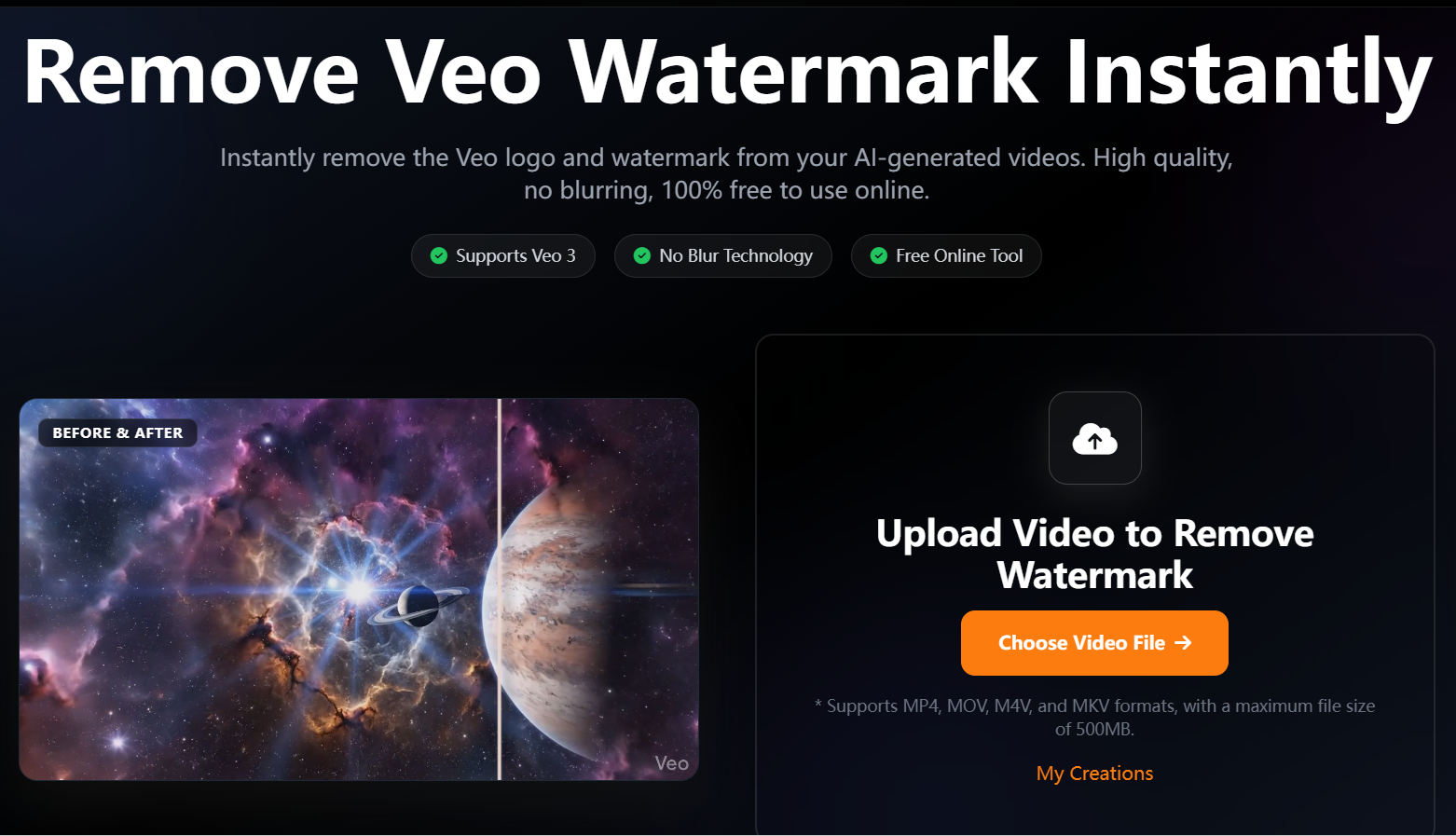
Learn how to cleanly remove the Google Veo watermark without blurring or cropping. Use AI watermark remover to erase logos Read more

Learn how to remove watermarks from video without installing any app. By leveraging AI Video Inpainting on AIAI.com, you can Read more