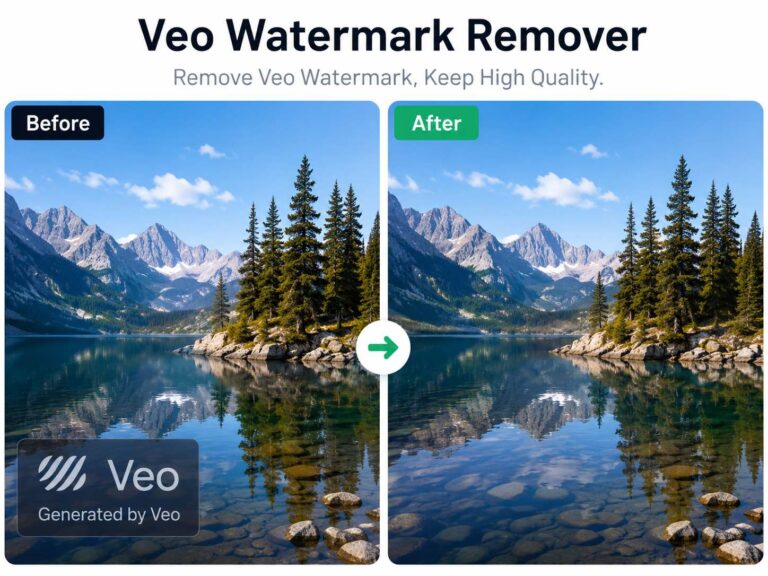
Google Veo’s renders are insane. Last week, I generated a cinematic 1080p drone shot of a cyberpunk street, and the realism completely blew me away. Then, I hit export. That little logo is just sitting right there in the corner, bugging me.
If you’re just looking for a nice and fast way to scrub it out, I’ve been using aiai.com’s video watermark remover for my recent batches. This tool does exactly what you want, repainting pixels instead of smudging them, and it takes about ten seconds right in the browser.
The Better Way: Generative Video Inpainting
Most advanced tools are adopting inpainting techniques, instead of just smudging what is already there, generative inpainting analyzes the surrounding frames and hallucinates the missing background. If a car drives behind the corner where the logo used to be, the AI rebuilds the shape of the car’s bumper as it passes through the masked area.
It’s quite ironic when you think about it. You’re using AI to clean up the mess left by AI.
Step-by-Step: Cleaning Up Veo Clips Fast
1. Work from the Raw File
Never text the video to yourself or send it through WhatsApp before editing. Messaging apps instantly compress your file, dropping the bitrate and introducing banding. The cleaner your starting video is, the better the AI can rebuild the background. Always move the raw file directly to your desktop and save it straight to your camera roll.
2. Mask the Logo
Upload your raw clip to the aiai.com’s workspace. There is no need for highlighting the watermark or use a brush to trace the letters. The tool will automatically detect the watermark.
3. Process and Export
Click generate and let the tool run. It usually takes a few seconds depending on your file size. Play the preview back a few times to make sure the motion looks natural where the watermark used to be. Once it looks clean, export it with resolution you want.

Alternative Methods for Professional Editors
While web tools are great for speed and ease, they aren’t the only way to get the job done. If you are already paying for professional editing software, you might have powerful removal tools sitting right on your hard drive.
- Adobe Premiere Pro (Content-Aware Fill)
- DaVinci Resolve (Object Removal Tool)
A Quick Note on Google SynthID
It is worth mentioning that simply erasing the visible logo does not mean the video is entirely untraceable.
Google Veo utilizes SynthID, a technology that embeds an imperceptible digital watermark directly into the pixels of the video. Even if you completely remove the visible corner logo, crop the video, or compress it, AI detection software can still read the SynthID metadata and identify the clip as AI-generated.
Frequently Asked Questions (FAQ)
Does removing the watermark lower my video’s resolution?
It shouldn’t, as long as you use a high-quality tool. Blurring apps often compress your video upon export, but professional inpainting tools (like aiai.com or Premiere) will maintain your original 1080p or 4K resolution.
Is it legal to remove an AI watermark?
If you are generating videos for personal use, editing out a watermark for aesthetic reasons is generally fine. However, if you are doing commercial client work, you should always check Google Veo’s Terms of Service regarding attribution and commercial licensing.
Keep Your Framing Intact
Finding a reliable way to remove watermarks saves you a ton of frustration in post-production. The next time you get a perfect render, don’t chop off half your frame just to hide some text. Run it through an inpainting tool, preserve your composition, and keep the focus exactly where it belongs.

Looking for a Meta AI Watermark Remover? Don't let logos ruin your video reach. Use our free AI tool on Read more

Learn how to remove watermarks from video without installing any app. By leveraging AI Video Inpainting on AIAI.com, you can Read more
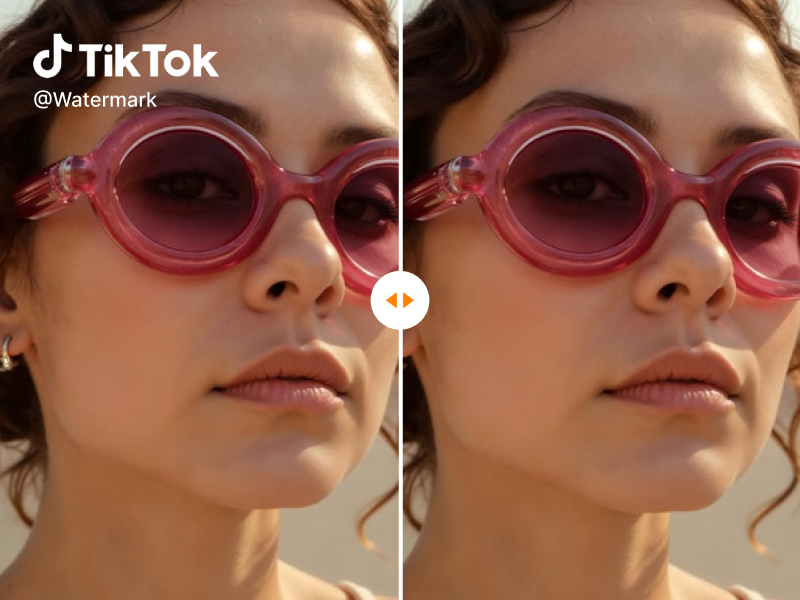
Looking for a reliable free video watermark remover? I tested AIAI.com. It uses AI technology to automatically remove watermarks while Read more
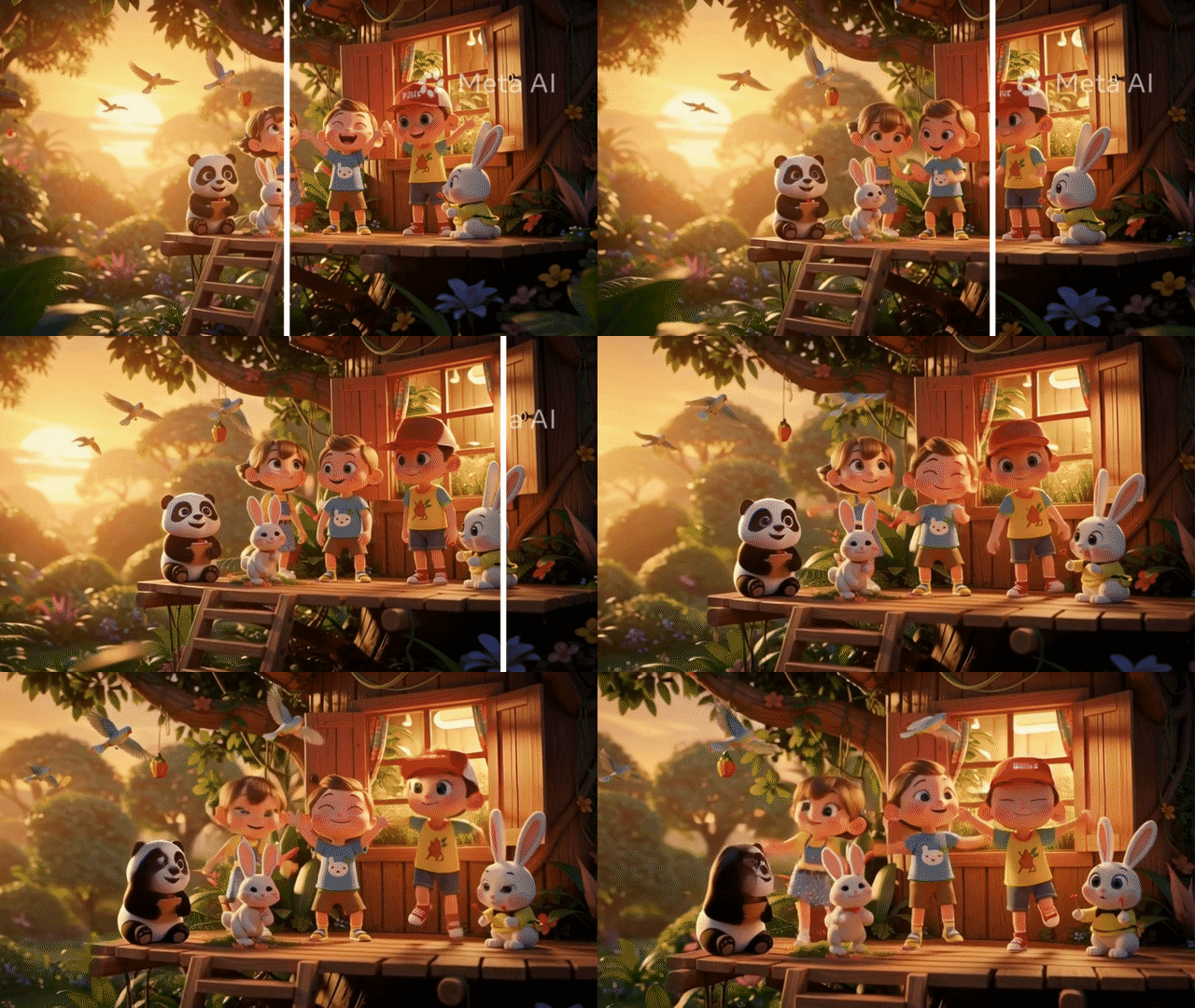
If you are frantically searching for a reliable Meta Video Watermark Remover, you are not alone. Let's be honest: the watermark Read more