Last month, I downloaded one of my viral TikTok videos because I wanted to repost it to YouTube Shorts. But there was a huge problem: the bouncing TikTok username and text overlay were baked right into the downloaded file. I knew YouTube’s algorithm would downrank it instantly.
I desperately searched for a reliable text remover from video free tool. After testing several options that just left ugly, blurry smudges all over my video, I finally found a powerful AI tool on AIAI.com. I tested it out, and the results completely blew me away. It didn’t just blur the words; it actually rebuilt the background behind them.
Today, I’m going to walk you through my exact workflow so you can experience this magic for yourself.
Why I Chose This Specific Text Remover from Video Free Tool
Before finding this tool, I was stuck with traditional “Gaussian Blur” filters that just smeared the pixels and ruined my footage. I ultimately chose the tool on AIAI.com because it leverages cutting-edge deep learning to remove text naturally.
Here is exactly why it stands out from the rest:
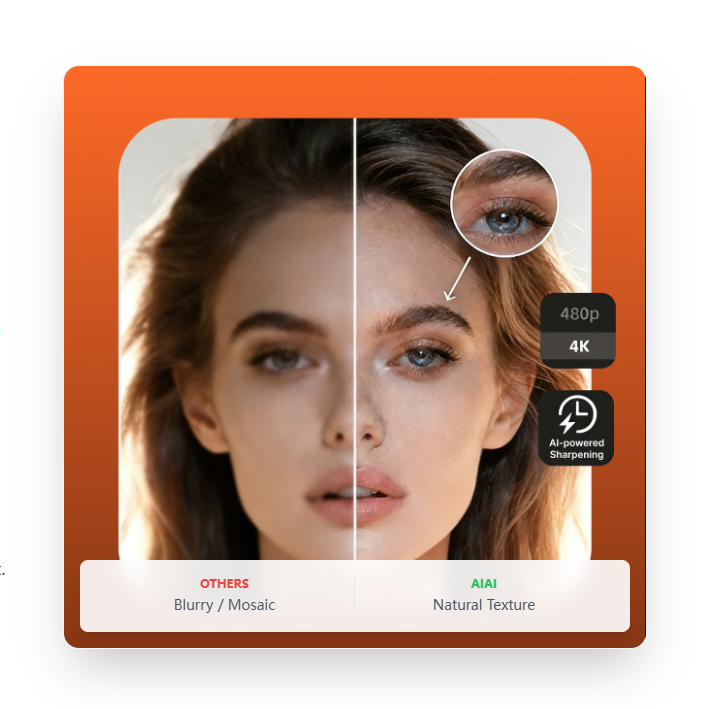
- AI-Powered Inpainting: Unlike simple blurring that leaves an ugly smudge, this AI algorithm analyzes the background and fills in the texture. It reconstructs the frames perfectly, making the removal practically invisible.
- Handles Static & Dynamic Text: It doesn’t matter if I am dealing with a fixed TV watermark in the corner or moving, bouncing subtitles from a social media clip. The text removal engine tracks and erases both accurately.
- High-Quality Output: I get to keep my original resolution. I absolutely love that it supports a free trial (the 3-second preview) so I can verify the text removal without any quality loss in the final export.
As a Content Creator, Here Are 4 Scenarios I Frequently Use
Removing text is a very specific editing challenge. As a content creator, here are the main ways this tool saves me from hours of manual masking in After Effects:
1. Social Media Reposting (TikTok & Reels)
As I mentioned, cross-posting is essential for creators. This tool is specifically optimized to track and remove dynamic text and bouncing usernames from social media clips, giving me a clean slate for YouTube Shorts or Instagram Reels.
2. Erasing Hardcoded Subtitles (Movie Trailers & Anime)
If you make video essays or recaps, you know the pain of finding a great movie trailer clip that has foreign subtitles permanently burned into it. This AI engine wipes those hard-coded captions completely clean without warping the actors’ faces in the background.
3. Deleting Static TV Logos & Brand Marks
Sometimes I need to use B-roll from a news clip or stock footage, but there is a distracting TV channel bug or a giant brand watermark in the corner. I use this feature to eliminate those brand marks for a professional presentation.
4. Cleaning Up Personal Archives
Working with old family camcorder tapes? They almost always have a bright glowing date and timestamp in the corner. You can highlight that specific area, and the AI will make it disappear seamlessly.
The Ultimate Comparison: AI vs. Professional Software
Why not just use After Effects or crop the video? Here is a breakdown of why I switched to this automated AI solution:
| Feature / Method | AIAI Text Remover (My Choice) | Professional Software (e.g., After Effects) | Simple Cropping / Blurring |
| Technology | AI Video Inpainting | Manual Masking & Tracking | Frame Cutting / Smudging |
| Skill Required | None (1-Click) | High (Steep learning curve) | Low |
| Time to Process | Seconds (Automated) | Hours (Manual frame-by-frame) | Fast |
| Video Quality | High (Background Restored) | High (If done perfectly) | Low (Data/Detail Loss) |
| Content Integrity | 100% Retained | 100% Retained | Part of the video is lost |
My 3-Step Workflow (With a Free 3-Second Preview)
You don’t need a high-end PC for this; it’s entirely cloud-based. Here is exactly how I use it:
Step 1: Upload the Video
Open the tool on AIAI.com and import your file. (It supports MP4, MOV, M4V, and WebM. Maximum file size is 500MB, and videos can be up to 10 minutes long).
Step 2: AI Processing & The 3-Second Preview
This is my favorite feature. The AI automatically detects and erases the text. Within moments, the system generates a free 3-second preview of the clean video. This allows me to actually see the magic and verify the background reconstruction before I commit.
Step 3: Download the Clean Video
Satisfied with the preview? You can then process the full video and download the high-quality, text-free version.
The Honest Truth About the “Free Trial”
As a creator, I hate hidden paywalls. So, let me explain exactly how the pricing works on AIAI.com.
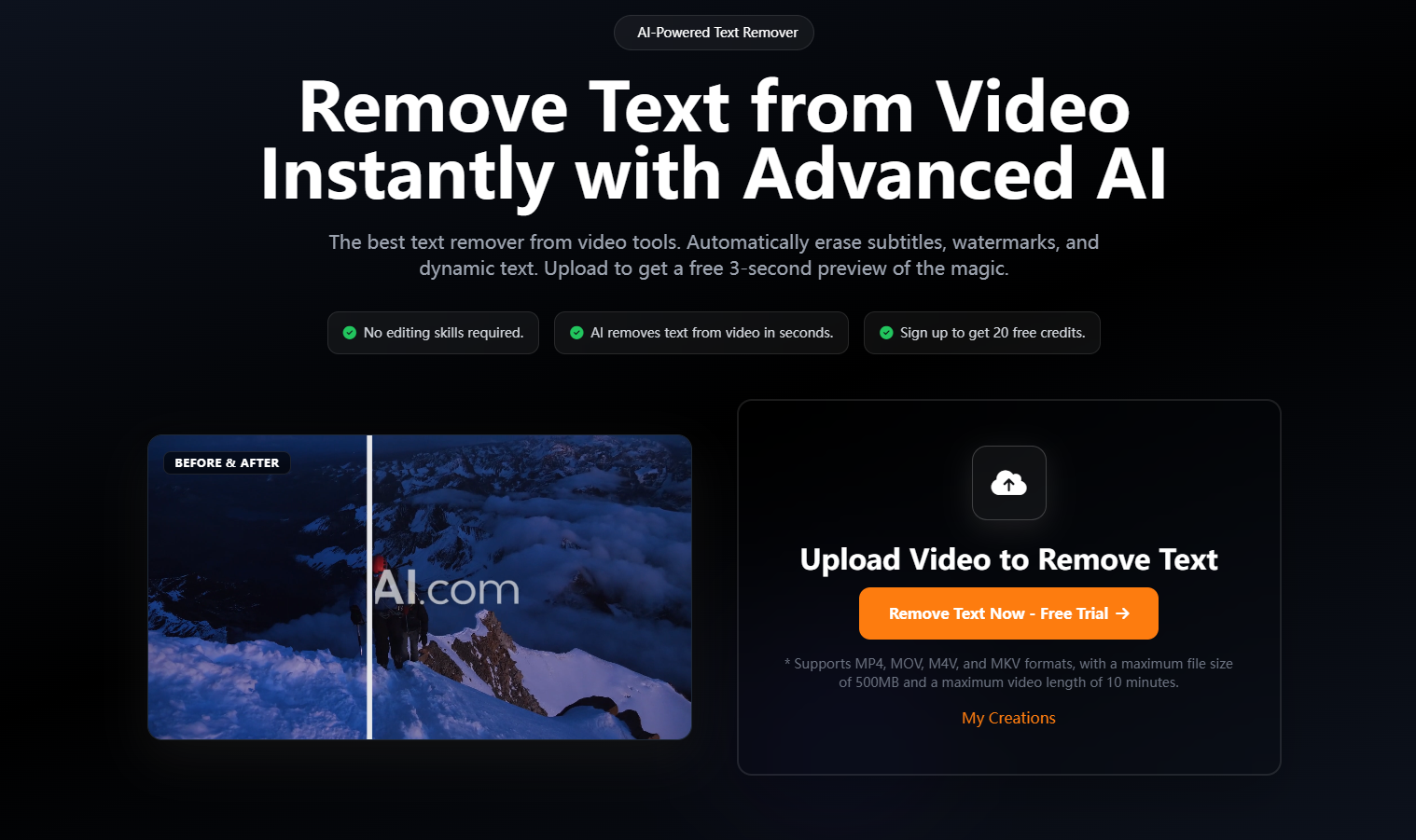
First, the 3-second preview is completely free, meaning you can test as many clips as you want to see if the AI handles your specific text correctly without spending a dime.
When you are ready to process full videos, simply signing up gets you 20 free credits. This is enough to export a couple of full, watermark-free clips in their original quality. If you process videos daily like I do, their credit packages are extremely affordable.
Stop settling for ugly, blurred boxes on your footage. Grab your free credits, test the 3-second preview, and see the difference AI inpainting makes.
[Click Here to Try the Text Remover from Video Free on AIAI.com]

Explore how the AI Lego Filter brings your photos to life as Lego-style creations. Get creative ideas, tips, and see Read more
Discover how Nano Banana Pro's AI image-to-image feature can turn your ordinary photos into stunning "Stranger Things" themed artwork. Unleash Read more

Looking for the best free AI image generators in 2026? Compare 7 top Grok Imagine alternatives, including GPT Image, Leonardo Read more

Introduction When I first started exploring the idea of building a barndominium, I thought choosing a layout would be the Read more