If you’ve been experimenting with Google Veo, you already know how impressive its AI video generation can be. With just a text prompt, Veo can create cinematic videos with realistic motion, detailed environments, and smooth camera movements.
The only downside? Many generated videos include a visible watermark.
Whether you’re creating content for social media, presentations, marketing campaigns, or personal projects, that watermark can make your video look less polished. That’s why more people are searching for a reliable Veo Watermark Remover.
In this guide, you’ll learn what the Veo watermark is, why it appears, and how to remove it quickly using AI.
What Is the Veo Watermark?
Google DeepMind Veo is an advanced text-to-video model developed by Google. Depending on how the video is generated and exported, it may include a small watermark or logo overlay.
This watermark is typically added to:
- Indicate that the content was created using AI
- Identify the generation platform
- Help track the origin of generated media
While this can be useful for attribution, it may not be ideal when you want a cleaner final video.
Why Use a Veo Watermark Remover?
Removing the watermark can make your videos look more professional and visually consistent.
Common reasons people use a Veo Watermark Remover include:
- Posting cleaner videos to TikTok, Instagram, and YouTube
- Creating polished presentations
- Producing marketing and promotional materials
- Repurposing AI-generated content for client work
- Improving overall aesthetics
Traditional Ways to Remove Watermarks
Before AI tools became popular, users relied on manual methods.
Cropping the Video
Cropping removes the watermark by cutting off part of the frame, but this often changes the aspect ratio and reduces composition quality.
Blurring the Watermark
Blurring hides the logo, but leaves an obvious smudge that still looks unprofessional.
Frame-by-Frame Editing
Advanced editors like Adobe After Effects and Adobe Premiere Pro can remove watermarks, but the process is time-consuming and requires technical skills.
The Best Solution: AI Veo Watermark Remover
AI watermark removers analyze the surrounding pixels and reconstruct the hidden area automatically.
Compared to traditional methods, AI tools offer several advantages:
- No video editing experience required
- Removes logos cleanly
- Preserves original resolution
- Works in just a few clicks
- Saves significant time
How an AI Veo Watermark Remover Works
Modern AI tools use inpainting technology to intelligently fill in the area covered by the watermark.
The process usually involves:
- Uploading the Veo-generated video
- Highlighting the watermark area
- Running the AI removal process
- Downloading the cleaned video
The AI studies nearby frames and recreates missing details so the result looks natural.
Best Features to Look for in a Veo Watermark Remover
When choosing a tool, look for:
- AI-powered watermark removal
- Support for MP4 and MOV formats
- High-resolution output
- Fast processing
- Browser-based editing
- No advanced editing skills required
Remove Veo Watermarks Easily with AIAI Watermark Remover
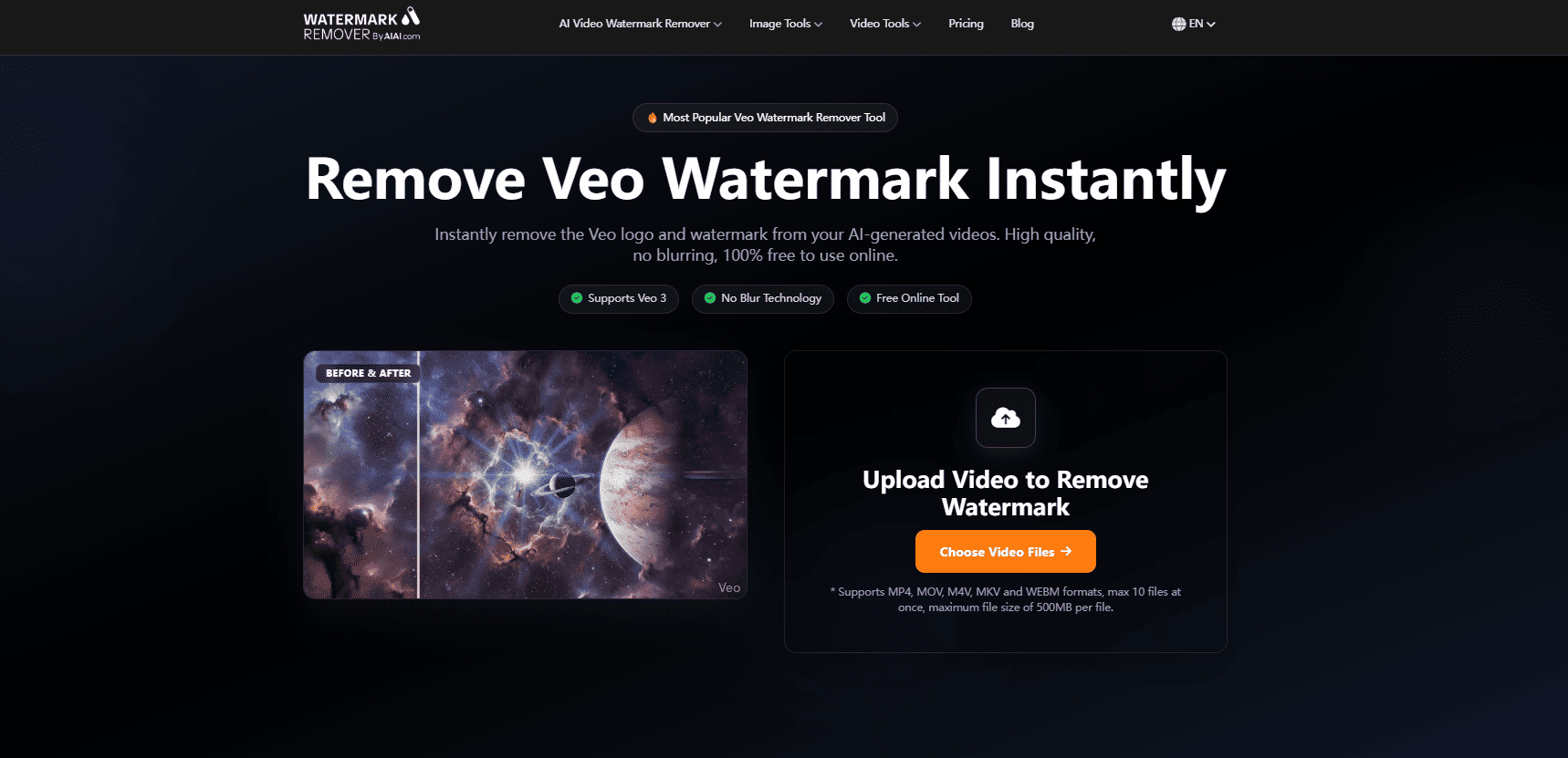
If you’re looking for a simple way to clean up your AI-generated videos, AIAI offers an easy-to-use Veo Watermark Remover that works directly in your browser.
Unlike traditional editing software, AIAI uses advanced AI inpainting technology to detect and remove logos, text overlays, and other unwanted elements from videos automatically. You don’t need any video editing experience.
Why AIAI Is a Good Choice for Removing Veo Watermarks
- AI-powered removal that reconstructs the background naturally
- Works online with no software installation
- Supports common video formats such as MP4 and MOV
- Preserves the original resolution and quality
- Fast processing and simple workflow
- Beginner-friendly interface
How to Remove a Veo Watermark with AIAI
- Open the AIAI Video Watermark Remover.
- Upload your Veo-generated video.
- Highlight the watermark area.
- Click the remove button and let the AI process the video.
- Download the cleaned, watermark-free result.
Who Should Use AIAI?
AIAI is useful for:
- Content creators posting to TikTok, Instagram, and YouTube
- Marketers creating promotional videos
- Designers building presentations
- Small businesses making product videos
- Anyone who wants a cleaner, more professional-looking video
Why I Recommend AIAI
What makes AIAI especially convenient is that the process is straightforward. Upload the video, mark the watermark, and let the AI handle the rest. There is no need to crop the frame or manually edit each scene.
If you regularly create videos with Google Veo, AIAI can be a practical addition to your workflow and help you produce polished videos much faster.
Final Thoughts
Google Veo is opening up exciting possibilities for AI video creation, but visible watermarks can make videos feel unfinished.
A reliable Veo Watermark Remover uses AI to erase logos quickly and restore the background naturally. Instead of spending hours in professional editing software, you can upload your video, remove the watermark, and download a polished final result in minutes.
If you regularly create videos with Veo, adding a good Veo Watermark Remover to your workflow can save time and help your content look more professional every time.

Tired of tracing pictures by hand? I use this free photo to line drawing converter on AIAI.com to turn complex Read more

Discover AIAI’s all-in-one AI video generator. Transform text, images, or videos into stunning visuals with 150+ artistic styles. Create, refine, Read more
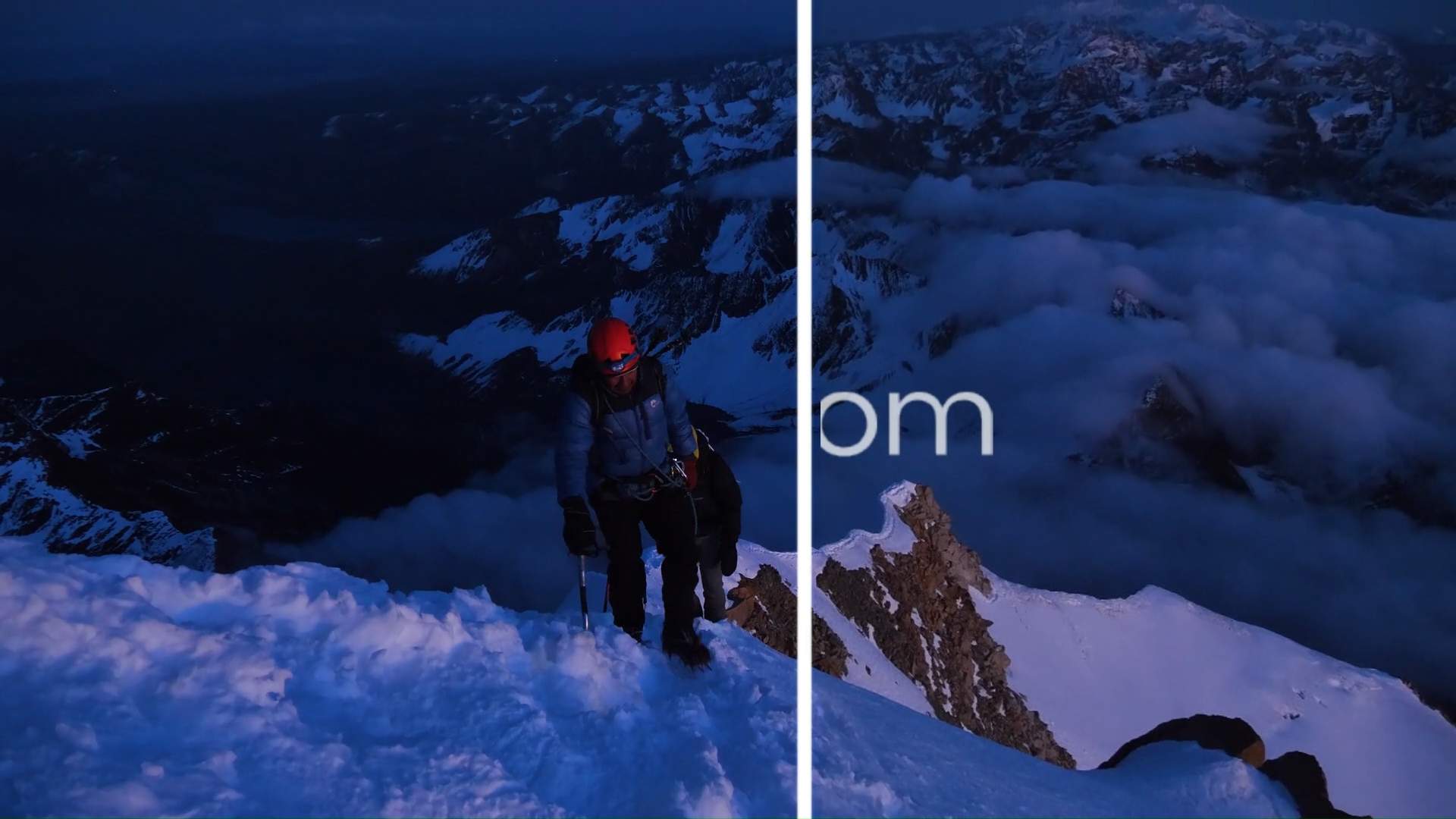
Instantly Delete Any Text from Videos Using AI Videos today often come with unwanted text overlays. Whether it's subtitles, timestamps, Read more
Tired of tracing napkin sketches manually? Discover the best free AI CAD drawing generator to turn text, photos, and doodles Read more