Why I completely stopped searching for free clip art
Have you ever spent twenty minutes looking for a picture of a cartoon stapler?
I used to do this all the time whenever I was putting together a basic slide deck for work or a quick flyer for a neighborhood event. The page would look a bit empty, so I would decide it needed a small graphic to make it less boring.
Then the hunt begins. I open an image search and type what I need. The results are almost always the same. Half of the pictures have giant watermarks stamped across them. The other half look like they were drawn for a floppy disk in 1996. You eventually find a decent picture, but when you paste it into your document, it has a terrible checkered background that ruins your layout.
It is a huge waste of time because you just want a simple picture. And you definitely do not want to buy a monthly subscription to a stock website just to get a clean drawing of an apple.

Why an AI clip art generator is a much better shortcut
A few weeks ago, I got fed up with the terrible search results and decided to try an AI clip art generator instead. I honestly thought these AI tools were only for making weird futuristic art or fake photos, but I was totally wrong. They are actually perfect for boring, everyday tasks.
Instead of hunting for a graphic someone else made, you just tell a website what to draw and it gives you a clean icon in about ten seconds.
Using text to image or sketches to get exactly what you want
There are really two ways to use a tool like this.
The most common way is text to image. You just write a basic sentence. If you need a yellow coffee mug with a tiny plant growing out of it, you type that exact phrase in. You get exactly what you asked for instead of settling for a plain red mug just because it was the only free option online.
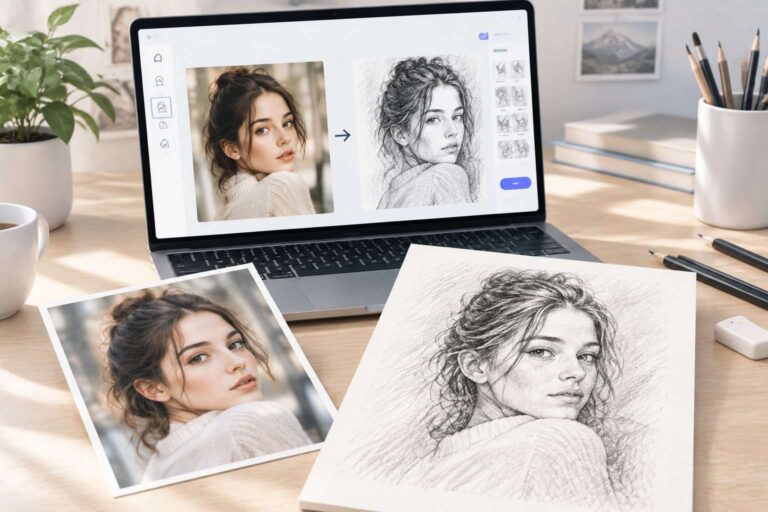
The second way is image to image, which is incredibly helpful if you have a specific shape in your head. Let us say you sketch a really bad doodle on a piece of scrap paper. You can take a photo of your doodle with your phone and upload it. The tool looks at your messy sketch and turns it into a smooth, professional graphic.
If you want to try this out, my current favorite is the AI clip art generator by aiai.com. The page is pretty straightforward, it can handle both text requests and image uploads without forcing you to click through a dozen confusing menus. You just get what you need and move on.
How to avoid bad results
When I first started doing this, the website would occasionally give me highly detailed 3D paintings instead of basic icons. I learned very quickly that you have to use a few specific words to get that classic graphic look.
Here is what I always do to get a usable, professional picture.
- Keep the colors completely flat. Always add the words “flat colors” or “basic vector” to your typing. This stops the tool from adding weird shadows and realistic lighting, ensuring it looks like a clean drawing rather than a photograph.
- Ask for a white background. This is my absolute favorite trick. Tell the tool to put your object on a solid white background. When you copy the picture into your presentation later, it is so easy to click one button to remove the white space so the graphic blends perfectly into your slide.
- Focus on one thing. Do not ask for a busy scene. Ask for one single object at a time. “A cartoon cat sitting down” works much better than “a cat running through a crowded city street while carrying a balloon.” Keep it simple.
Making your own graphics used to require expensive software and a lot of patience. Now, it is just a fast and easy way to finish your office presentation or school project without pulling your hair out. The next time you catch yourself scrolling through pages of terrible stock photos, just stop. Tell a generator what you need, grab your custom picture, and get on with your day.

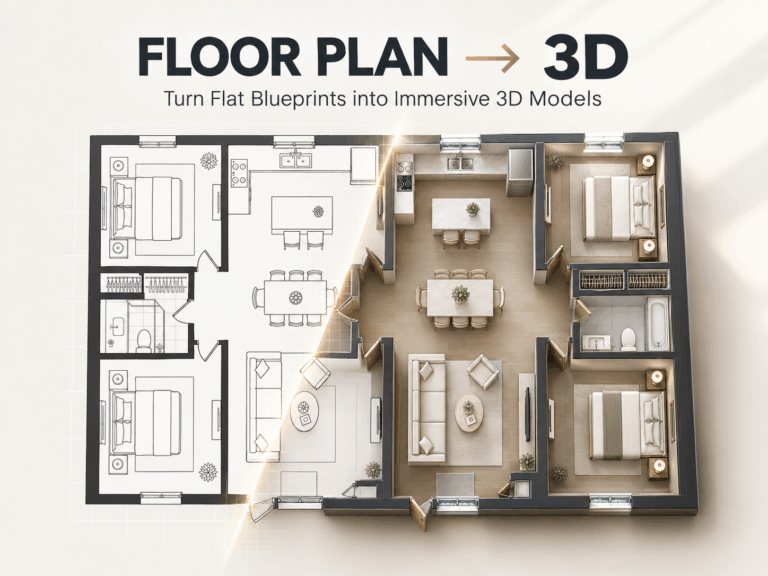
Creating building concepts doesn’t have to take days. With an AI architecture generator, you can turn simple ideas into visual Read more
DeepSeek V3.1 Release: Higher Thinking Efficiency, the First Step Towards the Agent Era The new DeepSeek-V3.1 has launched, almost six Read more
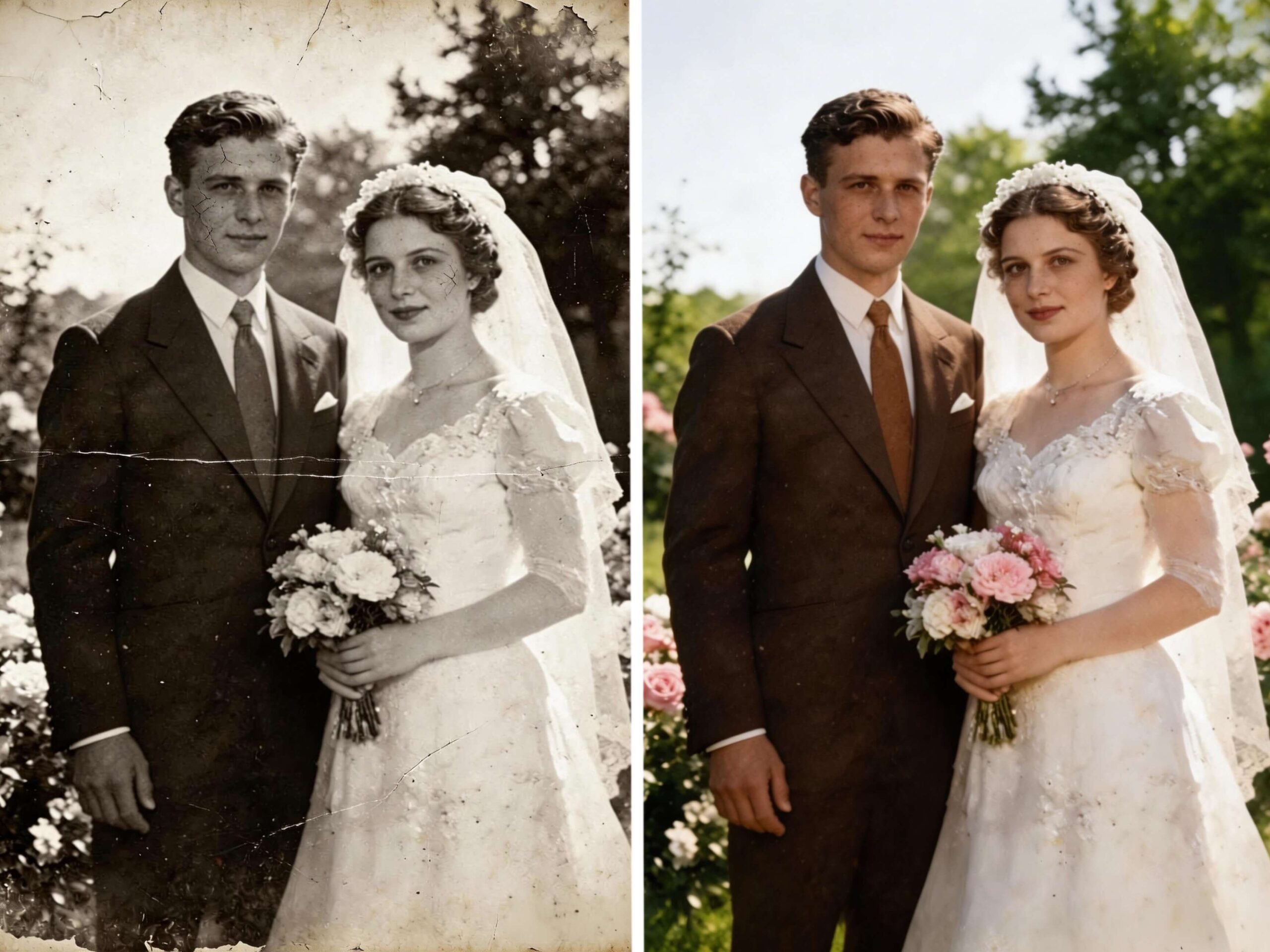
Don’t let your memories fade away. Use AI photo restoration to restore faded, blurry, or damaged pictures online. See your Read more

Is it time to cancel your Claude subscription? After 72 hours of testing, here is why Google’s Gemini 3 Pro Read more