Saving a Snapchat video is easy. Getting that video ready for use somewhere else can be a little more complicated. A username, logo, or other visual element can become distracting when you want to reuse your own footage for Instagram Reels, TikTok, YouTube Shorts, or another project. If the original file is no longer available, a Snapchat Watermark Remover can help clean up the existing video without forcing you to recreate it from scratch.
This is especially useful for creators who regularly repurpose short-form content. Instead of cropping away part of the frame or covering the watermark with another sticker, an AI-powered removal tool can analyze the surrounding frames and reconstruct the area underneath the unwanted element. The result depends on the footage, but for many simple and moderately complex scenes, this can be much cleaner than applying a blur or oversized overlay.
Why Remove a Snapchat Watermark in the First Place?
Not every Snapchat video needs to be cleaned up.
If you’re sharing a Snap directly on Snapchat, the platform’s branding may not matter at all. The situation changes when you’re preparing the same footage for another purpose.
For example, imagine you recorded a product demonstration through Snapchat and saved the finished video. Later, you want to use the same footage in a TikTok campaign. The video itself is perfectly usable, but the Snapchat branding makes it look like the clip was simply downloaded and reposted.
Or perhaps you’re putting together a portfolio of your own social content. A clean version of the footage can make the presentation feel more consistent.
There is also another important point: Snapchat itself provides ways to save Snaps to Memories or your Camera Roll, so the best option is always to keep the original file whenever possible. Snapchat’s support documentation explains that users can configure where Snaps are saved, including Memories and Camera Roll.
A watermark remover is most useful when you already have the video but no longer have a clean original copy.
Before Using a Watermark Remover, Check for the Original
This is one step worth doing before opening any editing tool.
If the video is your own, check your Camera Roll, Memories, cloud backup, or previous exports first. Snapchat supports saving Snaps to Memories and/or Camera Roll, and users can also export Memories through their account.
Why does this matter?
Because editing should ideally be done from the highest-quality source available. If you have the original video without the unwanted element, there is little reason to process a compressed copy. But if the original is gone, an AI removal workflow becomes much more useful.
What Makes Snapchat Watermarks Difficult to Remove?
A watermark isn’t always sitting on a simple, empty background.
It may overlap with:
- A person’s face
- Hair or clothing
- A moving background
- Product details
- Text or graphics
- A busy street scene
- Changing lighting
This is where simple editing tricks start to show their limitations.
Cropping
Cropping is the easiest option, but it also removes part of the original composition.
If the watermark is close to the edge, this may work. But with vertical video, even a small crop can make the framing noticeably tighter.
Blurring
Blurring hides the watermark rather than actually removing it.
The problem is that a blurred patch can sometimes be more noticeable than the original mark, especially when the rest of the video is sharp.
Covering It With Text or a Sticker
This can work for casual social media content, but it adds another visual element to the video. If you’re trying to create a clean, professional-looking clip, placing another graphic over the watermark isn’t always the best solution.
AI Removal
AI-powered removal takes a different approach. Instead of simply hiding the unwanted element, it attempts to reconstruct the area using surrounding visual information.
That makes it particularly interesting for footage where cropping or blurring would noticeably affect the final result.
How AI Watermark Removal Works on Video
The basic idea is easier to understand than the technology behind it. Imagine a small logo sitting in the corner of a video. The AI analyzes the area around it and uses information from nearby pixels and surrounding frames to estimate what should appear underneath.
For a static background, this can be relatively straightforward. For moving footage, the system has to account for changes from frame to frame. A person may walk past the area. The camera may move. The lighting may change.
This is why video watermark removal is more demanding than editing a single image.
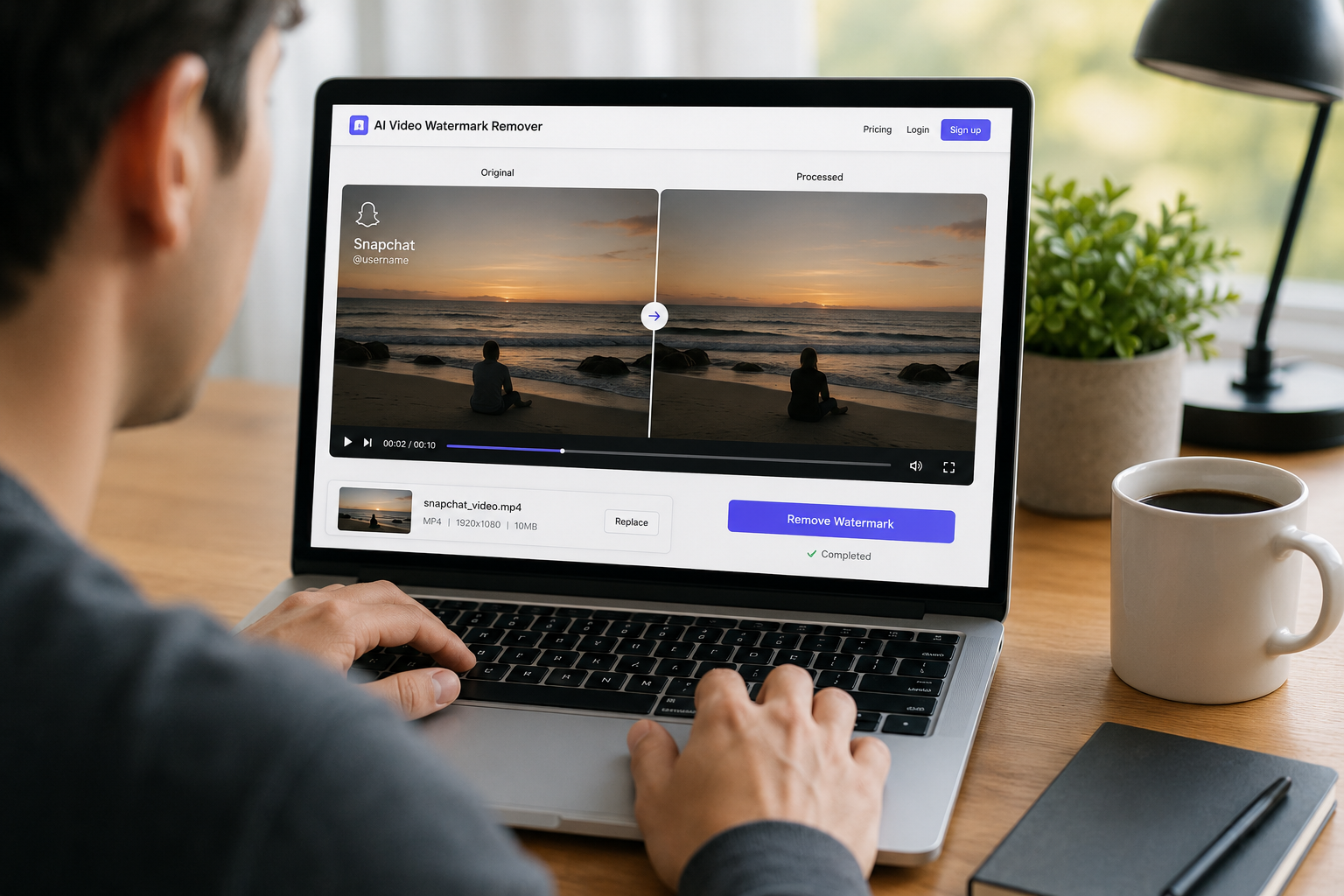
AIAI.com’s video watermark remover is designed to automatically detect watermarks, logos, text, and timestamps, while also allowing users to review or manually select the area they want to remove. It supports common formats including MP4, MOV, M4V, MKV, and WEBM.
The platform also uses AI-based background reconstruction rather than simply blurring the unwanted area.
Recommend video:
A Simple Workflow for Removing a Snapchat Watermark
You don’t need a complicated editing workflow for a typical short clip.
Step 1: Choose the Original Video
Start with the highest-quality version you have.
If the video was saved from Snapchat, check whether the original version is still available in Memories or your Camera Roll before processing anything.
Step 2: Upload the Video
Upload the video to the AI watermark removal tool.
AIAI.com’s video tool supports several common formats, including MP4, MOV, M4V, MKV, and WEBM, with uploads of up to 10 files at once and a maximum file size of 500MB per file.
Step 3: Let AI Detect the Watermark
The system can automatically identify common unwanted elements such as watermarks, logos, text, and timestamps. You can review the detected area and select the region that needs to be removed.
Step 4: Check the Preview
Don’t immediately download and publish the result. Watch the area where the watermark used to be, particularly when the subject or camera moves.
This is the quickest way to spot problems such as:
- Strange textures
- Flickering
- Blurred edges
- Distorted objects
- Background inconsistencies
Step 5: Export the Clean Version
If the result looks natural, download the processed video and continue with your normal editing workflow. You can then crop it for another platform, add captions, adjust the color, or combine it with other footage.
Three Situations Where a Snapchat Watermark Remover Makes Sense
1. Reusing Your Own Snapchat Content on TikTok
Suppose you posted a short fashion video on Snapchat several months ago. You want to reuse the footage for TikTok, but you only have the saved version with the Snapchat branding.
The footage itself still looks good. Instead of filming the same content again, you can clean up the existing clip and then make any additional edits required for TikTok.
This is particularly useful for creators who produce similar short-form content across several platforms.
2. Preparing Old Content for a New Campaign
Brands often have large libraries of social media footage.
A campaign may end, but some of its videos remain useful months later. If the footage contains outdated visual branding, removing that element can make it easier to reuse the content in a new campaign.
For example, a beauty brand could have an old product demonstration that still shows the product clearly. The team could clean up the existing video, update the captions, and use the footage as part of a new social campaign. The important thing is that the underlying footage remains valuable.
3. Building a Clean Content Portfolio
Creators, photographers, and social media managers sometimes need to present their previous work in a portfolio.
A collection of videos with different platform logos can look inconsistent.
If the videos are your own work or you have permission to edit them, cleaning up unnecessary platform branding can create a more consistent presentation without changing the original content.
When AI Removal Works Best—and When It May Struggle
AI watermark removal is useful, but it isn’t magic.
The surrounding background has a major impact on the result.
Usually easier
- Plain walls
- Sky
- Simple backgrounds
- Static surfaces
- Areas with repetitive textures
More challenging
- Faces
- Hands
- Hair
- Detailed product labels
- Fast-moving subjects
- Highly textured backgrounds
- Watermarks covering important objects
For example, removing a small logo from a plain wall is very different from removing one that sits directly across a person’s face while the camera is moving.
That’s why a quick preview is important. A good workflow isn’t simply upload → download. It’s upload → process → inspect → decide.
AI Removal vs. Traditional Editing: Which Should You Use?
There isn’t one answer for every video.
| Method | Best For | Main Advantage | Main Limitation |
|---|---|---|---|
| Original file | Your own content | Best possible quality | May no longer be available |
| Cropping | Edge watermark | Extremely simple | Changes framing |
| Blurring | Casual content | Quick to apply | Leaves a visible patch |
| Covering | Social posts | Easy and flexible | Adds another visual element |
| AI removal | Existing footage | Reconstructs the affected area | Results depend on background complexity |
For a quick personal video, cropping may be enough.
For a professional campaign, however, putting a large sticker over the corner of the frame may not look ideal. That’s where AI-assisted removal becomes more attractive.
A Few Quality Tips Before You Process Your Video
A little preparation can make the final result easier to evaluate.
- Use the highest-quality source available. Avoid repeatedly compressed versions of the same video.
- Keep the original file. Always save a copy before processing so you can compare the two versions.
- Don’t remove more than necessary. If only one small area needs to be cleaned, there is no reason to modify the rest of the footage.
- Watch the entire clip afterward. A watermark may look fine in the opening seconds but reveal artifacts later when the background changes.
- Pay attention to movement. Fast camera movement and moving subjects are usually more demanding than static scenes.
One Important Note About Snapchat’s AI Content Labels
There is another type of visual mark worth distinguishing from ordinary platform branding.
Snapchat says that some of its generative AI features may add a Snap Ghost with sparkles watermark when an AI-generated image is exported or saved to the Camera Roll. Snapchat explains that this is intended to provide transparency that the image was created with generative AI.
So before removing any mark, make sure you understand what it represents.
A platform logo, an editing artifact, a creator’s branding, and an AI disclosure label are not necessarily the same thing.
If you’re preparing content for publication, you should also follow the relevant platform’s disclosure and content rules.
Use Watermark Removal for Content You Have the Right to Edit
This is worth emphasizing because watermark removal can be used in very different situations.
Removing an unwanted watermark from your own video is different from removing another creator’s copyright information and reposting their work.
A safer rule is simple:
If you didn’t create the content and don’t have permission to modify it, don’t assume that removing the watermark gives you the right to use it.
For your own Snapchat videos, archived marketing content, or footage you have permission to edit, watermark removal can simply be another post-production step.
Final Thoughts
A Snapchat video doesn’t necessarily become unusable just because the clean original file is missing.
If the footage is yours and still has value, an AI-powered Snapchat Watermark Remover can provide a practical alternative to cropping, blurring, or recreating the entire video. The biggest advantage isn’t really the act of making a watermark disappear. It’s the ability to reuse content you already created.
That can mean turning an old Snapchat clip into a TikTok, refreshing an archived marketing video, or preparing a cleaner portfolio without starting the production process all over again.
For straightforward footage, the process can be as simple as uploading the video, letting AI detect the unwanted element, checking the result, and downloading the cleaned version. AIAI.com’s video watermark removal workflow is built around this process and supports common video formats as well as automatic watermark detection.
Just remember that the quality of the original footage and the complexity of the background still matter. AI can make the process much faster, but taking a moment to review the final video is what turns a quick edit into a usable one.
If you are frantically searching for a reliable Meta Video Watermark Remover, you are not alone. Let's be honest: the watermark Read more
Learn how to cleanly remove the Google Veo watermark without blurring or cropping. Use AI watermark remover to erase logos Read more

If you are desperately searching for a reliable Gemini Watermark Remover, I know exactly how you feel. Generating the perfect concept Read more

Need to clean up your Veo clips? I found the only watermark remover that handles complex motion and rain physics. Read more